Chapter 4 Configuration Guide
4.1WEB login
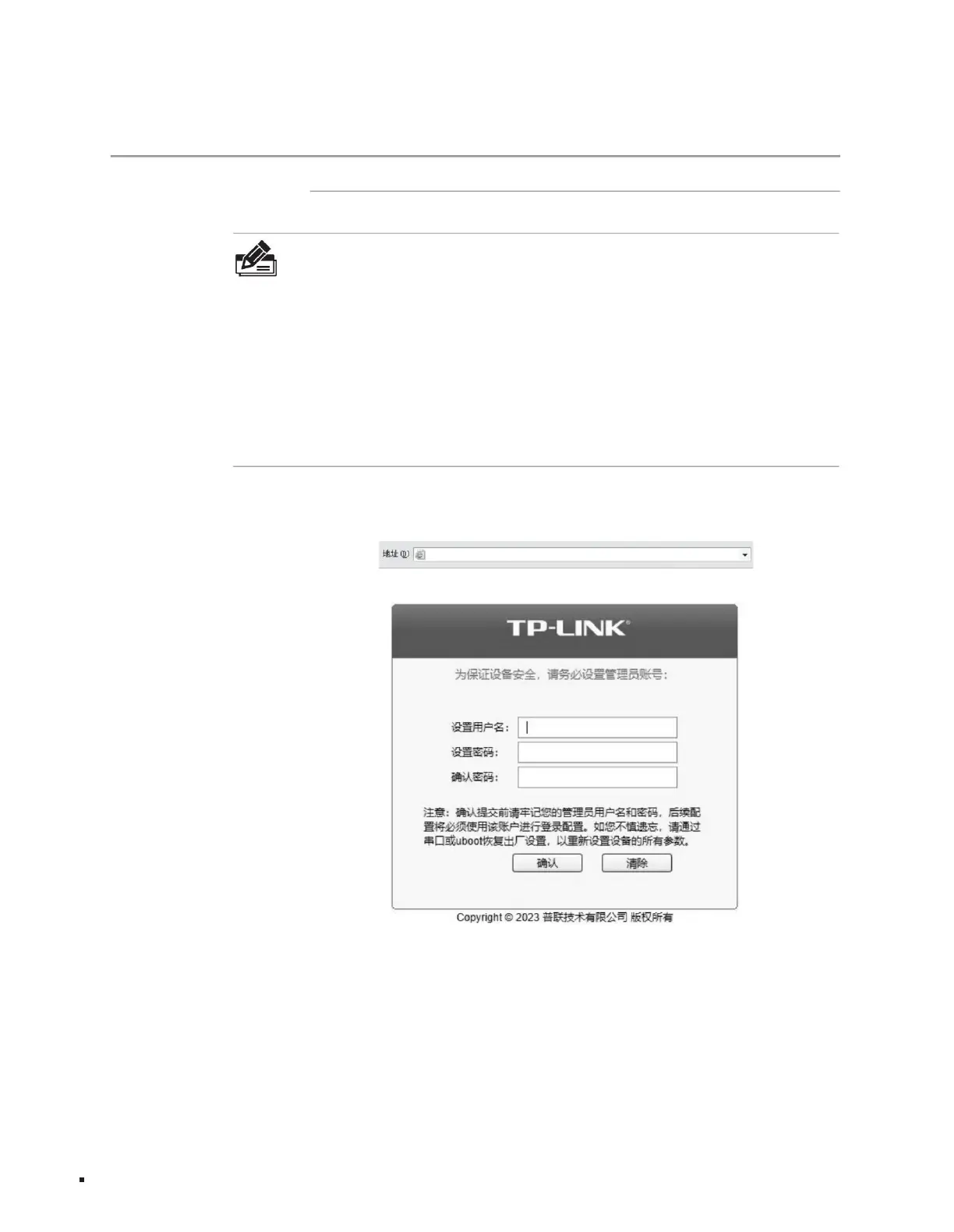
3. Set the user name and password, click <Confirm> to log in to the switch WEB management interface;
2. Open the browser, enter http://10.18.18.251 in the address bar, and press the Enter key;
4. Log in to the home page of the switch management interface, as shown in Figure 4-2. Click the company's trademark in the upper left corner to easily access
the homepage of the company's official website; click the main menu bar on the left side of the homepage to configure the corresponding functions.
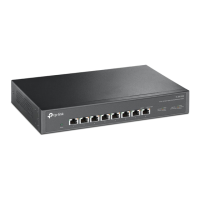
1. Taking TL-ST5008 as an example, an ordinary PC uses a network cable to correctly connect any RJ45 service port of the switch;
http://10.18.18.251
Note: ÿIn
order to log in to the management interface of the switch, please set the IP address of the computer and the IP address of the switch to be on the same network.
Layer 3 managed switch installation manual
Figure 4-1 User login
part.
ÿ The default IP of the TL-ST5016F business port is 192.168.0.1. When the computer is connected to the switch business port, the computer IP address needs
to be set to: 192.168.0.x ("x" is any value between 2-25 4, and cannot be 251) , the subnet mask is set to 255.255.255.0.
15
ÿ TL-ST5012F/TL-ST5016F provides a Management port, default IP address: 10.20.30.40. When the computer is connected to the switch management port, the
computer IP address needs to be set to: 10.20.30.x ("x" is any value between 2-254, cannot be 40), and the subnet mask is set to 255.255.255.0.
ÿ The fixed IP of the service port of TL-ST5008/TL-ST5012/TL-ST5012F is 10.18.18.251. When the computer is connected to the switch service port, the
computer IP address needs to be set to: 10.18.18.x ("x" is between 2-250 any value), the subnet mask is set to 255.255.255.0.
Configuration Guide
Machine Translated by Google



 To Next Page