© Copyright 2012 TRENDnet. All Rights Reserved.
26
TRENDnet User’s Guide
TEW-715APO
Bridge Mode
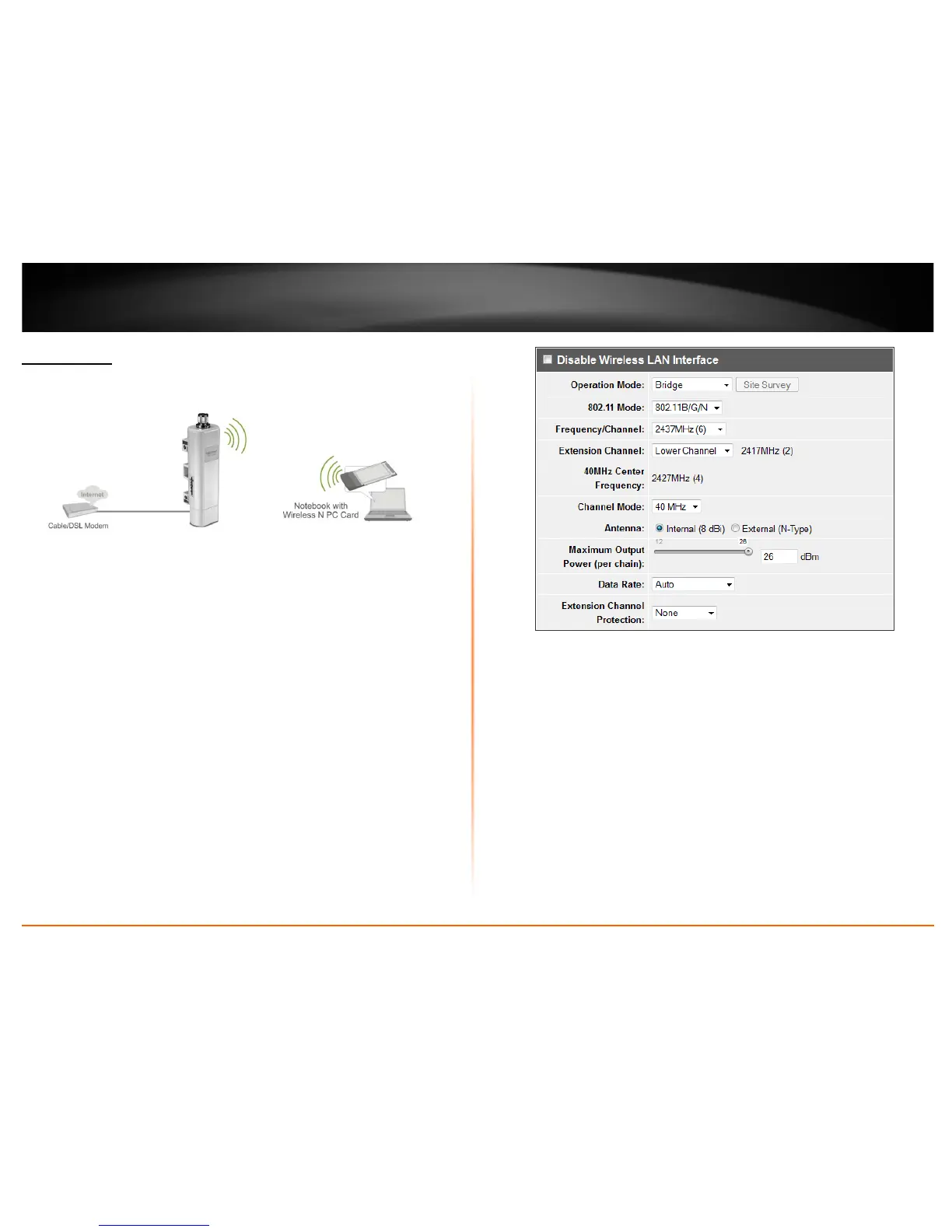
Wireless > Basic
When Bridge is selected a wireless network is created with your device (similar to a
wireless router). Device Ethernet port serves as a WAN (Wide Area Network) or Internet
port. This section outlines available management options under the Basic Settings of the
Wireless button when the Operation Mode is set to Bridge and will assist in setting up
the access point. Click Apply to save any changes.
• Disable Wireless LAN Interface:
o Check/Off: turns off wireless networking on your router.
o Unchecked/On: turns on the wireless networking on your router (by default
it is enabled).
Note: It is recommended to leave the wireless setting to On unless you do not plan
on connecting any wireless computers or devices to your network.
• Operation Mode: Select the mode you want the access point to operate in.
o AP: refer to pagexxxx for additional information.
o Wireless Client: refer to page xxx for additional information
o Bridge: refer to page xxx for additional information
o AP Repeater: refer to page xxx for additional information to operate the
device as an access point.
• 802.11 Mode: If all of the wireless devices you want to connect with this Access
Point can connect in the same transmission mode, you can improve performance
slightly by choosing the appropriate mode. If you have some devices that use a
different transmission mode, choose the appropriate mode.
o 802.11b/g mixed mode (2.4GHz) - This wireless mode works in the 2.4GHz
frequency range and will allow both wireless b and wireless g client to




 To Next Page