© Copyright 2012 TRENDnet. All Rights Reserved.
41
TRENDnet User’s Guide
TEW-715APO
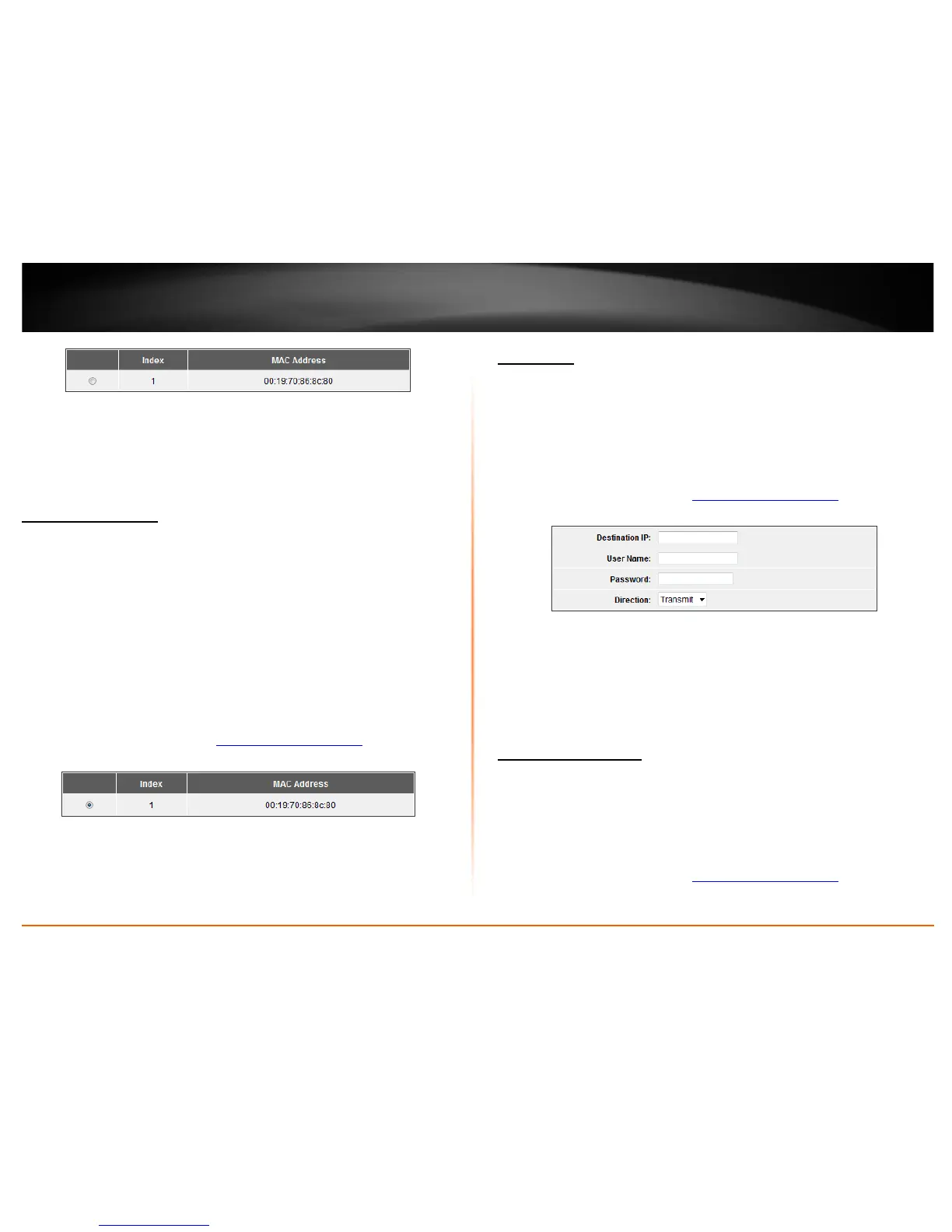
3. Select the WDS Node you would like to test.
4. Click Start to begin test and Stop to end test. If you cannot find your remote device
click Refresh.
Antenna Alignment
Tool > Antenna Alignment
Under Bridge mode, when the bridges are not easily visible from the location where the
dish will be installed, the antenna alignment tool can help you evaluate the position of
the unit and adjust the angle of the antenna more precisely. Keep it in mind that
additional factors should be taken into account when your unit is installed. These factors
include various obstacles (buildings, trees), the landscape, the altitude, transponder
orientation, polarization, etc. To use the tool, select the desired remote access point
and click “Start”, the web page will display the measured signal strength, RSSI and
transmit/receive packets. If the signal quality is not quite good, try to adjust the
antenna and see if the quality improves or not. Please note that this option is only
available when Bridge mode is enabled.
1. Log into the management page (see “
Access the management page” on page 9).
2. Click on Tools, and click on Antenna Alignment.
3. Select the remote access point you are configuring.
4. Click Start to begin test. If you cannot find your remote device click Refresh.
Speed Test
Tool > Speed Test
The speed test is to monitor the current data transmission (TX) and data reception (RX)
rate with the remote access point. Enter the IP address of the remote access point, type
in the user name/password and click “Test”. The result will display in the bottom
STATUS. You may test single TX/RX or bi-direction.
1. Log into the management page (see “
Access the management page” on page 9).
2. Click on Tools, and click on Speed Test.
• Destination IP: Enter the IP address of the remote access point
• Username: Enter the username of the remote access point
• Password: Enter the password information for the remote access point
• Direction: Select the direction you would like to test with the remote access
point.
Remote Mangement
Management > Remote Management
The access point provides a variety of remotes managements tools including Telnet,
SNMP, FTP, SSH, HTTPS and exclusive WISE tool, making configuration more convenient
and secure.
1. Log into the management page (see “
Access the management page” on page 9).
2. Click on Management, and click on Remote Management.




 To Next Page