© Copyright 2012 TRENDnet. All Rights Reserved.
34
TRENDnet User’s Guide
TEW-715APO
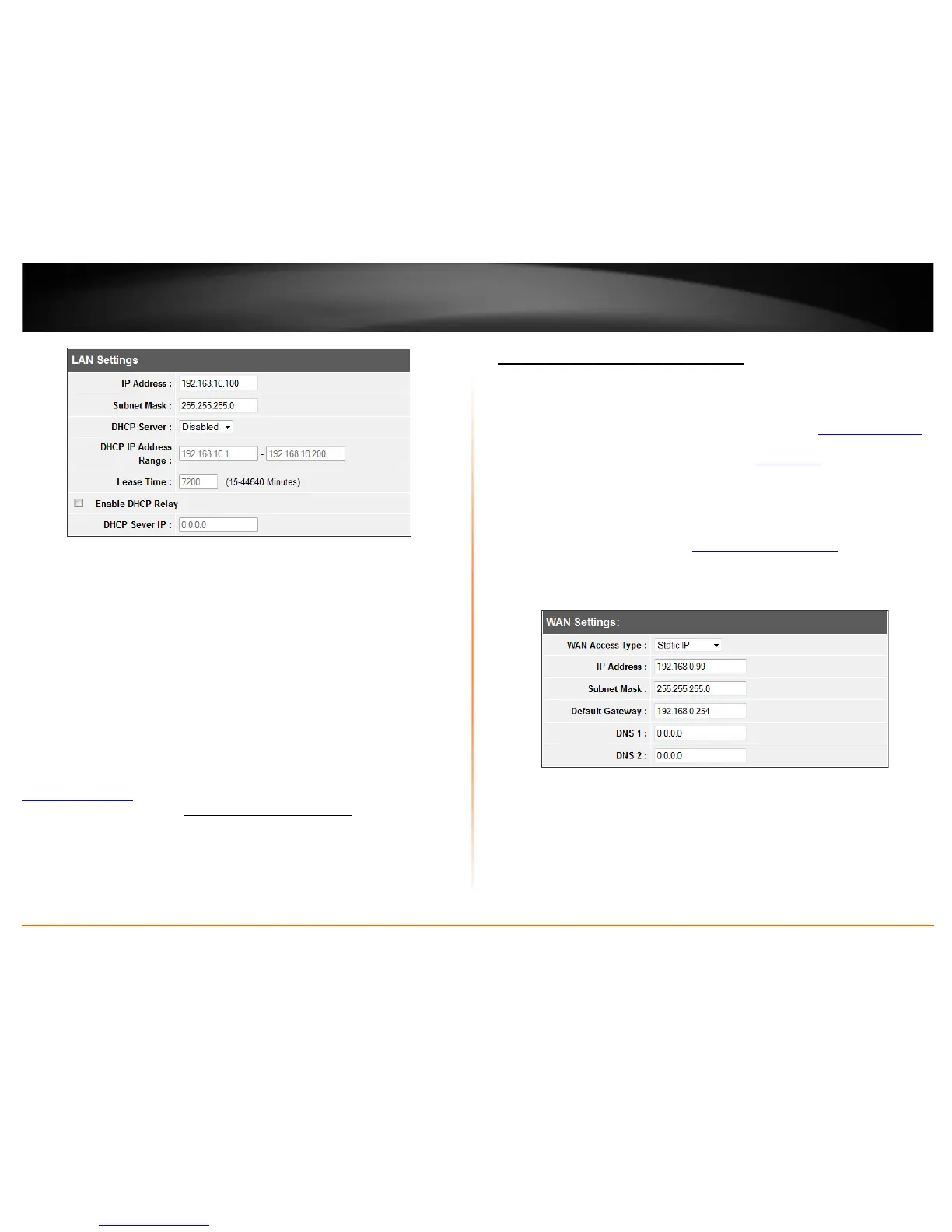
• IP Address: Enter the new access point IP address. (e.g. 192.168.100.1)
• Subnet Mask: Enter the new access point subnet mask.(e.g. 255.255.255.0)
• DHCP Server: Enable or Disable the DHCP server on the access point.
• DHCP IP Address Range: Enter the IP address of the DHCP server to assign.
• Lease Time: Enter the lease time in seconds that DHCP client will hold their
automatically assigned IP address before requesting a new IP address
• Enable DHCP Relay: Enable to forward DHCP requests and replies between
clients and servers when they are not on the same physical subnet
• DHCP Server IP: Enter the DHCP IP address of the DHCP Relay
Note: The DHCP address range will change automatically to your new access point’s
IP address settings so you do not have to change the DHCP address range manually
to match your new router IP address settings.
3. To save changes, click Apply at the bottom of the page.
Note: If you changed the IP address of the access point you will need to access the
management page using the new IP address (e.g Instead of using the default
http://192.168.10.1
00 using your new router IP address will use the following format
using your new router IP address http://(new.router.ipaddress.here)
to access the
management page.
Configure your Internet connection
System > Network Settings
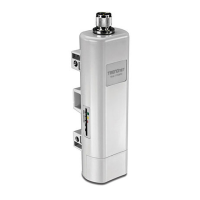
This section describes the features when setting the access points WAN settings. The
access point supports DHCP, Static or PPPoE WAN types. Refer to
Internet Service Type
section in the Appendix for additional information on connection types. Before
configuring this section, complete the settings in the
Router Mode section to determine
the type of networking you will be setting.
Note: This feature is only available when Router mode is applied in System Settings.
1. Log into the management page (see “
Access the management page” on page 9).
2. Click on System, and click on Network Settings.
3. In the WAN Access Type drop-down list, select the type of Internet connection
provided by your ISP (Internet Service Provider).
4. Complete the fields required by your ISP.
5. Complete the optional settings only if required by your ISP.
6. To save changes, click Save.
Note: If you are unsure which Internet connection type you are using, please contact
your ISP (Internet Service Provider).




 To Next Page