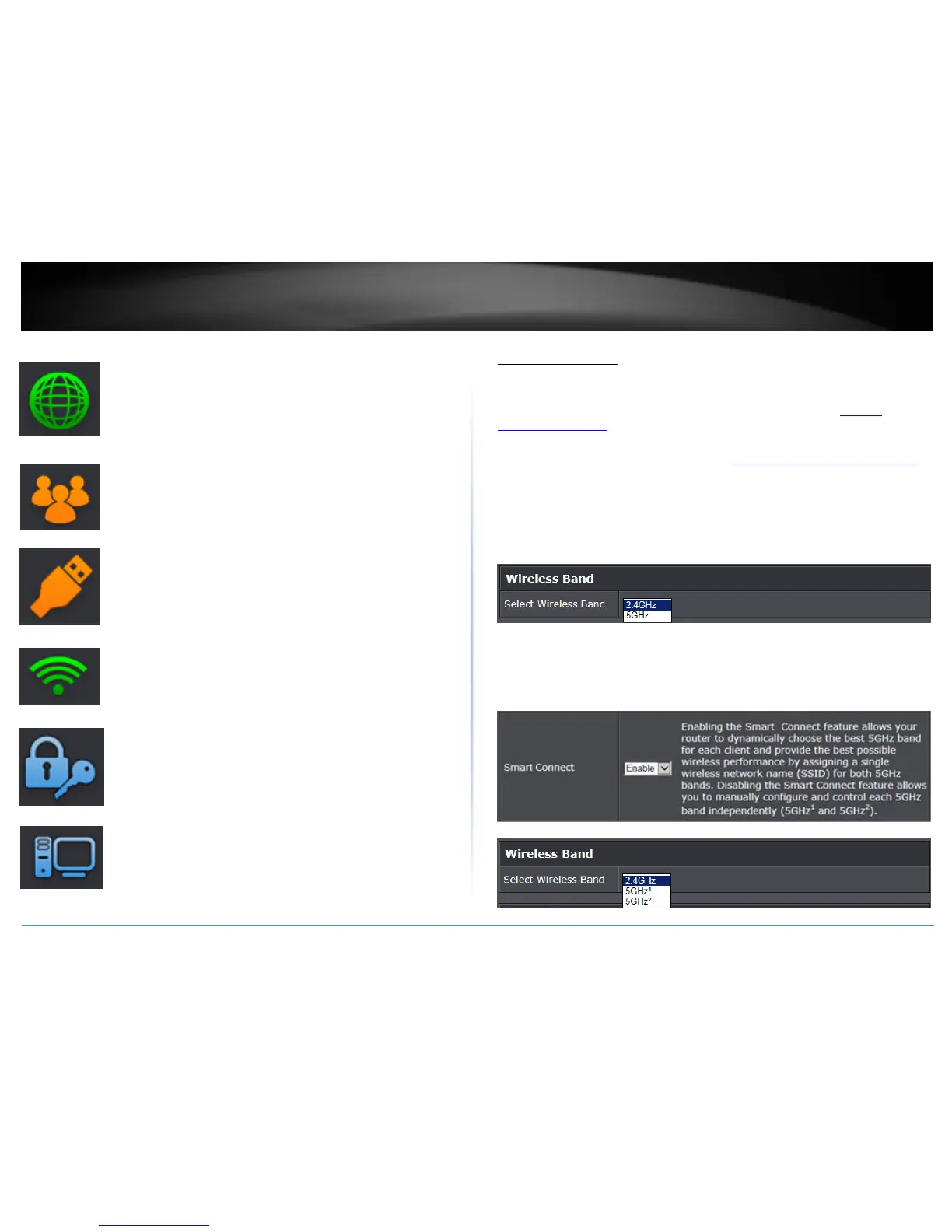
Internet: The Internet icon displays green to indicate that your router
has successfully established an Internet connection. The Internet icon
displays orange to indicate that a physical connection has been
established on the Internet port of the router but with no successful
Internet connection has been established. The Internet icon displays
red to indicate that the Internet is physically disconnected.
Guest Network: The Guest Network icon displays orange to indicate
that there are no wireless guest networks currently enabled. The
Guest Network icon will display green to indicate that you have at
least one wireless guest network currently enabled.
USB: The USB icon displays orange to indicate that there are no USB
devices connect to the USB port(s). The USB icon displays green to
indicate that are USB devices connected to the USB port(s).
Wireless: The wireless icon displays green to indicate that wireless is
enabled on both 2.4GHz and 5GHz bands. The wireless icon displays
orange to indicate that only wireless band is enabled (2.4GHz or
5GHz). The wireless icon will display red to indicate that wireless is
disabled on both 2.4GHz and 5GHz bands.
Wireless Security: The wireless security section will display the
current security settings configured for your wireless networks. It is
strongly recommended to enable security on your wireless networks.
Connected Devices: The connected devices section displays the list of
network devices currently connected to your router.
Wireless Settings
Basic > Wireless (2.4GHz or 5GHz (5GHz
1
and 5GHz
2
))
This section outlines available management options under basic wireless sub tab for
both 2.4GHz and 5GHz wireless sections. You can refer to the page 15 Wireless
Networking & Security to configure your wireless security settings.
1. Log into your router management page (see “Access your router management page”
on page 9).
2. Click on Basic and click on Wireless (2.4GHz or 5GHz (or 5GHz
1
and 5GHz
2
).
3. Click the Select Wireless Band drop-down list to select the wireless band you would
like to configure. 2.4GHz, 5GHz (5GHz
1
or 5GHz
2
)
The Select Wireless Band drop-down list will allow you to select which band to
configure.
By default, the Smart Connect feature is enabled which will display only one 5GHz band
to configure since both 5GHz
1
and 5GHz
2
will operate together to automatically assign
high speed and legacy clients in order to optimize bandwidth and speed. Disabling the
Smart Connect feature under the 5GHz wireless settings will allow each 5GHz band to be
configured individually and operate independently of one another in the router
management interface and will be displayed in the drop-down list as 5GHz
1
and 5GHz
2
.



 To Next Page