Gaming
Advanced > Firewall > Gaming
Gaming allows you to define multiple ports (used or required by a specific application or
game) and forward them to a single IP address (a computer or device) on your network.
Using this feature is more secure compared to using DMZ (see “DMZ” on page 39) in
which DMZ forwards all ports instead of only specific ports used by an application. Since
most ISPs constantly change your home IP address, to be able to access the Virtual
Server port(s) from the Internet it is recommended to setup Dynamic DNS service (see
“Identify your network over the Internet” section on page 34).
1. Log into your router management page (see “Access your router management page”
on page 9).
2. Click on Advanced and click on Security, then click on Gaming.
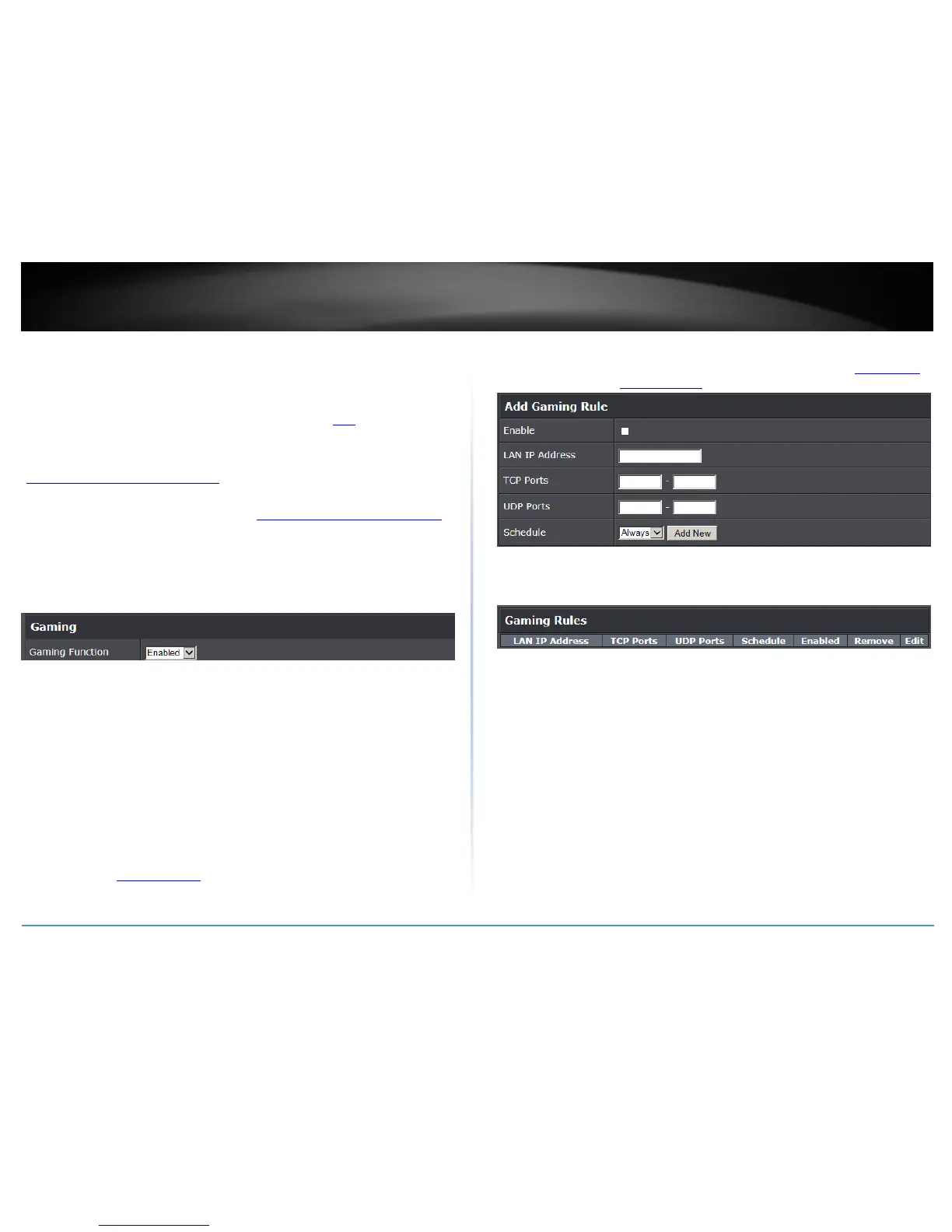
3. Click the Gaming Function drop-down list, and select Enabled.
3. Review the virtual server settings.
Enable – Check the option to enable the gaming rule.
IP Address: Enter the IP address of the device to forward the ports (e.g.
192.168.10.101).
TCP Ports: Enter the TCP port you would like to set.
UDP Ports: Enter the UDP port you would like to set.
Note: Please refer to the device documentation to determine which ports and
protocols are required. You should assign a static IP address to the device or
use DHCP reservation to ensure the IP address of the device does not change.
Schedule: The schedule function allows you to define a schedule when the
wireless should be turned on. To define a new schedule, click Add New and refer
to page 36 “ Create Schedules”. After you have created a new schedule, you will
be returned to the page to apply the new schedule. If you encounter issues, click
the drop-down list and the new schedule will be available for selection. Note:
Before applying scheduling, please ensure your Time settings are configured
correct and you have defined a schedule. See page 35 to configure Time Settings
and see page 36 “ Create Schedules” to create a schedule.
Click Add to add the access rule to the Gaming Rules List.
Note: Clicking Cancel will discard your settings and clear all fields.
Note: In the Gaming Rules List, you can edit a rule by clicking Edit in the Edit column
next to the rule you would like to edit. You can also delete a rule by clicking Remove
under the Remove column next to the rule you would like to delete.
When finished, click Apply at the bottom of the page to save your settings.





 To Next Page