Open a device on your network to the Internet
This router can provide access to devices on your local area network to the Internet
using the Virtual Server, Special Application, method (DMZ NOT recommended).
DMZ
Advanced > Firewall > DMZ
You may want to expose a specific computer or device on your network to the Internet
to allow anyone to access it. Your router includes the DMZ (Demilitarized Zone) feature
that makes all the ports and services available on the WAN/Internet side of the router
and forwards them to a single IP address (computer or network device) on your
network. The DMZ feature is an easy way of allowing access from the Internet however,
it is a very insecure technology and will open local area network to greater threats from
Internet attacks.
It is strongly recommended to use Virtual Server (also called port forwarding, see
“Virtual Server” on page 39) to allow access to your computers or network devices from
the Internet.
1. Make the computer or network device (for which you are establishing a DMZ link) has
a static IP address. Signing up for a Dynamic DNS service (outlined in Identify Your
Network section page 34) will provide identification of the router’s network from the
Internet.
2. Log into your router management page (see “Access your router management page”
on page 9).
3. Click on Advanced and click Firewall, then click on DMZ.
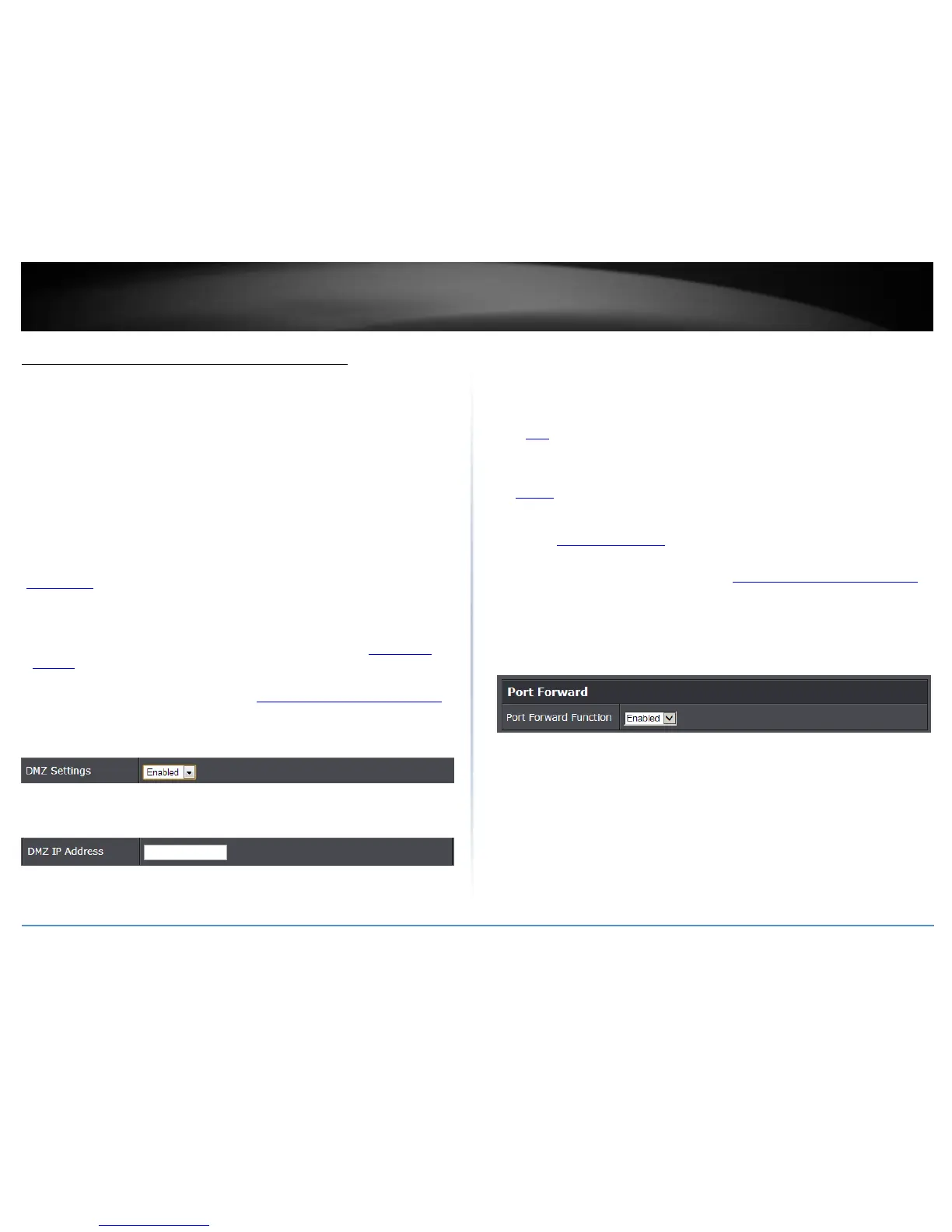
4. Select Enable in the DMZ Settings section.
5. Enter the IP address you assigned to the computer or network device to expose to the
Internet.
6. To save changes, click Apply.
Virtual Server
Advanced > Firewall > Virtual Server
Virtual Server (also called port forwarding) allows you to define specific ports (used or
required by a specific application) and forward them to a single IP address (a computer
or device) on your network. Using this feature is more secure compared to using DMZ
(see “DMZ” on page 39) in which DMZ forwards all ports instead of only specific ports
used by an application. An example would be forwarding a port to an IP camera
(TRENDnet IP cameras default to HTTP TCP port 80 for remote access web requests) on
your network to be able to view it over the Internet. To open several ports please refer
to “Gaming” section on page 42.
Since most ISPs constantly change your home IP address, to be able to access the Virtual
Server port(s) from the Internet it is recommended to setup Dynamic DNS service
(outlined in Identify Your Network section page 34).
1. Log into your router management page (see “Access your router management page”
on page 9).
2. Click on Advanced and click on Firewall, then click on Virtual Server.
3. Select Enabled in the Port Forward Function drop-down list.
4. Review the virtual server settings.
Check the option to the left most of the entry to enable and uncheck to disable.
Enable – Check the option to enable the virtual server.
Protocol: Select the protocol required for your device. TCP or UDP.
Public Port – Enter the port number used to access the device from the Internet.
LAN IP Address: Enter the IP address of the device to forward the port (e.g.
192.168.10.101).


 To Next Page