Allow remote access to your router management page
Advanced > Administrator > Management
You may want to make changes to your router from a remote location such at your
office or another location while away from your home.
1. Log into your router management page (see “Access your router management page”
on page 9).
2. Click on Advanced and click Administrator, then click on Management.
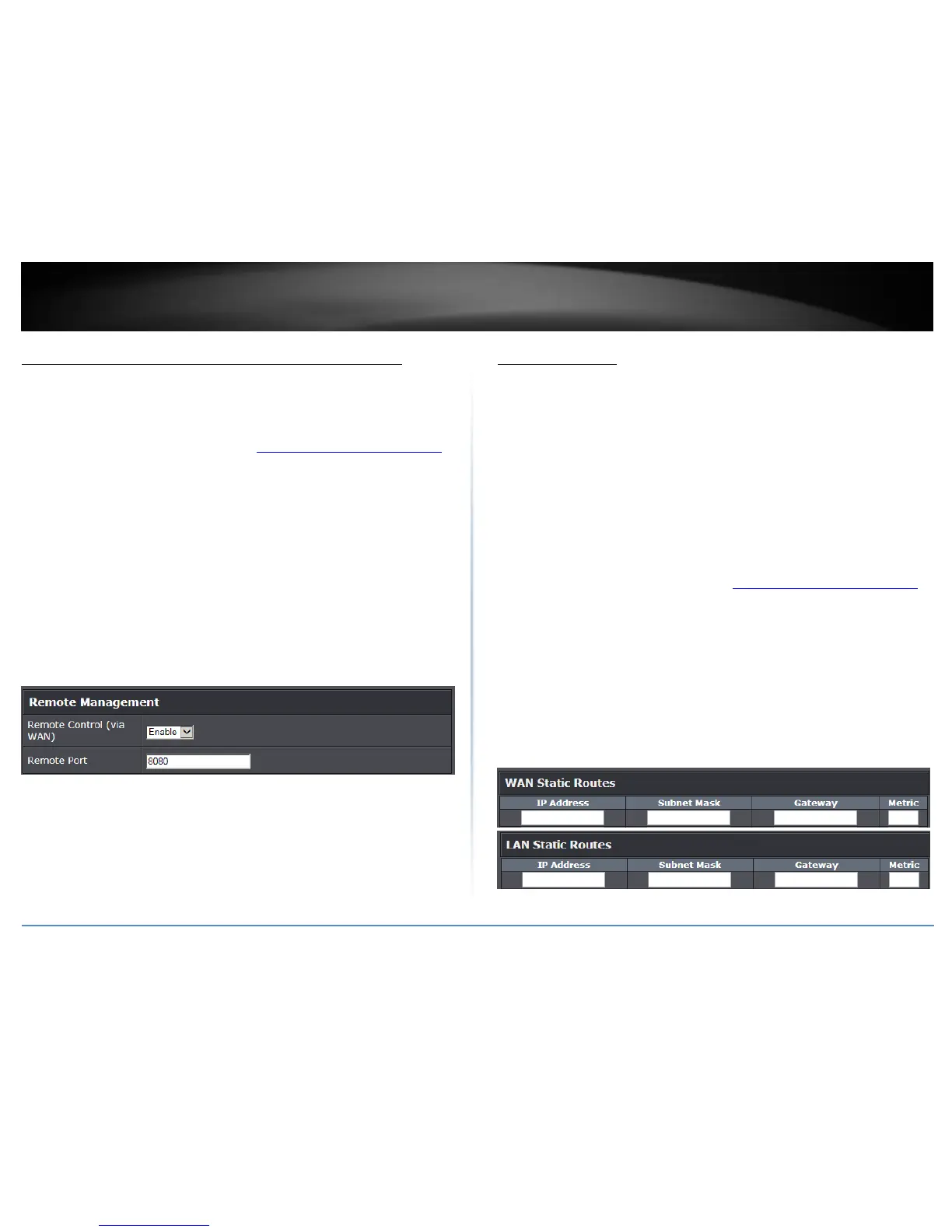
3. Review the setting on the Remote Management section. Click Apply to save settings
Remote Control (via WAN): Click the drop-down list and select Enable to enable
remote management or Disable to disable remote management.
Remote Port: Enter the port to assign remote access to the router. It is
recommended to leave this setting as 8080.
Note: If you have configured port 8080 for another configuration section such as
virtual server or special application, please change the port to use.
(Recommended port range 1024-65534)
Add static routes
Advanced > Setup > Routing
You may want set up your router to route computers or devices on your network to
other local networks through other routers. Generally, different networks can be
determined by the IP addressing assigned to those networks. Generally speaking and for
the case of an example, your network may have 192.168.10.x IP addressing and another
network may have 192.168.20.x IP addressing and because the IP addressing of these
two networks are different, they are separate networks. In order to communicate
between the two separate networks, static routing needs to be configured. Below is an
example diagram where routing is needed for devices and computers on your network
to access the other network.
Note: Configuring this feature assumes that you have some general networking
knowledge.
1. Log into your router management page (see “Access your router management page”
on page 9).
2. Click on Advanced and click on Setup, then click on Routing.
3. Review the LAN/WAN Static Routes section. Click Apply to save settings.
IP Address: Enter the IP network address of the destination network for the
route. (e.g. 192.168.20.0)
Subnet Mask: Enter the subnet mask of the destination network for the
route.(e.g. 255.255.255.0)
Gateway: Enter the gateway to the destination network for the route.
(e.g. 192.168.10.2)
Metric: Enter the metric or priority of the route. The metric range is 1-15, the
lowest number 1 being the highest priority. (e.g. 1 )



 To Next Page