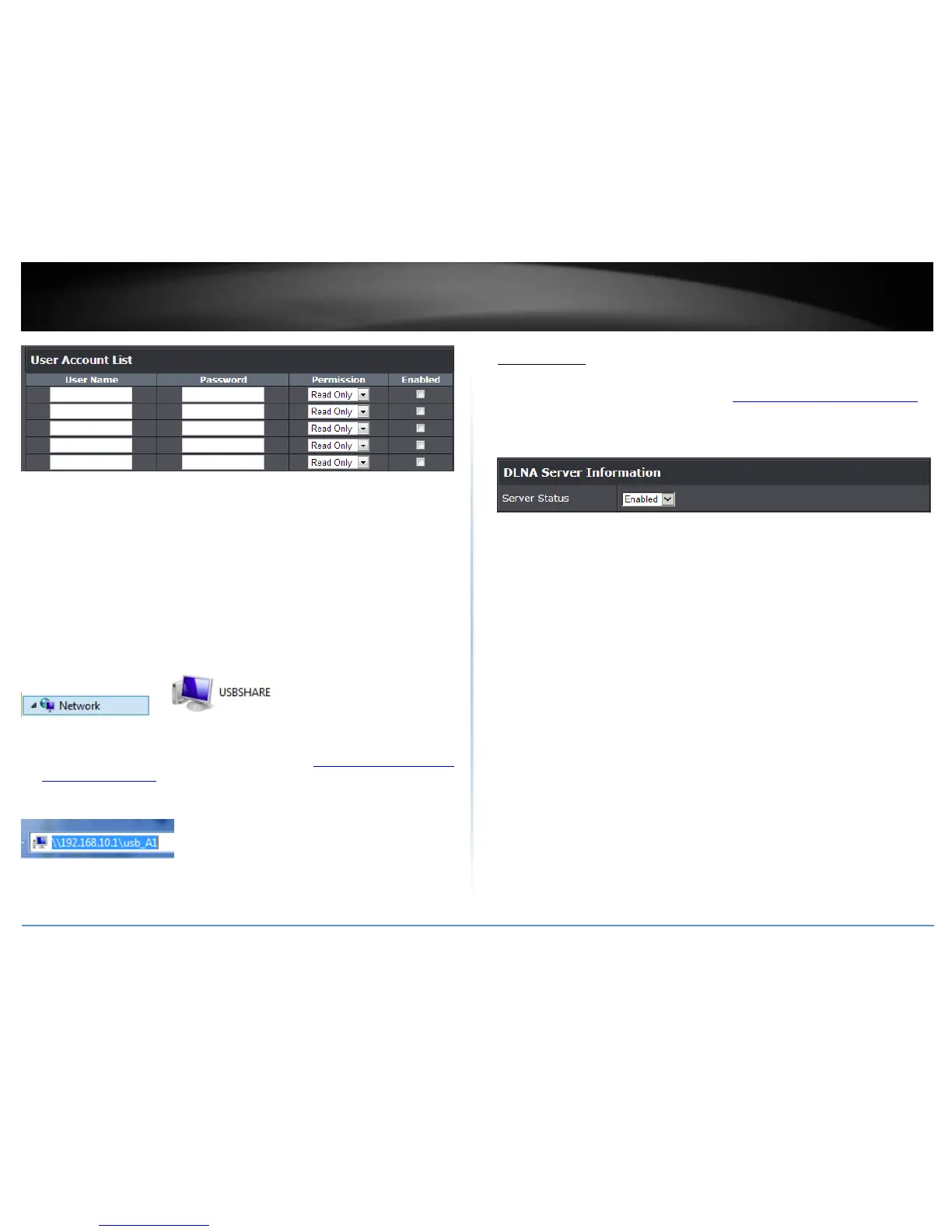
User Name: Enter the user name to be used to access your files.
Password: Enter the password for the user name.
Permission: Select the permission you will grant to the user
Enabled: Click to activate user account.
Under Windows®, you can access the USB storage device on your computer under
Computer > Network > USBSHARE > usb_A1.
Note: Your computer will only be able to automatically discover the USB storage if you
are set to a workgroup under the default name “WORKGROUP”. Your computer will not
be able to automatically discover the USB storage device if under a domain or different a
workgroup name.
Under Windows®, if your computer cannot discover the USB storage automatically, you
can access these files under your network map or by typing \\<routerIPaddress>\usb_A1
(ex. \\192.168.10.1\usb_A1) on your browser’s or file explorer address bar. Please
follow the below steps to configure the router’s SMB settings
DLNA Server
Advanced > USB > DLNA Server
1. Log into your router management page (see “Access your router management page”
on page 9).
2. Click on Advanced and click on USB, then click on DLNA Server.
3. Click the Server Status drop-down list to enable the DLNA server and click Apply.
Note: The server name is the name you will see when scanning your network for DLNA
compliant devices. You can edit the name if desired to something you can more easily
recognize however, it is not required.
4. All DLNA compliant client devices such PS3, mobile phone, etc. be able to easily
discover and access files on the USB storage through DLNA compliant protocols.



 To Next Page