MAC Address Filter
Basic > Parental Control
Every network device has a unique, 12-digit MAC (Media Access Control) address. Using
access rules, you can deny specific computers and other devices from using this router’s
wired or wireless network by specifying the MAC address.
1. Log into your router management page (see “Access your router management page”
on page 9).
2. Click on Basic, click on Parental Control.
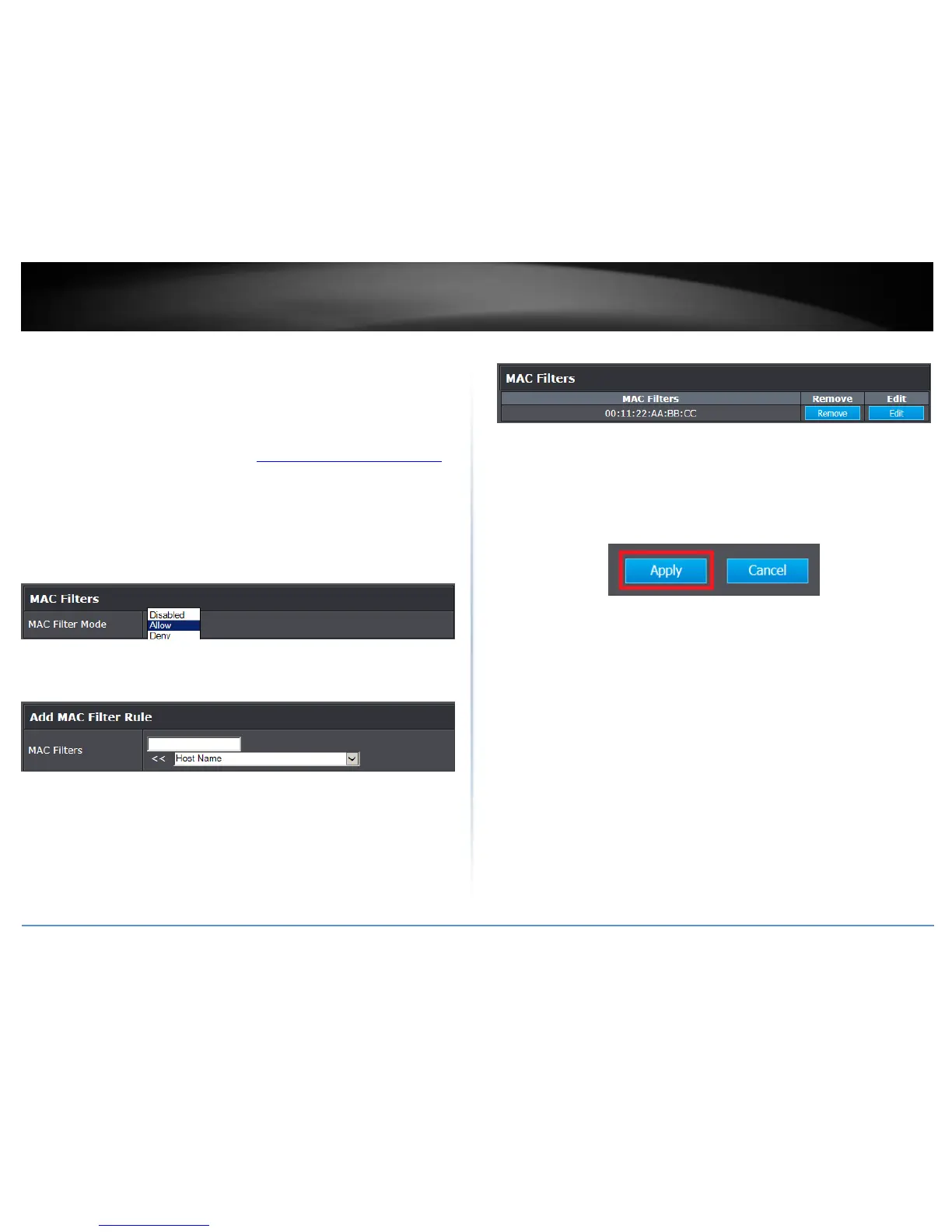
3. Under MAC Filters, click the MAC Filter Mode drop-down list and select the action
Allow (whitelist) to specify the addresses allows to access your network or the Internet
or Deny (blacklist) to specify addresses denied access to your network or the Internet.
4. Under Add MAC Filter Rule, manually enter the MAC Address (ex. (e.g.
00:11:22:AA:BB:CC) in the field to allow or block (depending on the action you chose in
previous step).
Note: If the network device is connected to your router, you can also click the drop-down
list to choose one of the network devices (MAC Address) detected by your router.
Note: If you device is not listed, please refer to your computer or device documentation
to find the MAC address.
Note: Clicking Cancel will discard your settings and clear all fields.
5. Click Add to add the access rule to the MAC Filters rule list.
Note: In the MAC Filters list, you can edit a rule by clicking Edit in the Edit column next to
the rule you would like to edit. You can also delete a rule by clicking Remove under the
Remove column next to the rule you would like to delete.
6. Repeat steps 4 – 5 for any to block any additional MAC addresses. When finished,
click Apply at the bottom of the page to save your settings.



 To Next Page