Create schedules
Advanced > Administrator > Schedule
For additional security control, your router allows you to create schedules to specify a
time period when a feature on your router should be activated and deactivated. Before
you use the scheduling feature on your router, ensure that your router system time is
configured correctly under Advanced > Administrator > Time.
Note: You can apply a predefined schedule to the following features:
Wireless (2.4GHz and 5GHz (5GHz
1
and 5GHz
2
))
Guest Network
Wireless Multiple SSID
Parental Control (MAC Address/Web URL Filters)
Security > Access Control (IP Protocol Filters)
Virtual Server
Special Applications (Port Trigger)
Gaming (Port Range Forwarding)
1. Log into your router management page (see “Access your router management page”
on page 9).
2. Click on Advanced and click on Administrator, then click on Schedule.
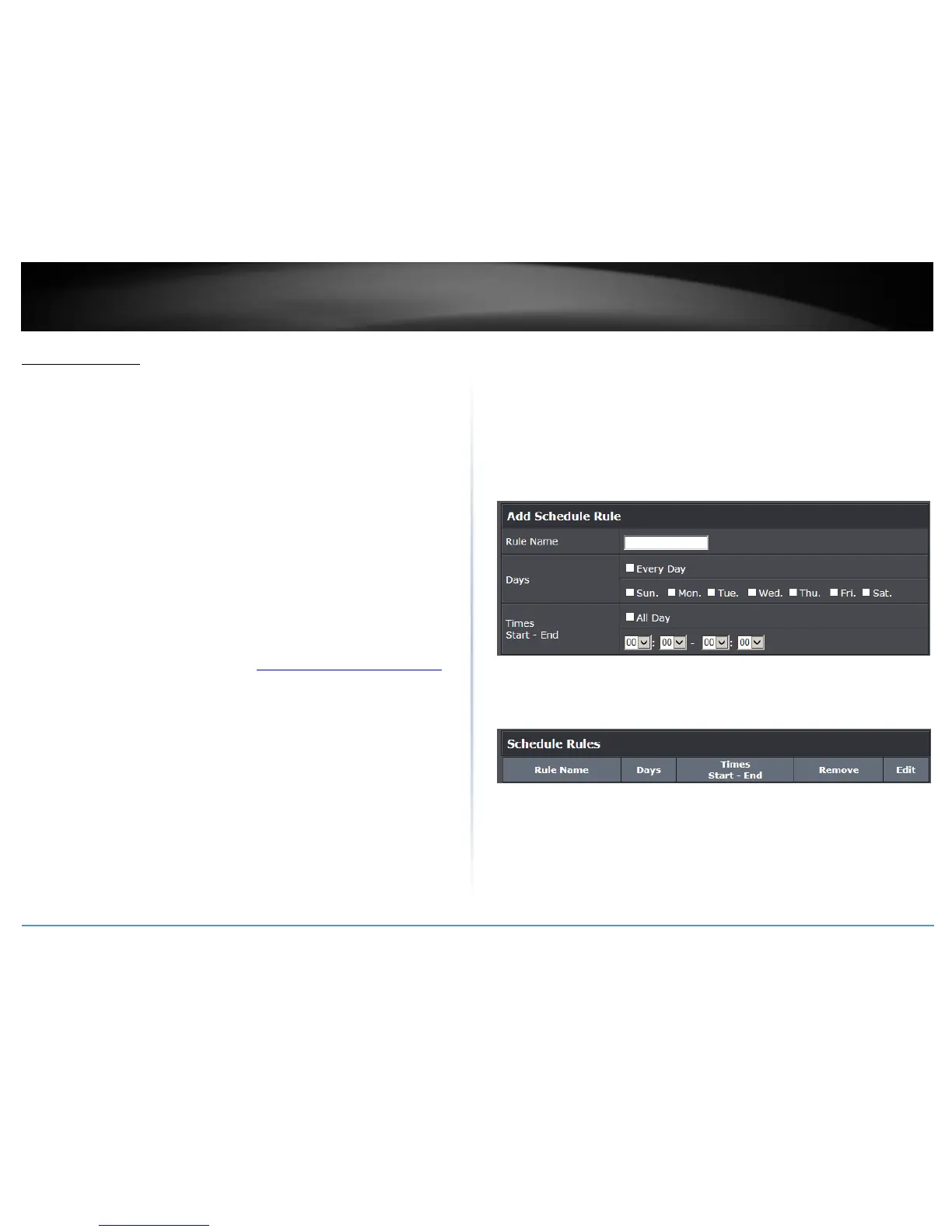
3. Review the Schedule settings.
Rule Name: Enter a name for the schedule you would like to apply.
Days: Check the days you would like to the schedule to be active or select Every
Day to set the schedule for all days.
Times Start - End: Click the drop-down list to specify the time period the schedule
should be active. Please note that the time must be specified in 24-hr format or
check All Day to specify that the schedule should be active all 24 hours.
Note: The schedule defined will define the time/day the feature will be activated.
Click Add to save the schedule to the Schedule Rules list. You can continue to add more
schedules to the list. Click Apply to save the schedules created to the configuration.













 To Next Page