Advanced Router Settings
Change your router login password
Advanced > Administrator > Management
1. Log into your router management page (see “Access your router management page”
on page 9).
2. Click on Advanced and click on Administrator, then click on Management.
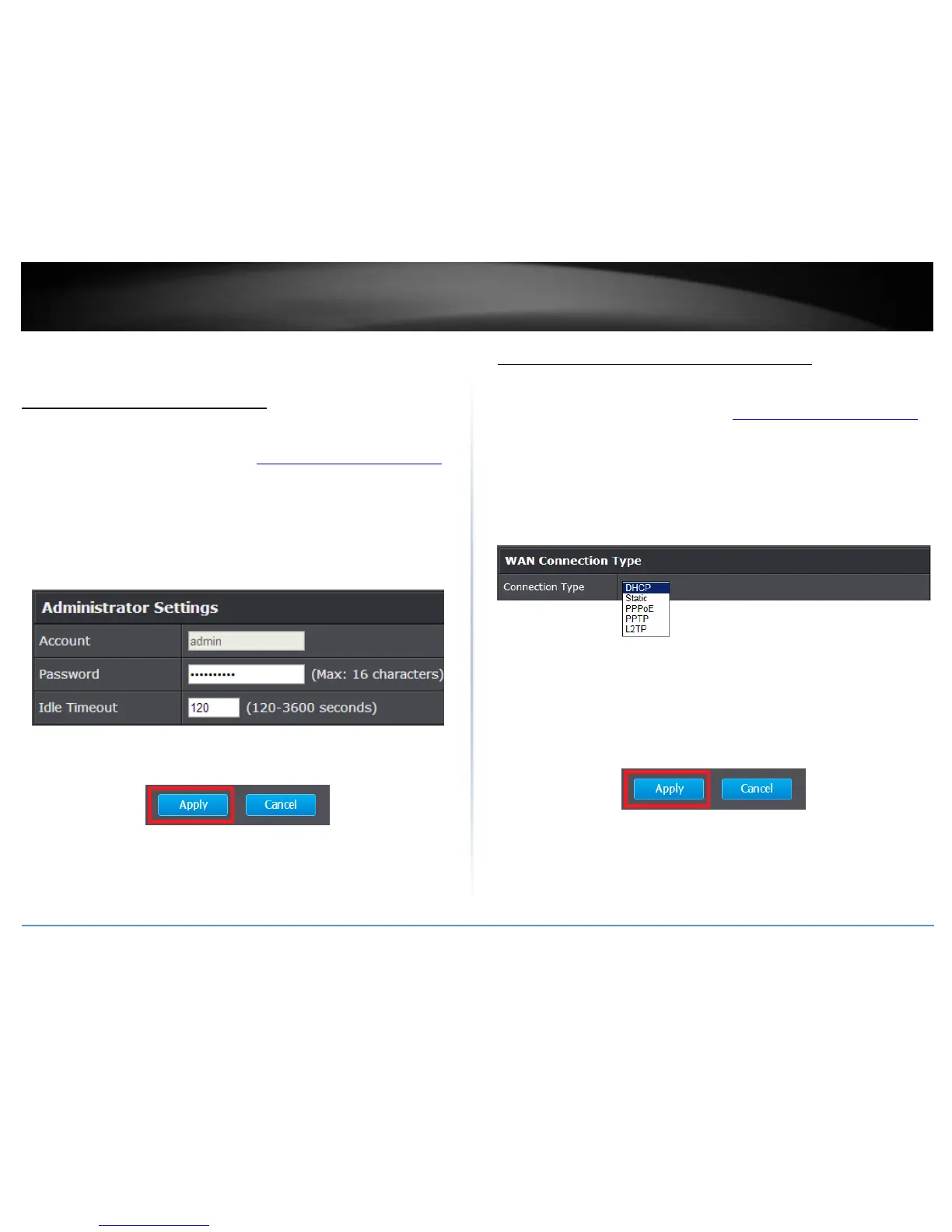
3. Under the Administrator Settings section, in the Password field.
Note: The idle timeout setting is used to define the period of inactivity in the router
management page before automatically logging out.
4. To save changes, click Apply.
Note: If you would like to discard the changes, click Cancel.
Note: If you change the router login password, you will need to access the router
management page using the User Name “admin” and the new password instead of the
predefined default password. If you reset the device to defaults, you will need to access
the router management page use the predefined settings on the top or device labels.
Manually configure your Internet connection
Advanced > Setup > WAN
1. Log into your router management page (see “Access your router management page”
on page 9).
2. Click on Advanced and click on Setup, then click on WAN.
3. Under WAN Connection Type in drop-down list, select the type of Internet
connection provided by your Internet Service Provider (ISP).
4. Complete the fields required by your ISP.
5. Complete the optional settings only if required by your ISP.
6. To save changes, click Apply.
Note: If you would like to discard the changes, click Cancel.
Note: If you are unsure which Internet connection type you are using, please contact
your ISP.



 To Next Page