Set your router date and time
Advanced > Administrator > Time
1. Log into your router management page (see “Access your router management page”
on page 9).
2. Click on Advanced and click on Administrator, then click Time.
3. Review the Time settings. Click Apply to save settings.
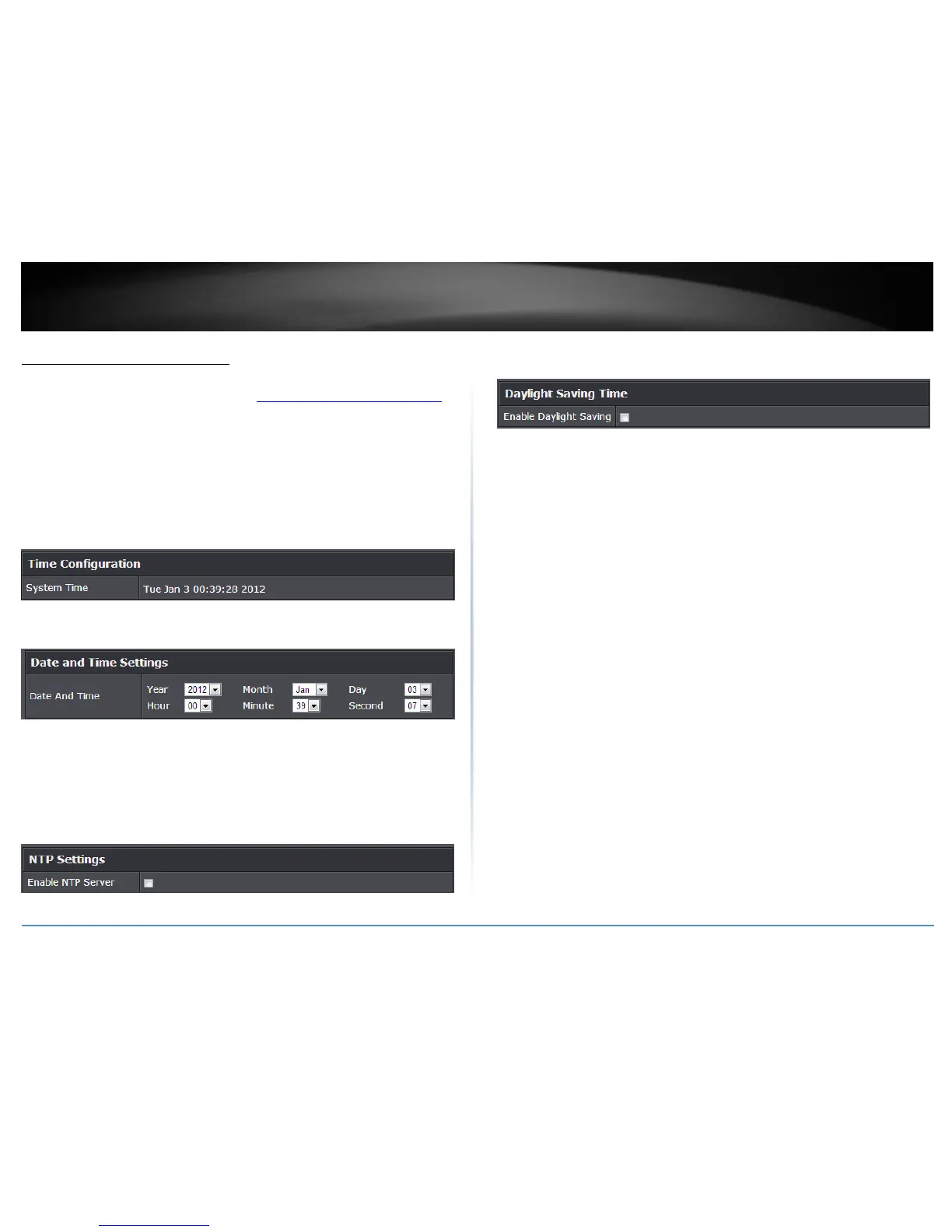
Time Configuration: Displays the current device time and date information.
Manually set time – Set your router date and time manually in the Date and Time
Settings section. Note: Time is specified in 24-hour format.
Automatically synchronize time using NTP – Check the Enable NTP Server option
to set your router date and time to synchronize with an NTP (Network Time
Protocol) server address (e.g. pool.ntp.org). Enter the NTP server address next to
Default NTP server, (e.g. pool.ntp.org). Click the Time Zone drop-down list to
select the appropriate zone and you can optionally change your NTP Sync period.
Note: NTP servers are used for computers and other network devices to
synchronize time across an entire network.
Enable Daylight Saving: Check the option to configure the DST settings. Set the
annual range when daylight saving is activated. To save changes, click Apply.




 To Next Page