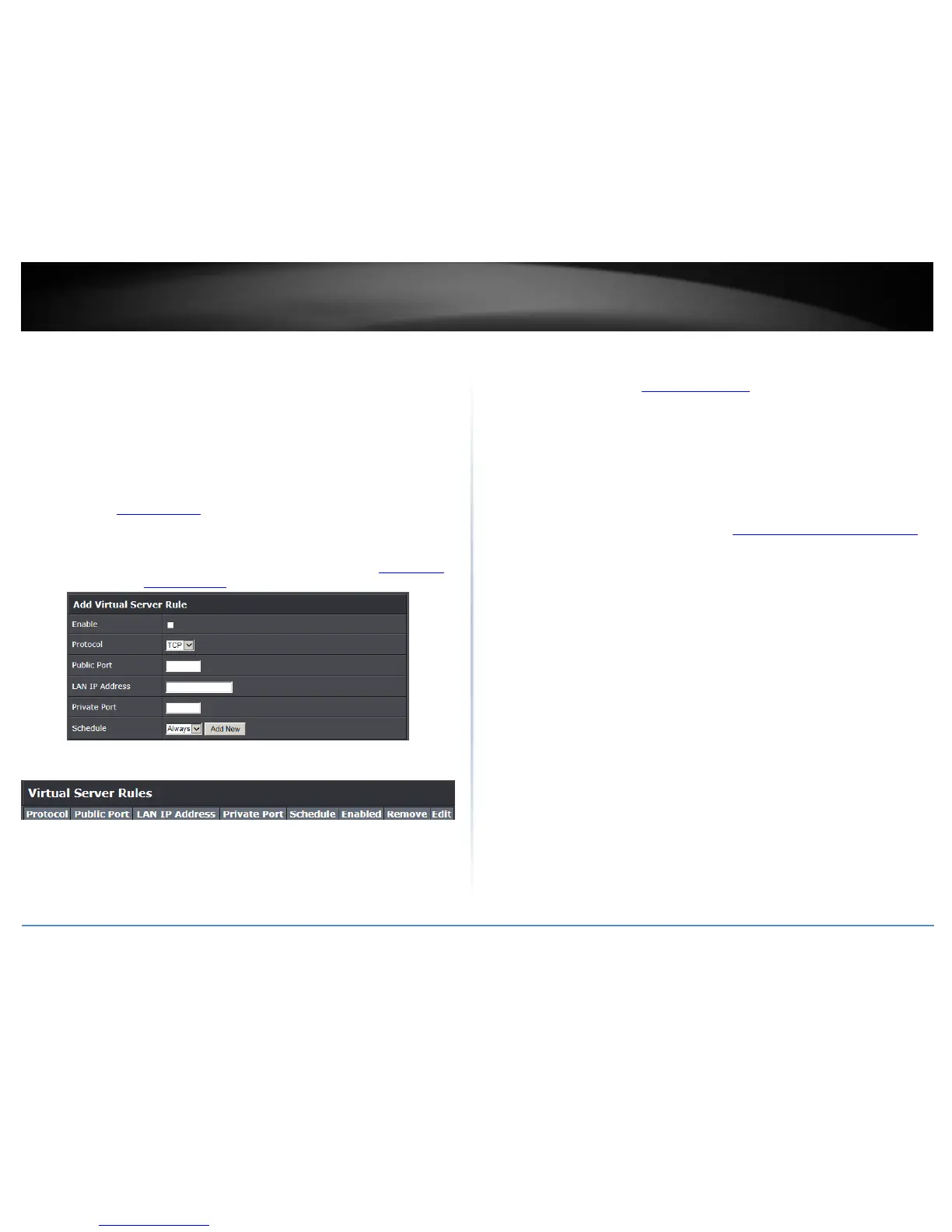
Private Port – Enter the port number required by your device. Refer to the
connecting device’s documentation for reference to the network port(s) required.
Note: The Public Port can be assigned a different port number than the Private
Port (also known as port redirection), however it is recommended to use the same
port number for both settings. Please refer to the device documentation to
determine which ports and protocols are required. It is recommended to assign a
static IP address to the device or use DHCP reservation to ensure the IP address of
the device does not change.
Schedule: The schedule function allows you to define a schedule when the
wireless should be turned on. To define a new schedule, click Add New and refer
to page 36 “ Create Schedules”. After you have created a new schedule, you will
be returned to the page to apply the new schedule. If you encounter issues, click
the drop-down list and the new schedule will be available for selection. Note:
Before applying scheduling, please ensure your Time settings are configured
correct and you have defined a schedule. See page 35 to configure Time Settings
and see page 36 “ Create Schedules” to create a schedule.
Click Add to add the access rule to the Virtual Server Rules List.
Note: Clicking Cancel will discard your settings and clear all fields.
Note: In the Virtual Server List, you can edit a rule by clicking Edit in the Edit column
next to the rule you would like to edit. You can also delete a rule by clicking Remove
under the Remove column next to the rule you would like to delete.
When finished, click Apply at the bottom of the page to save your settings.
Example: To forward TCP port 80 to your IP camera
1. Setup DynDNS service (see Identify Your Network section page 34).
2. Access TRENDnet IP Camera management page and forward Port 80 (see product
documentation)
3. Make sure to configure your network/IP camera to use a static IP address.
Note: You may need to reference your camera documentation on configuring a static IP
address.
4. Log into your router management page (see “Access your router management page”
on page 9).
5. Click on Advanced and click on Firewall, then click on Virtual Server
6. Check the Enable option to enable the Virtual Server.
7. Next to IP Address, enter the IP address assigned to the camera. (e.g. 192.168.10.101)
8. Next to Protocol, make sure TCP is selected in the drop-down list.
10. The Private Port and Public Port, enter port number 80 is configured for both
settings.
11. To save the changes, click Add.


 To Next Page