1.
2.
3.
4.
5.
6.
7.
8.
9.
5.10. Set up eM fuail nction
Click on the "Main menu" symbol.
-> The "Main menu" is displayed
Click on the "Configuration" button
-> The "Configuration" page is displayed
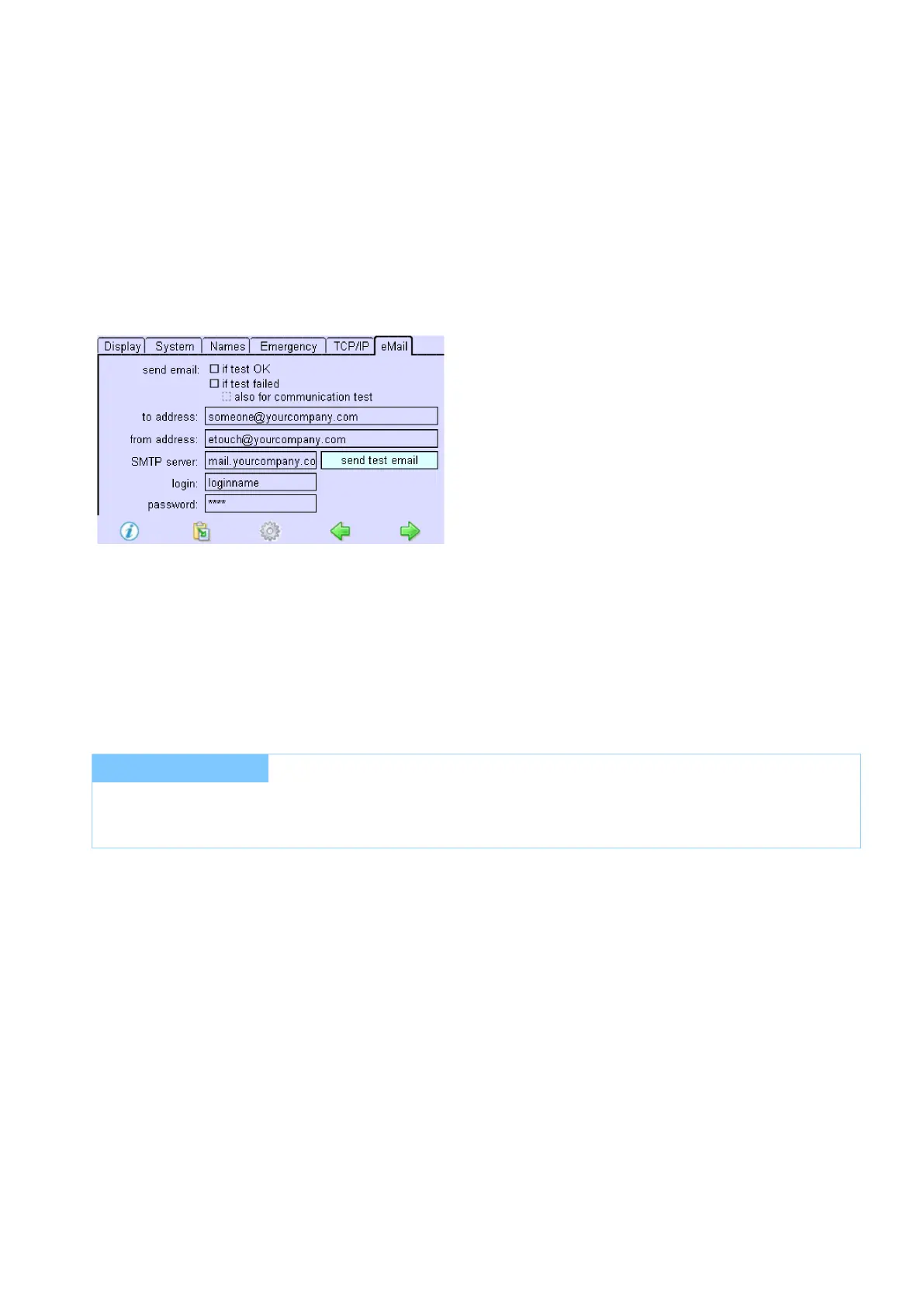
Click on the "eMail" tab
-> The "eMail" tab is displayed
Set up as follows:
"send email": activate one of the two options "if test OK" or "if test failed" (if "if test failed" was activated an
additional option "for communication test" is available).
"to address": Enter the address to which the email should be sent
"from address": Enter the address you want to set as sender
"SMTP server": Enter appropriate server name. (Contact IT department if you don't know!)
"login": Enter the login name for the sender e-mail.
"password": Enter the password for the e-mail sender.
...
I NOTICE
The x/e-touchPANEL sends over port 25.
Make absolutely sure that the port is not blocked by a firewall!


 To Next Page