1.
6.2. Settings for DALI Applications
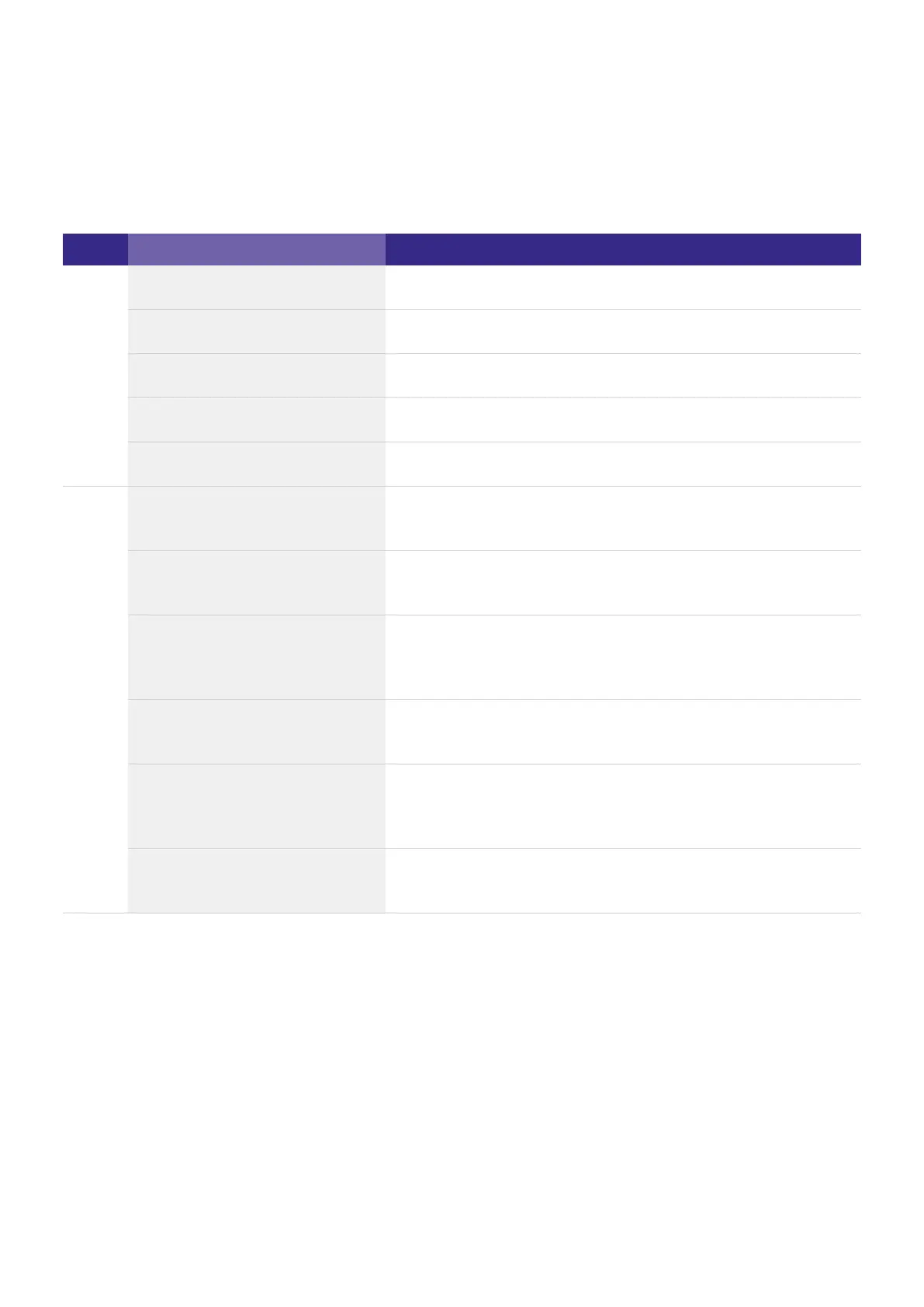
The following table provides an overview of the basic settings that can be defined in the tabs in the Configuration
menu.
Tab Entry Function
Names Sequences, edit Name sequences 1 to 99 specific to the application.
Scenes, edit Name scene 1 to 16 specific to the application.
Group, edit Name group 1 to 16 specific to the application.
Schedule, edit Name schedule 1 to 7 specific to the application.
User defined buttons Use application-specific graphics for buttons in the Home menu.
Layout S1...S4, S5...S8, S9...S12,
S13...S16
Select buttons for the Home menu (4 scenes on each page).
Dim Activate the dimming function for the buttons that are activated in
column 1.
S1...S8, S9...S16 (Colour
Application: 2 zones, 4 zones,
colour scenes)
Select buttons for the Home menu (8 scenes on a page; 2 zones,
4 zones or 8 colour scenes on each page in the Colour
Application).
Scheduler Activate the Scheduler. The Scheduler enables a sequence, schedule list and schedule to
be controlled manually (Start, Pause, Stop and Off).
G1...G4, G5...G8, G9...G12,
G13...G16 (Colour Application:
G1...G4)
Select buttons for the Home menu (4 groups on each page). In the
Colour Application it is only possible to have the 4 white groups.
Clean Select the Clean, OFF and
ON buttons.
Clean deactivates the touchscreen for 20 seconds for cleaning.
The OFF and ON buttons switch configured lighting situations.
6.2.1. Setting the frame light and display light
The frame light is controlled in two intervals. Therefore, you can assign one colour for each interval to the frame light
or switch it off for one interval (e.g. night service). Select the colour in the dialog box Frame light.
If you do not activate the screen saver, Tridonic recommends using the display light Dimmed automatically for the
x/e-touchPANEL since this setting will prevent an image persistence.
Time and date are set.
Click on the "Main menu" symbol.
-> The "Main menu" is displayed


 To Next Page