2.
3.
4.
5.
6.
7.
1.
2.
3.
4.
Click on the "Configuration" button
-> The "Configuration" page is displayed
-> The "Display" tab is displayed.
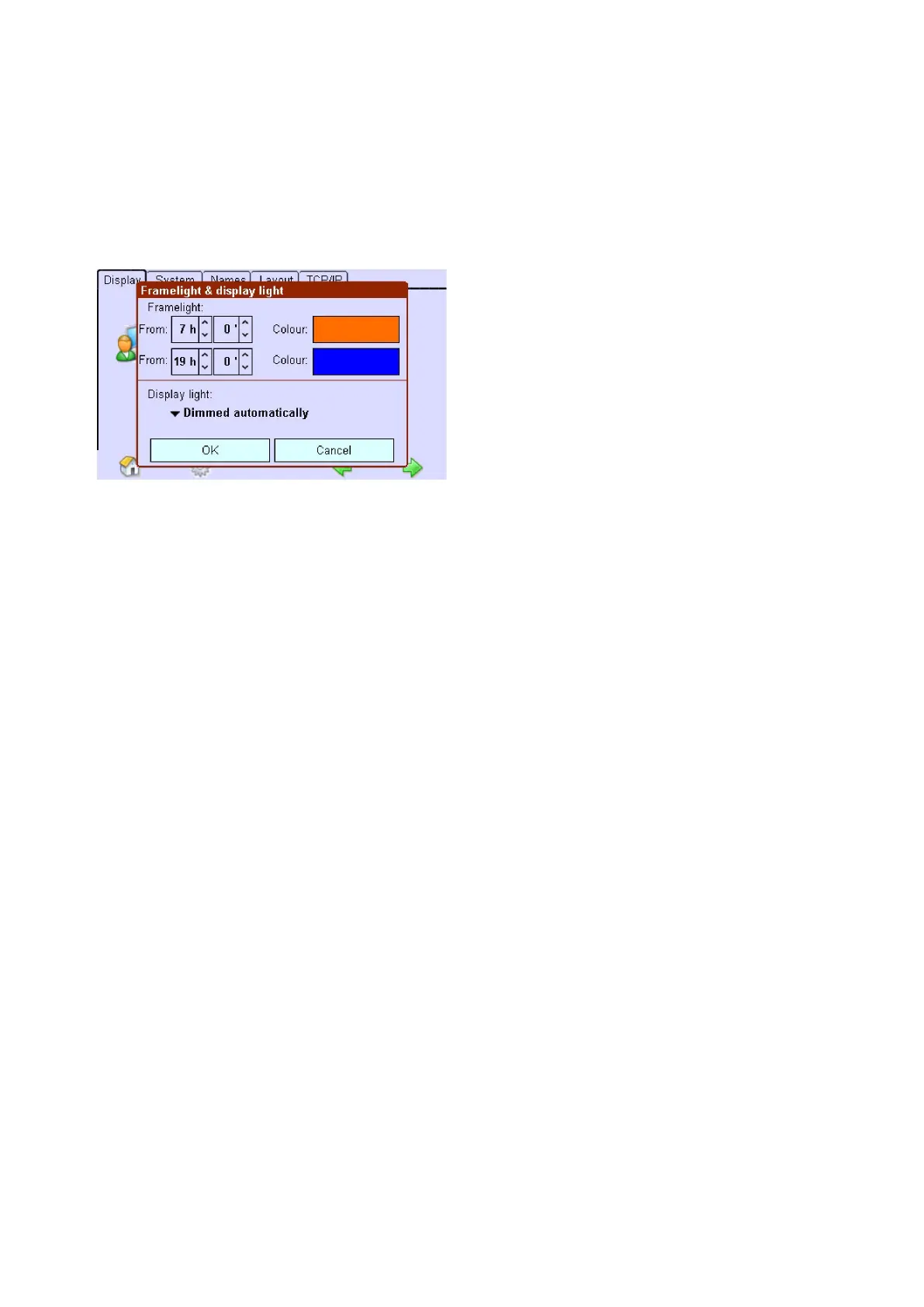
Click on the Frame light button to change the frame light or display light.
-> The dialog box "Framelight & display light" is displayed.
To set the two starting times for the frame light, use the arrow keys to set the times.
To set the frame light colour, click on the colour field and then select the desired colour or enter the colour using
the RGB values and confirm with OK.
- or -
To switch off the frame light, click on ›Black‹ or enter the RGB values 0/0/0 and confirm with OK.
-> The frame light is displayed in the selected colour or goes out.
Click on the arrow key to set the display light.
-> The selection box is displayed.
Activate the Automatically dimmed entry to dim the display light 2 minutes after last activation.
-or -
Activate the Always on entry to leave the display light constant.
6.2.2. Assigning names
You can assign application-specific names to Scenes, Sequences, Groups and Schedules to facilitate
configurations and operating steps at a later stage.
Names are assigned in the same way for scenes, sequences, groups and schedules.
Click on the "Main menu" symbol.
-> The "Main menu" is displayed
Click on the "Configuration" button
-> The "Configuration" page is displayed
Click on the "Names" tab
-> The "Names" tab is displayed
Click on an arrow key below the entries Sequences, Scenes, Groups or Schedules
-> The selection box is displayed.


 To Next Page