1.
2.
3.
4.
5.
6.
7.
8.
9.
10.
11.
12.
13.
14.
15.
One or several scenes are defined.
Click on the "Main menu" symbol.
-> The "Main menu" is displayed
Click on the "Sequence" button.
-> The SQ... page is displayed.
Click on the Folder button to select the sequence in which the scenes are to be saved.
-> The dialog box "Load sequence" is displayed.
Use the arrow keys to select the sequence (SQ1 to SQ99) and confirm with OK.
-> The sequence is displayed.
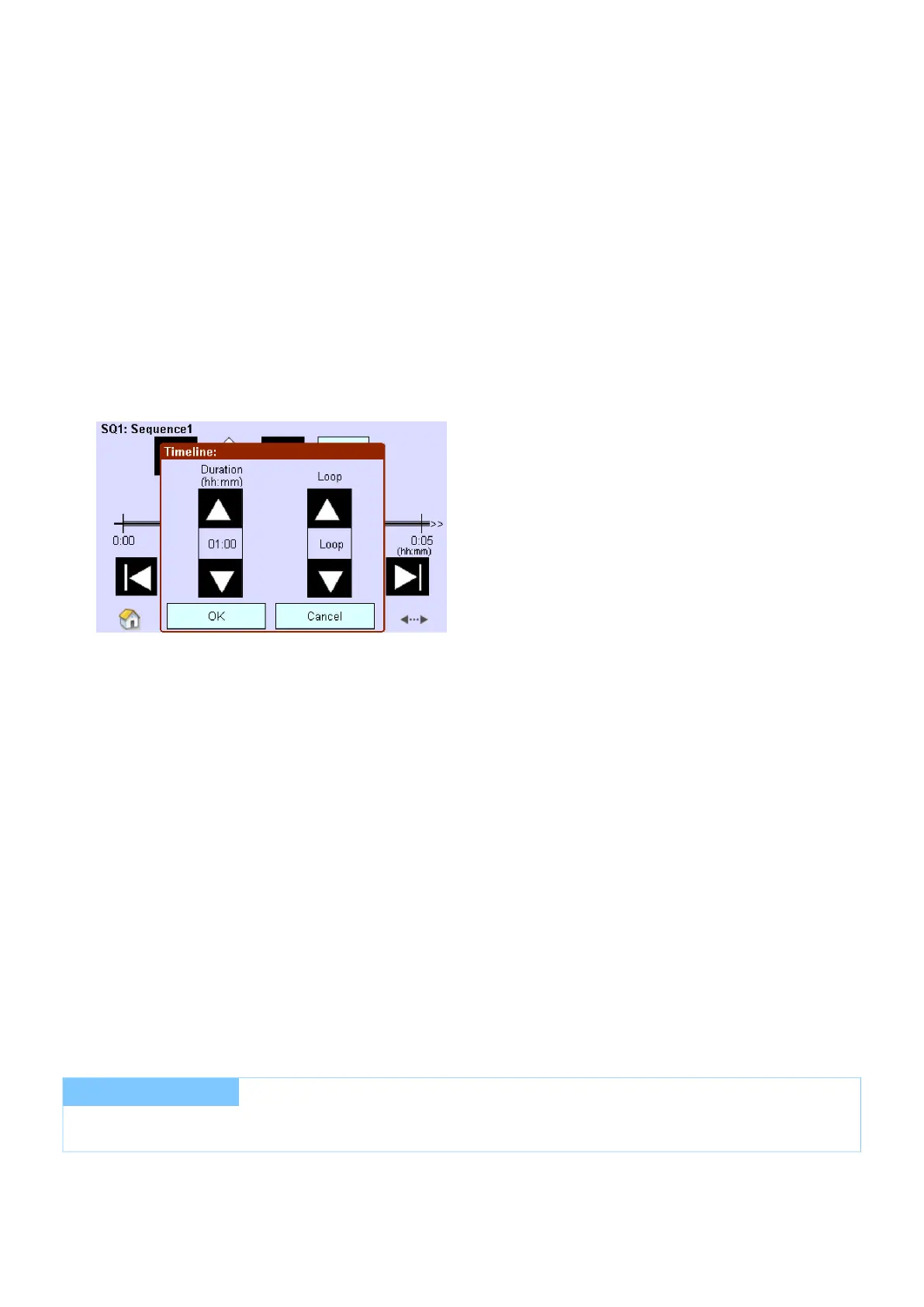
Click on the Timeline button to enter the duration of the sequence.
-> The dialog box "Timeline:" is displayed.
Click on the arrow keys of the Duration field until the desired period is set.
- or -
Click on the number field. Select the duration in the dialog box Time entry and confirm with OK.
Click on the arrow keys in the Loop field until the number of repetitions is set.
Confirm the entries with OK.
With the arrow keys and the magnifier, adjust the timeline section in such a way that the starting time for the
scene is visible.
Use the arrow keys to select the marker Scene (S1-S16).
Move the marker Scene to the desired position on the timeline using Drag & Drop.
Repeat steps 8 to 10 to enter further scenes.
Click on the Save button.
-> The dialog box Save sequence is displayed.
If necessary, change the sequence in which the scenes are to be saved and confirm with OK.
-> The sequence is saved with the current settings.
Repeat steps 2 to 13 to define further sequences.
I NOTICE
A sequence is not saved until you click on the Save button and confirm the dialog box "Save sequence" with OK.


 To Next Page