EasyManua.ls Logo

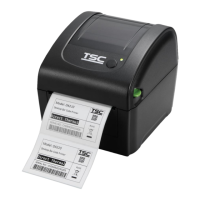
TSC DA200 Series - User Manual

TSC DA200 Series
47 pages
Print Icon
To Next Page IconTo Next Page
Loading...
USER’S
MANUAL
DA200/ DA300 Series
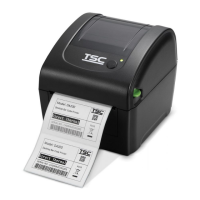
Direct Thermal Bar Code Printer

Other manuals for TSC DA200 Series

Questions and Answers

  • J
    Janet JacobsAug 13, 2025
    What to do if my TSC Printer is not printing?
    • J
      jayersAug 13, 2025
      If your TSC printer is not printing, check the following: * Ensure the interface cable is securely connected. * If using a serial port, verify the cable is pin-to-pin connected or replace it. * Confirm the serial port settings are consistent between the host and the printer, and reset if needed. * Check that the correct printer port is selected in the Windows driver. * Verify that the Ethernet IP, subnet mask, and gateway are configured properly.
  • B
    brendagentryAug 16, 2025
    Why is my TSC Printer printing with poor quality?
    • A
      Anthony BeckAug 17, 2025
      If your TSC printer's print quality is poor, consider these factors: * Ensure the top cover is completely closed and latched properly. * Verify the correct 24V DC power supply is connected. * Reload the supply correctly. * Clean any dust or adhesives from the print head. * Adjust the print density and print speed. * Run a self-test to check the print head test pattern for missing dots, indicating potential damage.
  • S
    smithshelbyAug 20, 2025
    How to fix paper jam in TSC Printer?
    • R
      Robert TownsendAug 20, 2025
      To resolve a paper jam in your TSC printer: 1. Calibrate the gap/black mark sensor if its sensitivity is not set properly. 2. Ensure the label size is set correctly in your labeling software. 3. Remove any labels stuck inside the printer mechanism near the sensor area.
  • J
    Jenna SimmonsAug 25, 2025
    What to do if my TSC Printer is continuously feeding labels?
    • M
      Margaret ClarkAug 25, 2025
      If your TSC printer is continuously feeding labels, the printer setting may be incorrect. Please initialize the printer and perform gap/black mark calibration.
  • A
    allisonyvetteAug 28, 2025
    What to do if my TSC DA200 Printer is out of label or the setting is not correct?
    • P
      Peter SmithAug 28, 2025
      If your TSC printer indicates it's out of labels, load a new roll of labels following the loading instructions, then press the FEED button. If the printer setting is not correct, initialize the printer using the 'Power on Utility' or 'Diagnostic Tool'.
  • Z
    zrobinsonAug 31, 2025
    What to do if my TSC DA200 Printer is paused?
    • M
      Melinda SmithSep 1, 2025
      If your TSC printer is paused, press the FEED button to resume printing.
  • B
    bowersjacobSep 4, 2025
    Why is there no print on the label from my TSC Printer?
    • J
      jamessellersSep 4, 2025
      If your TSC printer is producing blank labels, ensure that the label is loaded correctly by following the media loading instructions.
  • K
    Kelsey Meyer DDSSep 8, 2025
    How to troubleshoot a TSC DA200 with no response?
    • T
      Tim NelsonSep 8, 2025
      If your TSC printer is not responding, check the following: * Turn on the power switch. * Check if the green LED is lit on the power supply. If not, the power supply is likely broken. * Ensure both power connections from the power cord to the power supply and from the power supply to the printer are securely connected.

Summary

Copyright Information

Agency Compliance and Approvals

Introduction

Product Introduction

Provides an overview of the DA200 Series direct thermal desktop bar code printers and their applications.

Product Features

Printer Standard Features

Details the standard features offered by the printer, including hardware, interfaces, and supported bar codes/graphics.

Printer Optional Features

Operations Overview

Unpacking and Inspection

Instructions for inspecting the printer and its included accessories upon arrival.

Printer Overview

Front and Rear Printer View

Identifies and labels the external components and ports on the front and rear of the printer.

Interior Printer View

Identifies and labels the internal components of the printer, such as print head and sensors.

LED and Button Functions

LED Status Indicators

Explains the meaning of different LED colors and patterns indicating printer status and errors.

Feed;Pause Button Functions

Describes the functions of the feed/pause button, including feeding labels and pausing/resuming print jobs.

Initial Printer Setup

Loading Roll Labels

Loading External Media

Loading Media in Peel-off Mode

Loading Media in Cutter Mode

Loading Media in Linerless Cutter Mode

Installing 1.5 Paper Core Adapter

Power-on Utilities

Gap;Black Mark Sensor Calibration

Procedure for calibrating the gap or black mark sensor for accurate media detection.

Printer Self-test and Dump Mode

Printer Self-test

Details how to perform a self-test and interpret the printout for printer configuration and hardware checks.

Dump Mode Operation

Explains the dump mode for verifying and debugging the program by displaying data in hexadecimal format.

Printer Initialization

Sensor Configuration

Set Black Mark Sensor and Calibrate

Procedure to set the black mark sensor as media sensor and calibrate it.

Set Gap Sensor and Calibrate

Procedure to set the gap sensor as media sensor and calibrate it.

Skip AUTO.BAS Program

Diagnostic Tool

Starting the Diagnostic Tool

Guide on how to launch the TSC Diagnostic Utility software on a computer.

Printer Functions Overview

Ethernet Configuration

Ethernet Setup via USB

Instructions for configuring the printer's Ethernet settings using a USB connection and the Diagnostic Tool.

Ethernet Setup via RS-232

Ethernet Setup via Ethernet Interface

Troubleshooting

LED Status Troubleshooting

Common printer problems identified by LED status and their corresponding recovery procedures.

Print Quality Troubleshooting

Printer Maintenance

Revision History

TSC DA200 Series Specifications

General IconGeneral
Resolution203 dpi
Max Print Width108 mm (4.25")
Max Print Length2, 794 mm (110")
Processor32-bit RISC CPU
Media Roll Diameter127 mm (5") OD
Ribbon Core Diameter25.4 mm (1")
Print MethodThermal Transfer/Direct Thermal
Max Print Speed6 ips (inches per second)
Memory8 MB Flash, 8 MB SDRAM
InterfaceUSB 2.0
Media SensorReflective, Transmissive
Media Handlingdie-cut, fan-fold, continuous
Media TypeGap, Black mark, Notch, Continuous
Media Width20 mm ~ 112 mm (0.79" ~ 4.41")
Media Thickness0.06 mm ~ 0.19 mm
Ribbon Width30 to 104 mm
Ribbon Length300 m (984 feet)
Power SupplyExternal universal switching power supply

Related product manuals