EasyManua.ls Logo

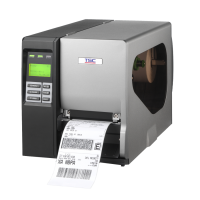
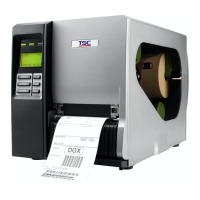
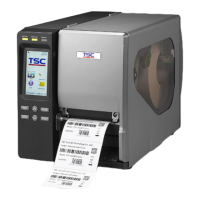
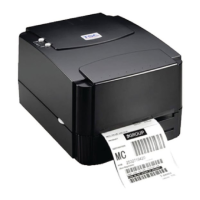
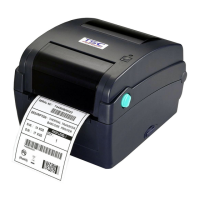
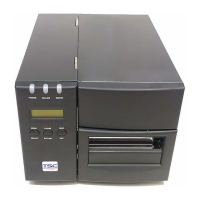
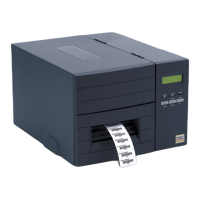
TSC TTP-2410MT Series - User Manual

TSC TTP-2410MT Series
87 pages
Print Icon
To Next Page IconTo Next Page
Loading...
USERS
MANUAL
TTP-2410MU/ TTP-346MU/ TTP-644MU/
TTP-2410MT/ TTP-346MT/ TTP-644MT Series
THERMAL TRANSFER / DIRECT THERMAL
BAR CODE PRINTER

Table of Contents

Other manuals for TSC TTP-2410MT Series

Questions and Answers

  • N
    Nancy ClarkSep 10, 2025
    How to troubleshoot if the power indicator does not illuminate on my TSC Printer?
    • M
      morenotammySep 10, 2025
      If the power indicator on your TSC Printer does not illuminate: * Plug the power cord into both the printer and the outlet. * Switch the printer on.
  • D
    dustin18Aug 23, 2025
    How to improve poor print quality on my TSC Printer?
    • C
      christopherthompsonAug 23, 2025
      If you observe poor print quality on your TSC printer, the following steps may help: * Reload the ribbon and media, ensuring they are correctly installed. * Clean the print head and platen roller to remove any dust or adhesive. * Adjust the print density and print speed settings. * Run a printer self-test to check for missing dots in the print head test pattern. * Ensure you are using compatible ribbon and label media. * Adjust the printhead pressure adjustment knob. * Ensure the release lever properly latches the printhead.
  • D
    David CrawfordAug 25, 2025
    What to do if my TSC Printer says 'No Paper'?
    • C
      Cory StoneAug 25, 2025
      If your TSC Printer indicates 'No Paper', here's what to check: * Ensure that you have a new label roll. * Refer to the user’s manual for instructions on how to correctly reinstall the label roll. * Calibrate the gap/black mark sensor.
  • J
    Jennifer HubbardAug 27, 2025
    Why is my TSC Printer not printing anything on the label?
    • A
      Angelica FoxAug 27, 2025
      If your TSC Printer is not printing on the label, consider these potential causes: * Ensure the label or ribbon is loaded correctly, following the loading instructions. * Verify that the ribbon and media are compatible. * Check the ribbon-inked side is correctly oriented. * Adjust the print density setting.
  • S
    Shawn MaldonadoAug 28, 2025
    What to do if my TSC Printer says 'No Ribbon'?
    • A
      Amy BrooksAug 28, 2025
      If your TSC Printer indicates 'No Ribbon': * Supply a new ribbon roll. * Refer to the user’s manual for steps to reinstall the ribbon correctly.
  • J
    Jesus MartinAug 29, 2025
    Why is there a gray line on the labels from my TSC Printer?
    • D
      dianamosesAug 30, 2025
      If you notice a gray line on the blank labels printed by your TSC Printer: * Clean the print head. * Clean the platen roller.
  • E
    Evan BaileySep 18, 2025
    Why is the RTC time incorrect after rebooting my TSC Printer?
    • D
      David FischerSep 18, 2025
      If the RTC time is incorrect when you reboot your TSC Printer: * Check if there is a battery on the main board.
  • J
    Jessica PetersSep 12, 2025
    What to do if I can't download files to my TSC Printer's memory?
    • A
      Autumn MillsSep 12, 2025
      If you are unable to download a file to the memory (FLASH / DRAM/CARD) of your TSC Printer: * Delete unused files in the memory.
  • E
    Emily ParkerSep 8, 2025
    How to fix unstable label feeding (skew) on my TSC Printer?
    • R
      Rebecca PerezSep 8, 2025
      If the label feeding is unstable (skewed) when printing with your TSC Printer: * If the label is moving to the right side, move the label guide to the left. * If the label is moving to the left side, move the label guide to the right.
  • C
    Claudia LongSep 5, 2025
    How to fix a paper jam in my TSC Printer?
    • R
      ryanarnoldSep 5, 2025
      If your TSC Printer is experiencing paper jams: * Calibrate the media sensor. * Ensure the media size is set correctly. * Remove any stuck labels from inside the printer mechanism.

Summary

Operations Overview

2.2 Printer Overview

Detailed views of the printer's front, interior, and rear components.

2.2.1 Front View

Identifies and describes the external components visible on the printer's front.

Setup and Loading Procedures

3.1 Setting up the printer

Step-by-step guide for physically setting up the printer and connecting it.

3.2 Loading the Ribbon

Detailed instructions on how to load and remove the printer ribbon.

3.2.1 Loading the Ribbon

Step-by-step guide for installing a new ribbon into the printer.

3.2.2 Remove Used Ribbon

Instructions for safely removing a used ribbon from the printer.

3.3 Loading the Media

Guides for loading various types of media, including standard, fan-fold, and peel-off.

3.3.1 Loading the Media

Step-by-step guide for loading standard media rolls into the printer.

3.3.2 Loading the Fan-fold;External Media

Instructions for loading fan-fold or external media stacks.

3.3.3 Loading Media in Peel-off Mode (Option)

Guide for loading media when the peel-off module is installed.

3.3.4 Remove Liner from Internal Rewind (Option)

Steps to remove the liner from the internal rewind spindle.

3.3.5 Loading Media in Rewind Liner with Label Mode (Option)

Instructions for loading media in rewind liner with label mode.

3.3.6 Remove Labels from Internal Rewind (Option)

Steps to remove labels and supply holders from the internal rewind.

Printer Adjustments

4.1 Print Head Pressure Adjustment knob

How to adjust print head pressure for optimal print quality using adjustment knobs.

4.2 Print Head Burn Line Adjustment Knob

Adjusting the burn line for print quality based on media thickness.

4.3 Mechanism Fine Adjustment to Avoid Ribbon Wrinkles

Methods to adjust printer parts to prevent ribbon wrinkles for better print output.

Diagnostic Tool Usage

7.3 Setting Ethernet by Diagnostic Tool

Instructions for configuring the Ethernet interface using the diagnostic tool.

7.3.1 Using USB interface to setup Ethernet interface

Steps to configure Ethernet via USB connection using the diagnostic tool.

7.3.2 Using RS-232 interface to setup Ethernet interface

Steps to configure Ethernet via RS-232 connection using the diagnostic tool.

6.3.3 Using Ethernet interface to setup Ethernet interface

Steps to configure Ethernet via Ethernet connection using the diagnostic tool.

Troubleshooting Common Issues

Printer Maintenance Procedures

TSC TTP-2410MT Series Specifications

General IconGeneral
ModelTTP-2410MT Series
Resolution203 dpi
Ribbon core diameter25.4 mm (1 inch)
Ribbon length300 m
Processor32-bit RISC
InterfaceUSB, Serial, Parallel, Ethernet
TypeBarcode Printer
Max. print width104 mm
Memory8 MB Flash
Media typeContinuous, die-cut, black mark
Media width25.4 mm - 114 mm
Media core diameter25.4 mm (1 inch)
Ribbon width110 mm
Power100-240V AC, 50/60 Hz
Supported BarcodesCode 39, Code 128, UPC-A, UPC-E, EAN-13, EAN-8, Interleaved 2 of 5, Codabar, PDF417, Data Matrix, QR Code
Operating Temperature5°C to 40°C
Storage Temperature-40°C to 60°C
CertificationsCE, FCC

Related product manuals