Taking Photos and Recording Videos
1) To take a sll photo press the red Photo Taking/Video Recording buon
You’ll hear an audible shuer sound from the APP and the LED indicator on
CGO2+ front will flash in blue and green. It will take approximately 5
seconds to capture the photo and before you can take another sll photo.
IMPORTANT NOTE: You cannot take sll photos while recording video.
You MUST stop recording video in order to take sll photos.
2) To start/stop recording videos, slide the Mode buon to Video Record-
ing, then press the red buon to start. You’ll hear an audible indicaon from
the APP each me the recording starts/stops. During recording, the LED
indicator on CGO3 front will flash in blue and green. There will be recording
me length display on the APP Screen.
3) To start/stop recording video simply press the red buon located on the
APP. You’ll hear an audible indicaon from the APP each me the recording
starts/stops. And while video is recording, the LED indicator on the front of
GCO2+ will flash blue and green, and there will be an indicator showing
me length of the recording on the APP screen.
31
Aaching A Mobile Device to The Steadygrip™
Step 1) Press the Curved Lip at the
top front of the SteadyGrip™ as
illustrated and fit your Mobile
Device with the screen facing
toward the Main LED and Pitch
Control Wheel.
Step 2) Connect your Mobile Device
to the CGO2+’s WiFi by selecng
CGO2+’s SSID and by entering the
WiFi Key / Password:1234567890.
The SteadyGrip™ features a camera pitch controller that allows precise camera
angle control on the go. Simply roll the pitch control wheel forward to move the
camera pitch/angle downward
and roll the pitch control
wheel backward to move the
camera pitch/angle upward.
Please review these instruc-
ons along with the illustra-
ons to familiarize yourself on
how to control the CGO3 with
your SteadyGrip™.
Using The Camera Pitch Control Wheel
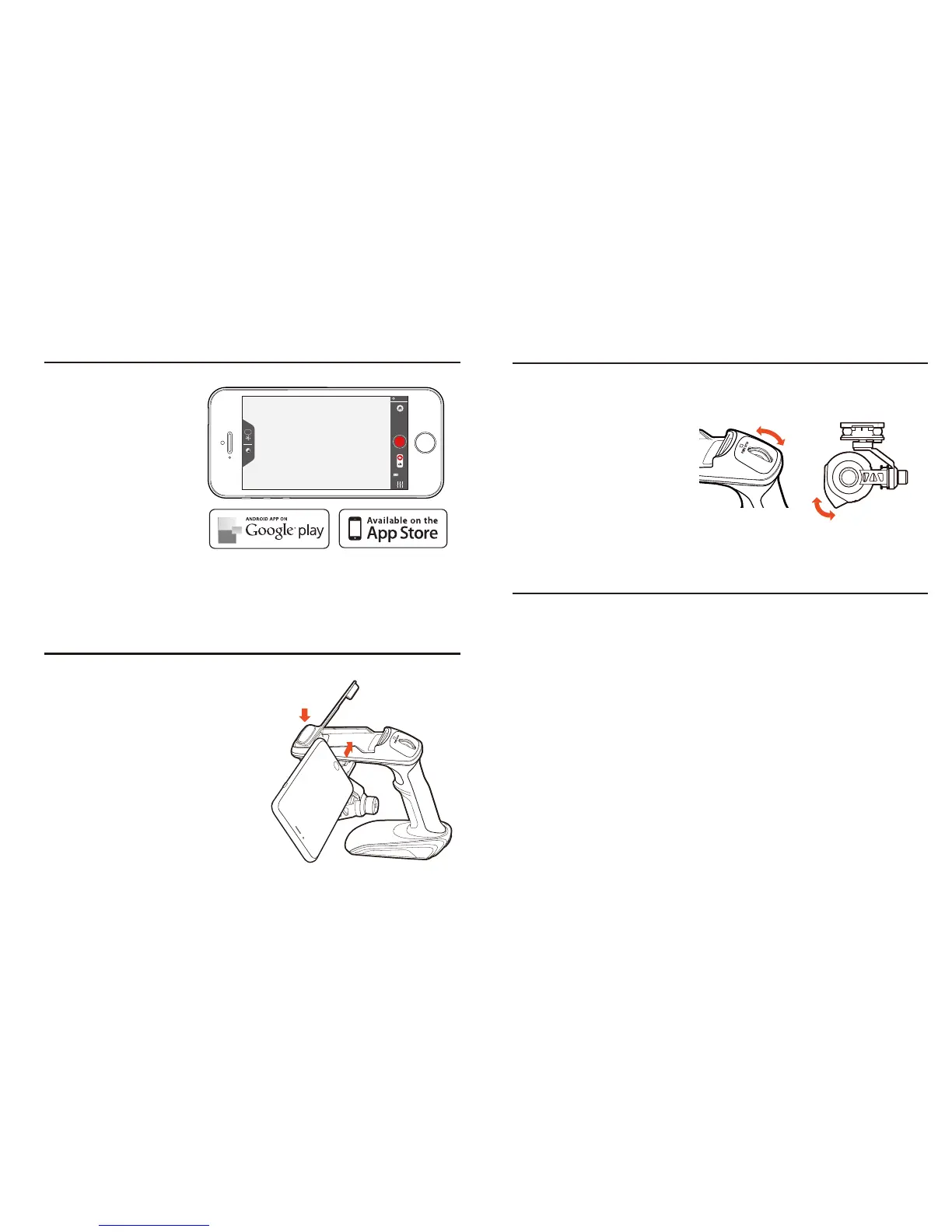
Download the free APP
named as CGO2 to smart
device at the APP Store
or Google Play Store.In-
stall the APP to your
5.8GHz WiFi capable
device.Make a note of
the network name and
password located on the
top of the gimbal assem-
bly.
CGO2+ APP
CGO2 APP COMPATIBLE DEVICES
Apple iOS: iphone 5/5c/5s/6/6+ ipad mini/mini+/3/4
Android: Mobile Devices with 5.8GHz Suport
WB
ISO 32
1/250s
17:24:12
N/A


 To Next Page