Tyro Go EFTPOS reader user guide 5
Return to table of contents
2.5 Log into the Tyro Go App
If this is the first time you are logging into the app, authorised Signatories on
your account have been sent an email with a temporary PIN for the app. If you
haven't received the email by the time you receive your Tyro Go or can't find the
email, call Customer Support on 1300 00 TYRO.
Once you have retrieved those details and have downloaded the app, log in,
and set a new PIN.
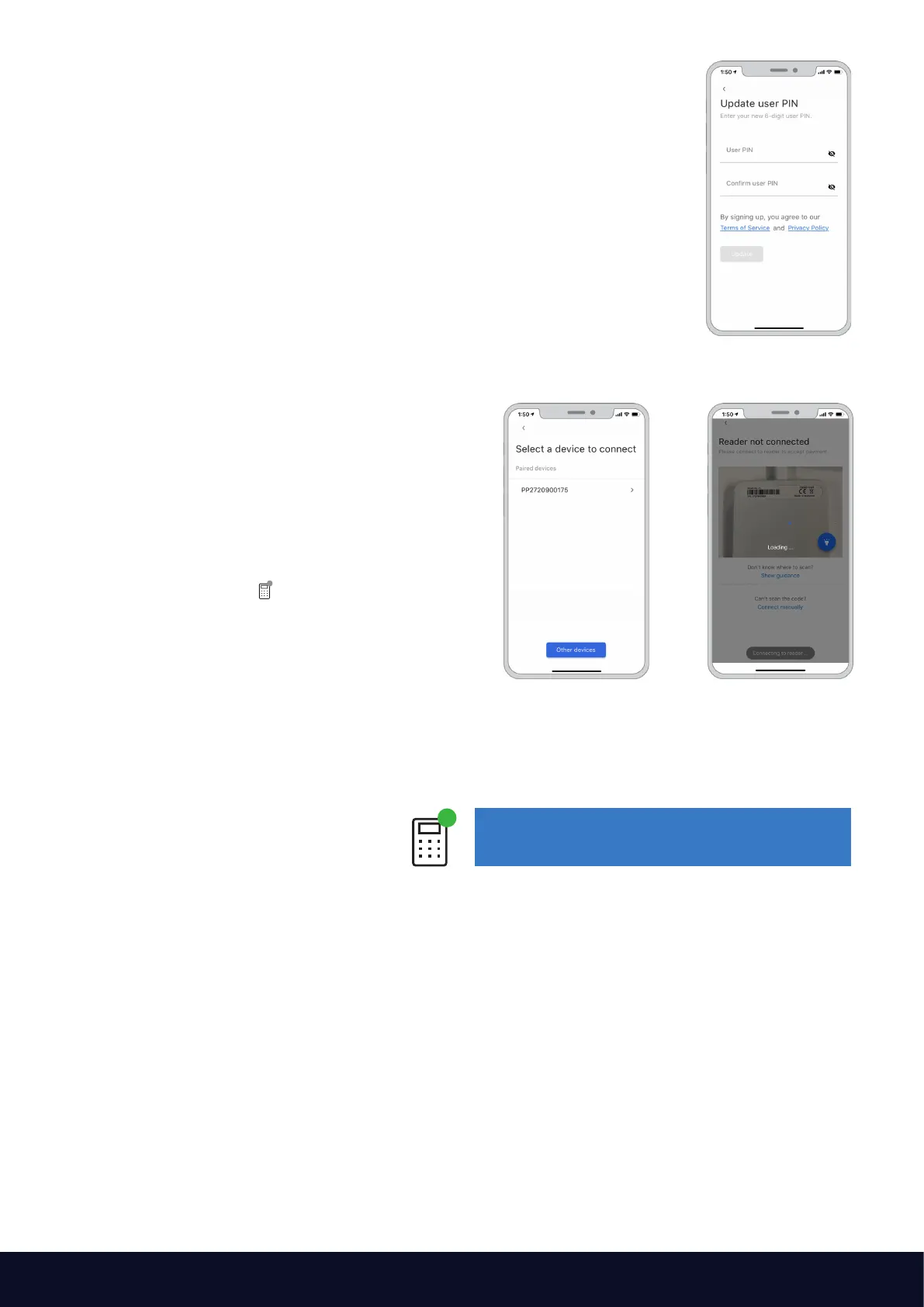
Setting a PIN
• For first-time users, you will be asked to set a new PIN
• Enter a 6-digit PIN and confirm
• Set and memorise a PIN that is not easy to guess (birth date, postcode, etc)
• Additionally, sequential numbers (123456) and repetitive patterns (001100,
123123) are not permitted and will be rejected as a valid PIN
2.6 Pairing your Tyro Go
• Switch on your Tyro Go, keeping it close to
your smart device
• On the smart device, access settings to enable:
• Bluetooth connectivity
• Location services
• Wi-Fi or mobile network
• Access and log into the Tyro Go App with your
credentials
• Select the "Reader“ icon at the top right
corner
• Select "Connect to reader" and pair by:
• Matching the serial number at the back
of your Tyro Go to the list of available
Bluetooth devices;
• Scanning the serial number on the
back of your Tyro Go using your smart
device camera
Tip: Keep your Tyro Go within 10m of
your smart device.
When your Tyro Go has successfully
paired, the reader icon on the homepage
will indicate a green dot.
Matching the
serial number
Scanning the
serial number
2.7 Connecting your Tyro Go to an additional smart device
To pair a new smart device to your Tyro Go, repeat the steps above.
Only one smart device can pair with the reader at a time.



 To Next Page