Tyro Go EFTPOS reader user guide 8
Return to table of contents
2.9.2 Issuing an email receipt
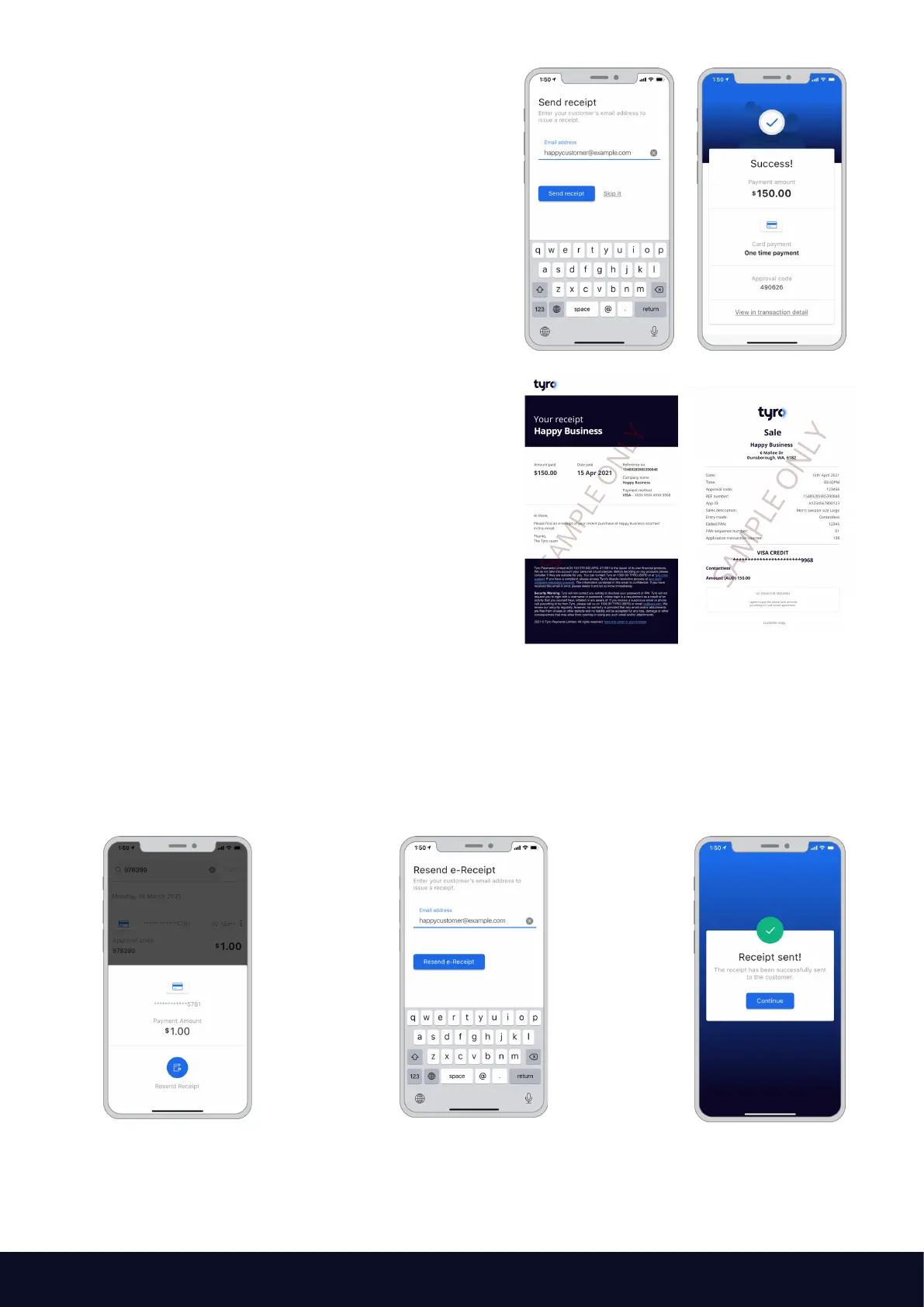
Upon successful authorisation, the e-receipt
screen will appear.
Allow the customer to enter their email address
to issue an electronic receipt.
Proceed by selecting “Send receipt”.
Alternatively, select “Skip it” if the customer
does not wish to receive an electronic receipt.
The payment transaction is complete.
If requested, the customer will receive an email with
the pdf receipt attached to it.
The email will show your business trading name
on the top, and some details of the transaction.
More details of the transaction will be attached
via a pdf.
2.9.3 Resending an email receipt
If the customer wants their receipt to be sent to them again, simply find the transaction in the completed
transaction list and resend.
Note: only transactions that have not been settled will appear in the transaction list. Transactions are
settled typically at 5am the next business day, after which they will no longer be listed in the app.
Find the appropriate
transaction
Enter the email address of the cardholder.
Select “Resend e-receipt”
The receipt will
be sent



 To Next Page