C099-F9P - User Guide
UBX-18055649 - R02 Reference station and rover pairing Page 22 of 48
6 Reference station and rover pairing
This section is provided for users with two C099 boards and provides configuration information when
setting up a C099-F9P as a reference station to provide local RTCM corrections for a C099 rover. This
connection uses Wi-Fi connectivity to maximize range for untethered operation.
6.1 Wi-Fi connection between two C099-F9P boards
This set-up relies on establishing a peer-to-peer Wi-Fi connection between two C099 boards for short
base-line applications, e.g. drones and the like.
Separate ODIN-W2 configuration files are required to enable the reference station and rover C099
boards to operate as an Access Point and client respectively.
Prior to use, the reference station C099-F9P needs RTCM3 output messages enabled and its position
surveyed-in. When the device is surveyed-in it will enable output of the RTCM3 1005 message to
enable the rover to begin RTK operation. Consult the Integration manual [4] for information relating
to reference station operation for more information.
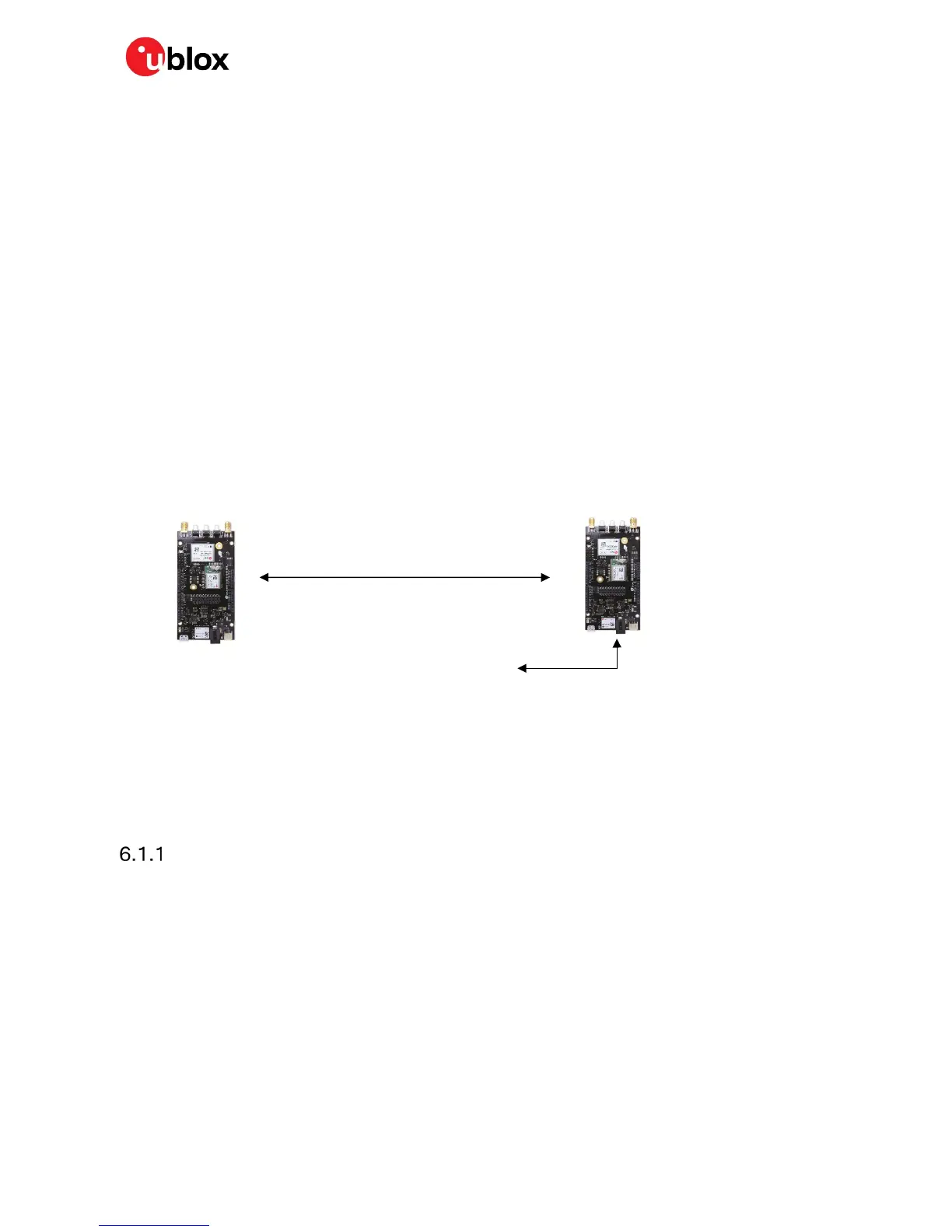
In this example the C099 reference station sends corrections to a C099 rover and the rover transmits
NMEA and UBX messages back to the base. The rover operation can be viewed remotely with u-center
connected to the reference station’s ODIN-W2 COM port.
Figure 28: Reference and rover C099-F9P set up.
The sub-sections below describe the steps required to configure the boards for Wi-Fi operation plus
the settings needed for rover and base operation.
Configuring a C099-F9P rover for Wi-Fi operation
The following steps provide guidance on configuring the C099 ODIN-W2 Wi-Fi for rover operation:
☞ Disconnect any UART multiplexor jumper connections before proceeding.
• Connect the rover unit via USB to a PC.
• Install the u-blox s-center evaluation application.
• Open s-center which will show the following view:



 To Next Page
 Loading...