18
Ulead COOL 3D Production Studio
Whether you have selected pre-existent vector graphics, rendered paths on bitmap images or
utilized the freehand tool, you can modify your paths just as easily.
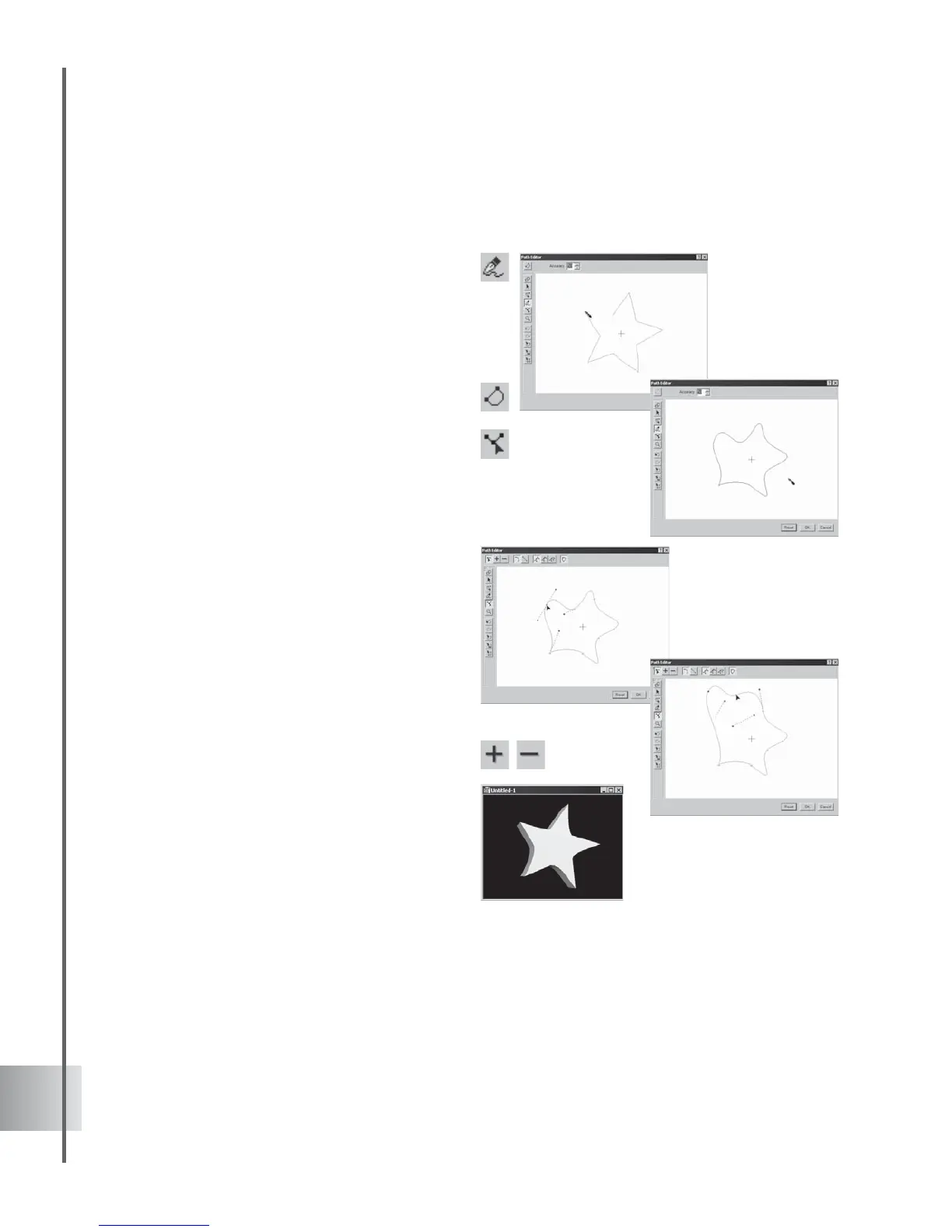
To edit a graphic object:
1 Now, you can select or deselect multiple
nodes at one time. To do this, let us make an
example using the Freehand Tool. Select
this tool and render a shape on the
workspace of the Path Editor.
2 Close the path by clicking Close Path.
Notice the path has closed smoothly by
default.
3 Click Adjust and the nodes will appear. Left
click while simultaneously pressing [Ctrl].
4 Click on the nodes you want to select or
deselect. While holding down [Ctrl], drag
the entire group of nodes the same time.
5 When using the mouse, drag the pointer
and draw a selection box across the nodes.
Release the button and the nodes will be
selected or deselected. Dragging multiple
nodes will also apply.
6 When removing or adding nodes, click Add
Node or Remove Node. Apply the selection
process above to automatically delete the
multiple nodes or quickly press [Del].



 To Next Page