90
Ulead COOL 3D Production Studio
Creating video files
One of the great things you can do with Ulead COOL 3D is to output projects in AV I, MOV, and
RM formats to add to your collection of digital videos. To save your project as a video file, click
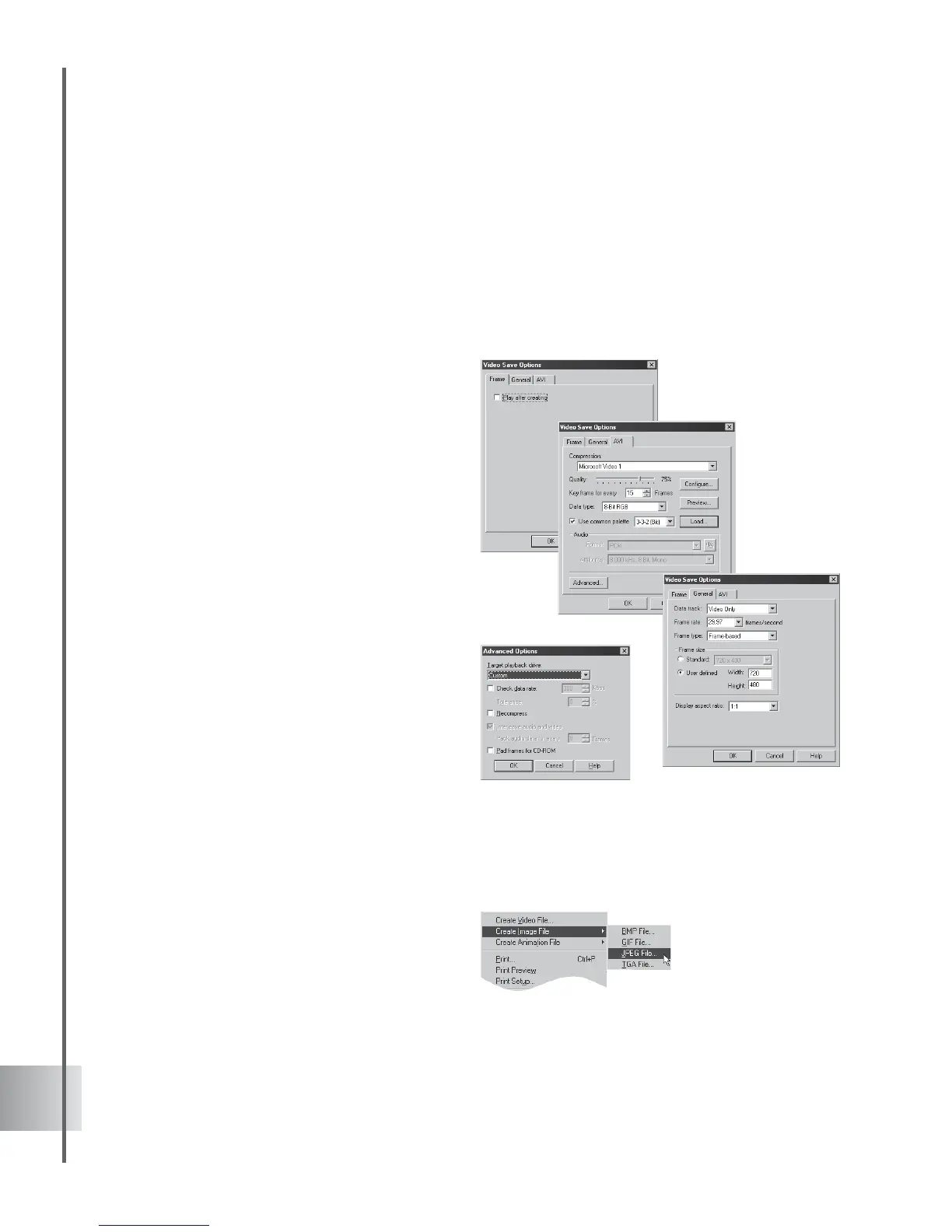
File: Create Video File. New extended video output options allow you to tailor exactly how
you want to output your project in the video format of your choice. These are accessed in the
Save As Video File dialog box by clicking Options. The following gives you a brief description
of the three categories.
• Frame This gives you the option to
automatically preview the video after it
has been generated.
• General Lets you specify key aspects
of your video, such as frame rate,
frame size, and frame type.
• AVI Lets you specify options particular
to the selected video codec such as
quality, number of key frames, and data
rate. Select Preview to set compression
ratio and view the video using the frame
size specified in the General tab.
Select Advanced to display the
Advanced Options dialog box. This
contains options to optimize the
playback of the video file, based on the
intended output device.
Creating image files
You can output your saved project to a variety of image formats: BMP, GIF, JPEG, and TGA.
The following section will give you an idea of what quality you can expect with each file type,
along with some of the options you have for the respective formats.
• BMP saves your image with high
quality and no data loss. However, the
trade-off is that you end up with a large
file size. Generally, this is the most
appropriate format if you want to make
high quality and high resolution
graphics.



 To Next Page