61
User Guide
Cartoon Shader
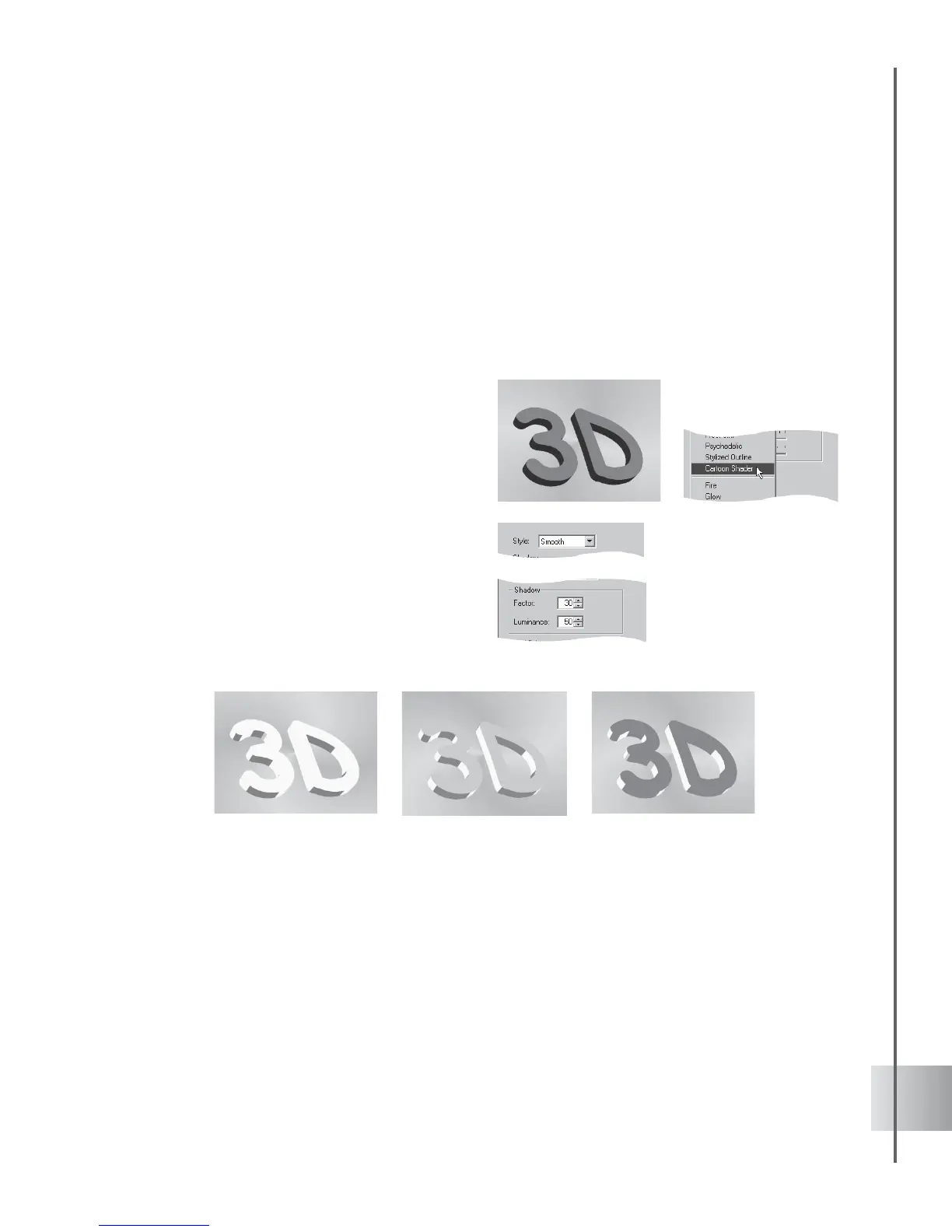
Cartoon Shader is an non-photo realistic (NPR) effect that renders your 3D animation into
simplistic cartoons. Based on classic movie/TV animation shading techniques, Cartoon Shader
"simplifies" your 3D objects by applying flat colors and shades. This effect reduces the
complexity of the object and lessens the bulkiness often seen in 3D objects. Cartoons are known
for having basic colors, with a dominant color as the highlight, and a secondary color as the
shadow. You may choose to render objects in a finished project, or render them beforehand.
(Settings: 30 frames, 15 fps.)
To apply the Cartoon Shader:
1 Insert a text object in the Edit Window. Click
Add plug-in and select Cartoon Shader in
the Attribute Panel.
2 At frame 1, choose Smooth in Style.
3 Set Shadow settings by adjusting the Factor
and Luminance values. A higher value in
Factor increases shadow size, while
increasing the value in Luminance
brightens the object.
4 Do the same for the Highlight settings.
5 Click Play to preview the animation.
FreeForm
The Object Effects category in the EasyPalette file directory also allows you to apply
animated deformations to your object by selecting the FreeForm option. To customize your
freeform effect, select Object: FreeForm in the main menu. You can also click Add plug-in,
select FreeForm, and click Open FreeForm Editor in the Attribute Panel. This opens the
FreeForm Editor. For a detailed explanation on using this feature, see FreeForm in page 31.



 To Next Page