78
Ulead COOL 3D Production Studio
Particle Effects
Among the other three-dimensional effects, the particle effect is one of the hardest to simulate
because these are animated elements of nature. With COOL 3D, the four elements of Snow,
Fire, Smoke, and Bubble can be created in a snap. Not only can you click and drag from an
available roster of presets, you can also modify the settings to your preference. From the
movement and direction to the speed and intensity, accentuate your scene compositions with
moving Particle Objects and add a touch of realism.
Smoke
This effect is usually applied on an image of a fire, steam ship, train or anything that enits
smoke. COOL 3D can simulate this perfectly. Versatile and easy-to-use, COOL 3D’s attribute
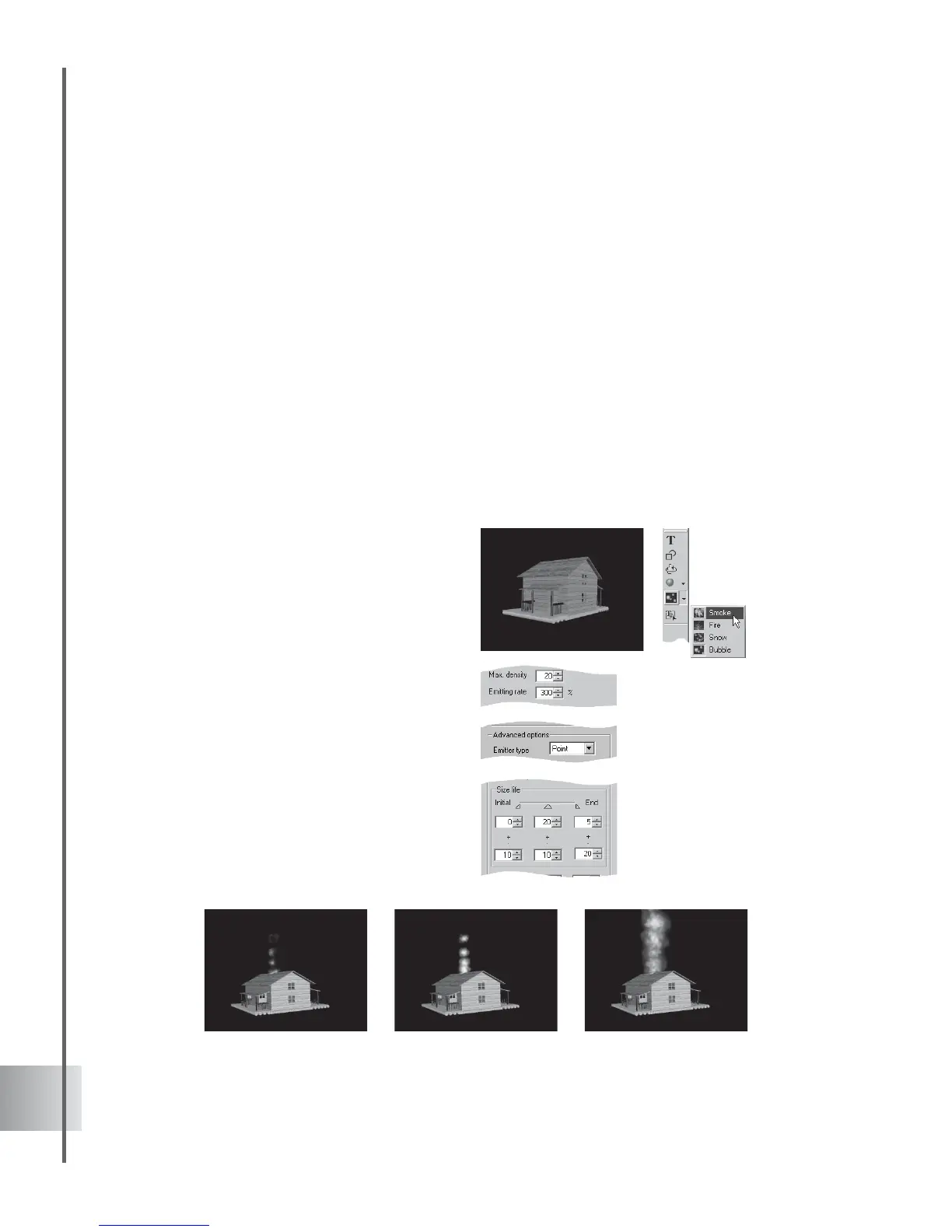
settings allow you to control the motion and strength of emission. For this tutorial we will make
thin smoke come out of an image. (Settings: 10 frames, 6 fps.)
To create thin smoke:
1 For this example, select a house image or a
cigarette in the EasyPalette.
2 Click the Particle Effects down arrow on
the Object Toolbar and select Smoke.
3 Set the Max. density to 20 and the Emitting
rate to 300 in the Attribute Panel.
4 Select Point for the Emitter type. This
indicates that you like to have one source
of emission.
5 Under the Dragging force, set 60 for the Y-
axis to drag the motion upward making the
smoke more straight and slim.
6 To control the size of the particles, set the
Initial to End sizes to 0, 20 and 5
respectively.
7 Click Play to preview your project.



 To Next Page