71
User Guide
Path Animation
This plug-in lets your text move in ways that simulate the laws of gravity in the real world. You
can let your object get caught in a tornado, ripple on water, or swing like a pendulum. In this
tutorial, learn how to toss your object in an arc, and then change it into another object upon
impact. (Settings: 30 frames, 15 fps.)
To throw an object in an arc:
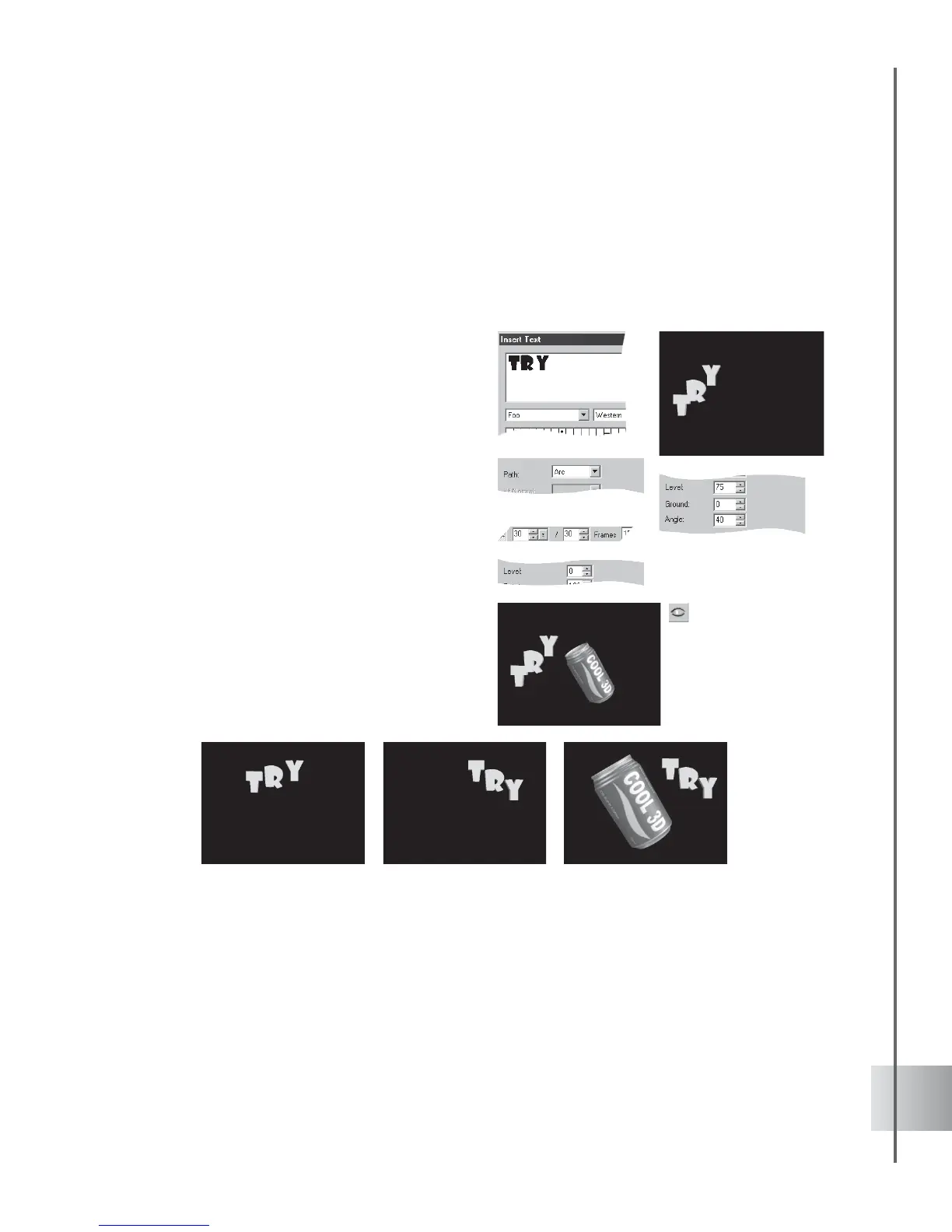
1 Insert a text object in the Edit Window. Click
Add plug-in and select Path Animation in
the Attribute Panel.
2 At frame 1, select Arc as the Path and enter
25 as the value for Speed.
3 Set the Ground to 0 (default), and enter 75
for the Level to start the object at mid-
throw. Enter 40 as the value for the Angle of
the arc.
4 At frame 30, set the Level to 0.
5 Click Play to preview the Arc animation.
The object should be thrown in from the
right of the screen.
6 Insert a new object into the project. Enlarge
the object to emphasize it. At frame 1, click
Show/Hide to hide the object, and at frame
30, click it again to make the object appear.
7 Click Play to preview the animation.



 To Next Page