88
Ulead COOL 3D Production Studio
Natural Paint
Add elegance to picture your objects, text and background using the Natural Paint effect.
Three handsomely created styles can be made to your texts, objects and even backgrounds.
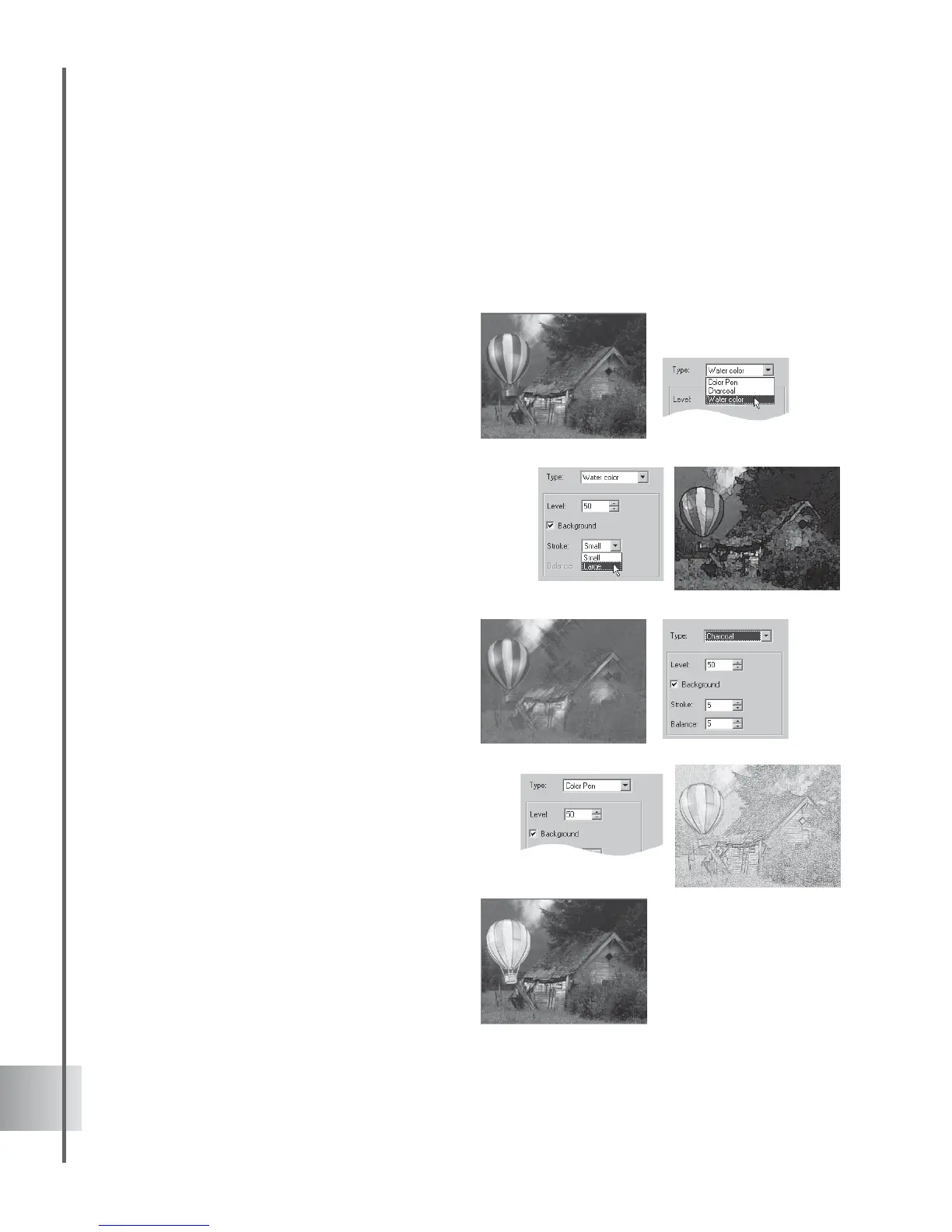
Artful touches of Color Pen, Charcoal, and Watercolor can be used for your effects.
To create a Natural Paint effect:
1 Open a blank document and change the
background by selecting Background in
the Attribute Panel Property List.
2 Select Image as Background mode.
3 Select an image in the Open dialog box and
click Open.
4 Insert an object in the Edit Window. Click
Add plug-in and select Natural Paint in the
Attribute Panel.
5 Set the specifications of your effect in the
Attribute Panel:
In Type, specify the material or painting
technique to be applied on your project.
Set a value in Level. A higher level
produces a more vivid effect and makes
your object looks abstract or stylized.
For Watercolor type, select Large to
generate long strokes, and select Small to
produce short strokes.
If using Charcoal, select a higher Stroke
value to produce longer charcoal lines.
Set a higher value for Balance to add more
charcoal to the image and make your object
appear more like a hand-painted illustration.
Clear Background to
apply Natural Paint
to your object only
without affecting the
background



 To Next Page