25
User Guide
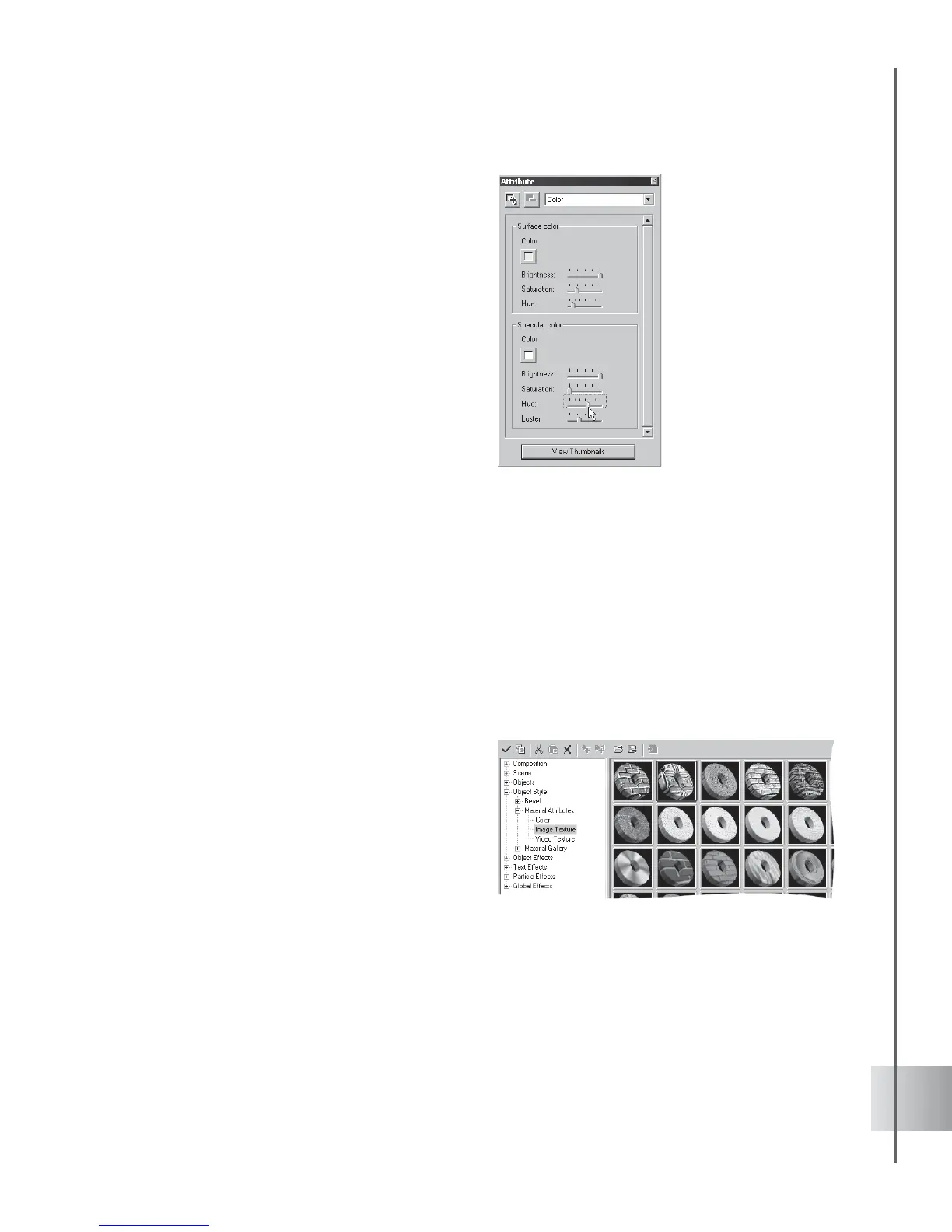
2 In the Attribute Panel, select Color in
Property List. You can modify both
the surface and specular colors of your
object by clicking the Color square
under Surface or Specular. This opens
a standard Windows Color dialog box
where you can select a color.
3 To the right of the Color square, adjust
the Brightness, Saturation, and Hue
of the color until you have the effect
that you want. Under Specular, you can
also use the Property Controls to
adjust Luster.
Texture
By applying a texture map to your 3D object, you can give it the appearance of being made from
a specific material, such as wood or metal, or you can apply a pattern or design to it. A texture
map is a *.JPG or *.BMP image that is wrapped around the surface of a 3D object.
You can also create more dynamic compositions by wrapping your object in full motion video.
COOL 3D allows you to use an *.AVI or *.MOV file as texture that will play within the
boundaries of the 3D object where it is applied. A project with a video background can also
contain multiple objects with video textures. Imagine the effect of all video clips in such a
project playing simultaneously.
To apply an image texture to an object:
1 In the EasyPalette file directory, select
Object Style: Material Attributes - Image
Texture.
Drag the preset image texture thumbnail
from the EasyPalette to the object.
2 To use your own image file, select Image
and click Load texture image file in the
Attribute Panel. Select the image file that
you want to use for your texture (*.BMP or
*.JPG) in the Open dialog box and click
Open. The image will be applied to the
object.



 To Next Page