50
Ulead COOL 3D Production Studio
Showing and hiding objects
You can control when an object in a project appears or disappears. Showing and hiding text and/
or images can be done per key frame.
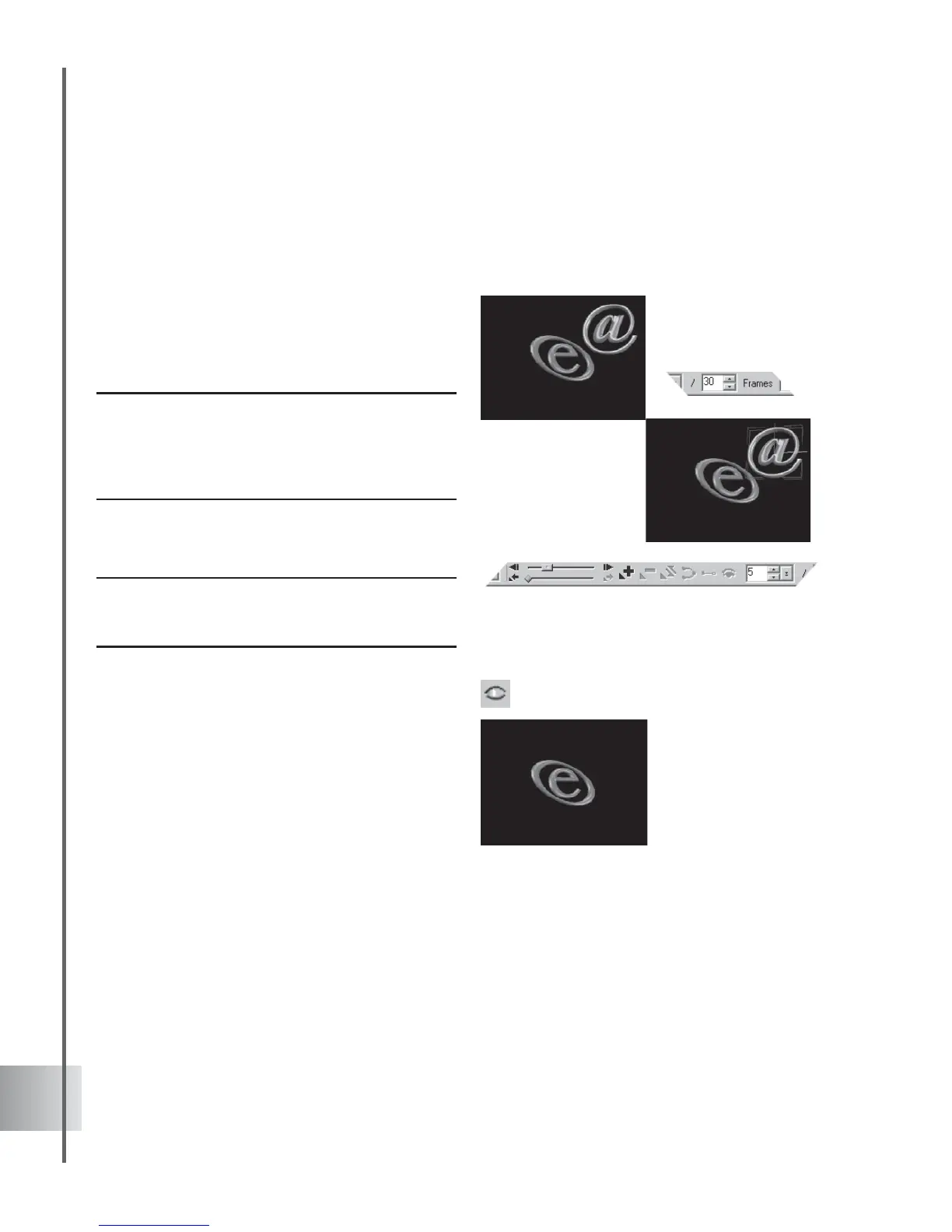
To show and hide an object:
1 Insert two objects, then set the total number
of frames to 30.
2 Select the object that you would like to
hide.
Note: Having the Object Manager visible may help give
you an idea as to what object or text is currently being
edited. Click View: Toolbars Manager: Object
Manager. Or you may use the selection indicator by
clicking View: Selection Indicator.
3 Move the Timeline Control slider to
frame 5.
Note: If you do not want the object to be seen at the
start of the presentation, move the Timeline Control
slider to key frame 1.
4 Click Show/Hide on the Standard Toolbar to
hide the object.
5 Move the Timeline Control slider to frame
10.
6 Click Show/Hide on the Standard Toolbar to
show the object again.
7 Click Play to preview the animation.



 To Next Page