46
Ulead COOL 3D Production Studio
• Key Frame Window Displays all the frames in the animation sequence. Dots
indicate key frames. Since each object contains a different set of timelines, the
frames reflected in this window change depending on which object you are
currently working on.
• Ruler Bar Indicates the frame you are currently working on. Click anywhere in the
Ruler Bar to go to a frame within the specified duration.
• Add/Delete Key Frame Lets you add or remove a key frame. Each time you add a
key frame, you can change the attributes or behavior of an object. When you
remove a key frame, all attributes associated with that key frame are also removed.
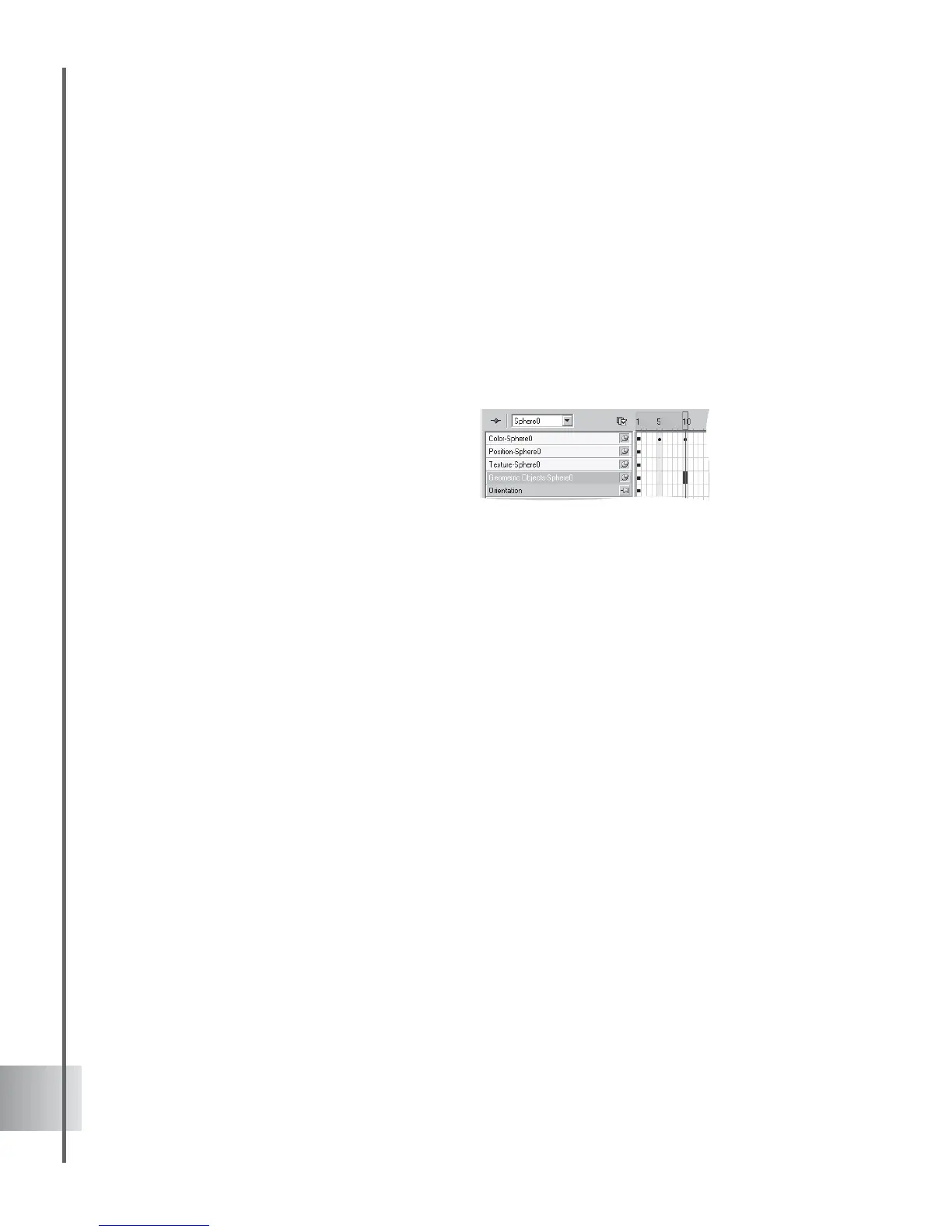
This shows the Timeline for an object with
changing color, position, and texture
attributes. It contains 10 frames and always
has a key frame at frame 1 of the animation.
You will notice changes in color at frames 5
and 10.



 To Next Page