© 2024 All rights reserved, Unitree Robotics 15
Connecting to the Unitree Explore App
To use it for the first time, you need to bind the device. During the binding process, please turn on the
Bluetooth on your mobile phone and keep it close to G1 to ensure real-time Bluetooth communication.
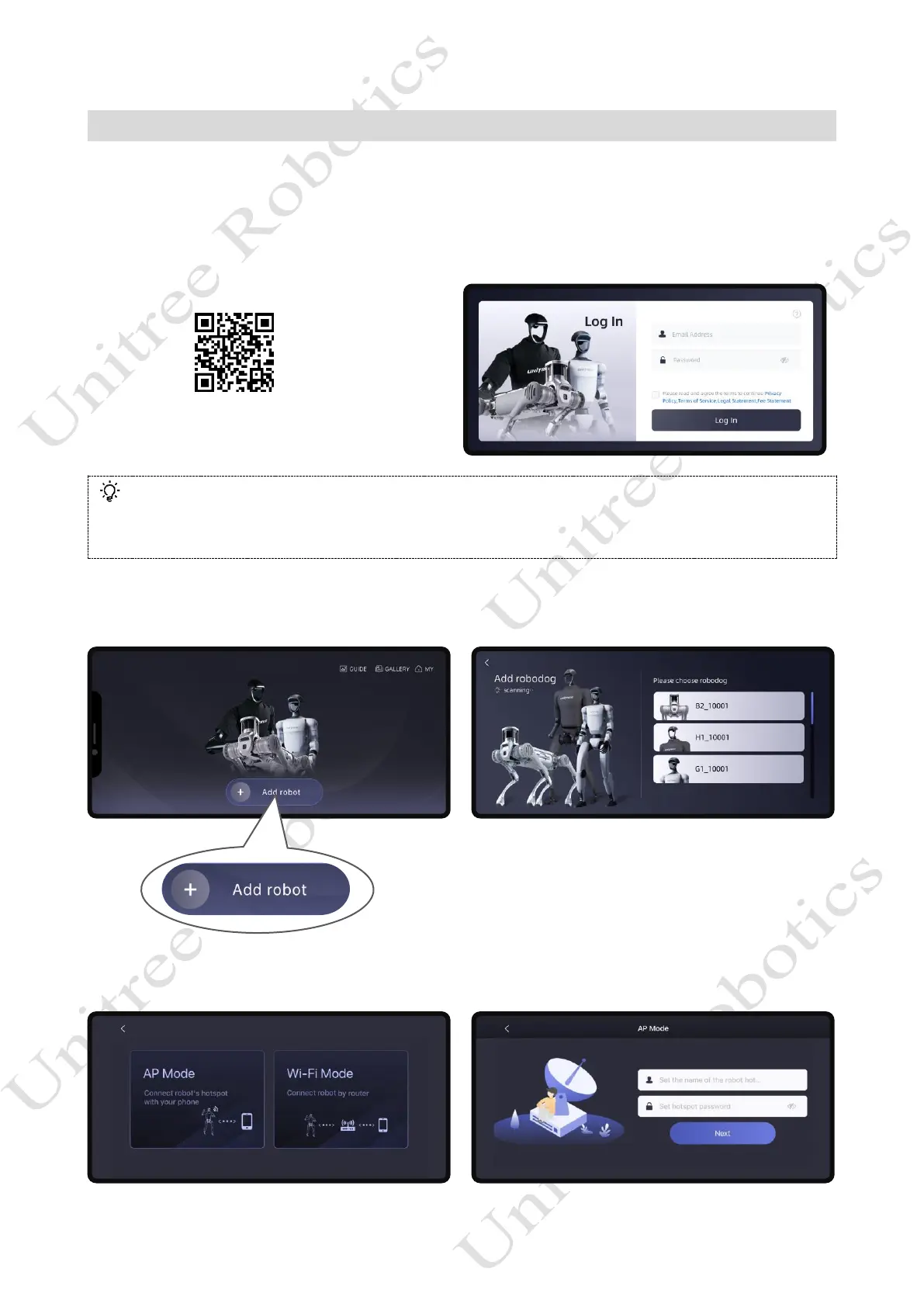
1) Download and install the Unitree Explore App, and log in with the enterprise account and password
provided by Unitree.
Unitree Explore App Download
⚫ If you don't have a business account, please contact Unitree Robotics's sales service personnel to open an
account! The Unitree Explore App is tailored for B2, H1, and G1 series robots, providing excellent control
experience and functional support!
2) After starting the G1 power, add the robot in the Unitree Explore App: Turn on the Bluetooth in the
phone system -> Click "Add Robot" on the homepage -> Select the device you want to add.
3) Binding G1: You can choose to connect in AP direct connection mode or Wi-Fi connection mode.
After successful connection, you can learn from the built-in tutorials to quickly master the control techniques.


 To Next Page