Operate your G1
1) Use the Unitree Explore App to inspect
After completing the built-in tutorial in the Unitree Explore App, you can use the app to connect the robot
to confirm the relevant status, such as motor information.
2) Use remote control to control
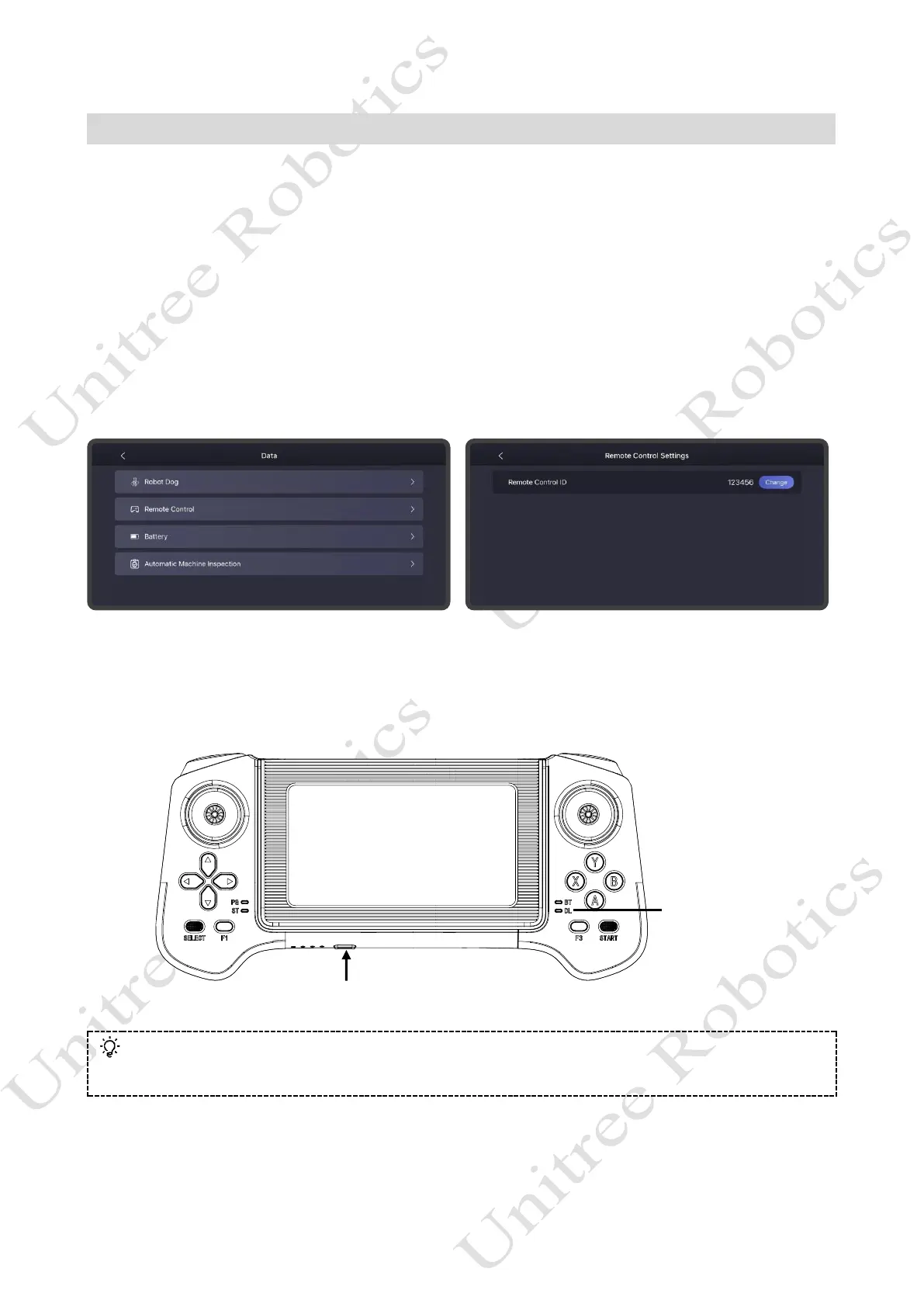
First, short press the power button on the remote control, then press and hold the power button for more
than 2 seconds. When you hear a "beep" sound, the remote control will be turned on.
To use the remote control for the first time, you need to bind it in the Unitree Explore App. Go to [Settings]
-> [Remote Control Settings], enter the corresponding remote control code to bind it with the data transmission
module on the robot. Click [Modify] to change the remote control for operation.
Once the remote control is powered on and successfully connected to G1, the right DL indicator light is
on, indicating that the remote control is connected to the G1's data transmission module. At this point, you can
use the instructions on the remote control to control the robot to complete the corresponding actions.
⚫ Please use the remote control commands affixed to the remote control or visit the Unitree Explore App to
access the remote control user manual.


 To Next Page