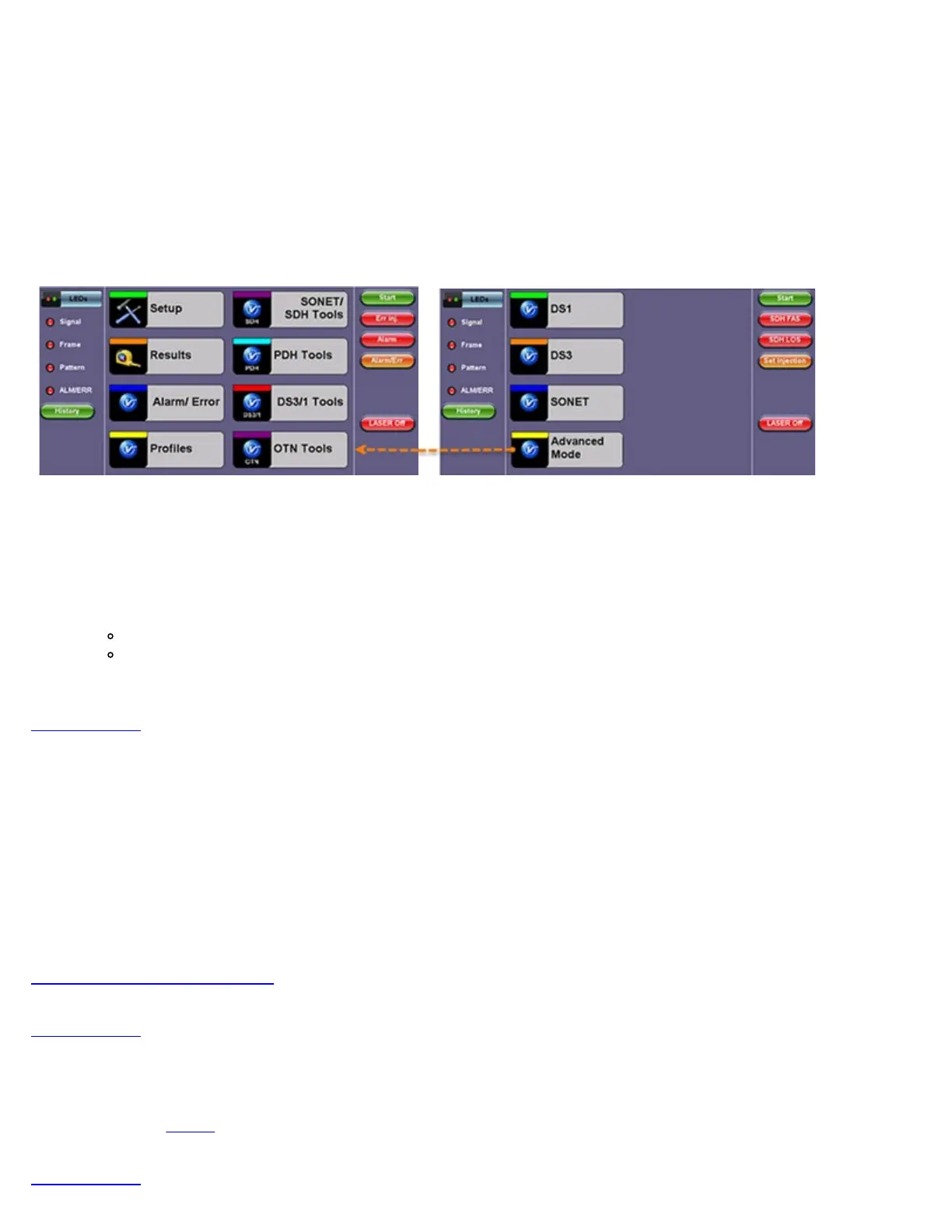
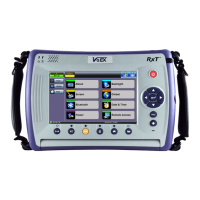
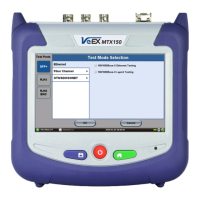
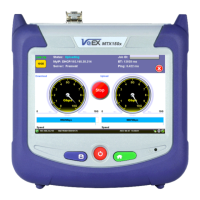
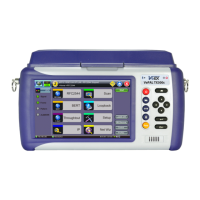
International user interface style USA Interface style
4.0 Getting Started - TX300s
4.1 Initial Settings
4.1.1 Change language and user interface style
Before using the platform, set the language and user interface style as needed. By default, the user interface style is set to USA if
the unit is shipped to North America and to International if the unit is shipped to outside North America.
To change the GUI language and user interface style
1. Tap Utilities, and then tap Settings.
2. Tap the Global option.
3. Select the language from the Language drop-down list box.
4. Select the user interface style from the User Interface drop-down list box.
International: Provides layer-based SDH/PDH configuration menus with access to detailed settings
USA: Provides simplified application-based SONET/DSn menu with more automation. The Advanced Mode option
displays the configuration menu for additional settings
Go back to TOC
4.1.2 Change the time zone and current time
To manually change the Date & Time
1. Tap Utilities, and then tap Settings.
2. Tap the Date & Time option.
3. Select the date and current time from the drop-down list boxes.
4. Tap Apply.
To synchronize the time to the GPS
The GPS receiver hardware option must be installed. For more information on the atomic clock and relative phase monitoring, see
5.1.12 High Precision Clock Source.
Go back to TOC
4.1.3 Change other settings
For more information on changing other global settings, such as units of measurement, profile and results save preferences,
password, etc., see
Utilities.
Go back to TOC
TX300s_Platform_Manual_RevB00


 To Next Page