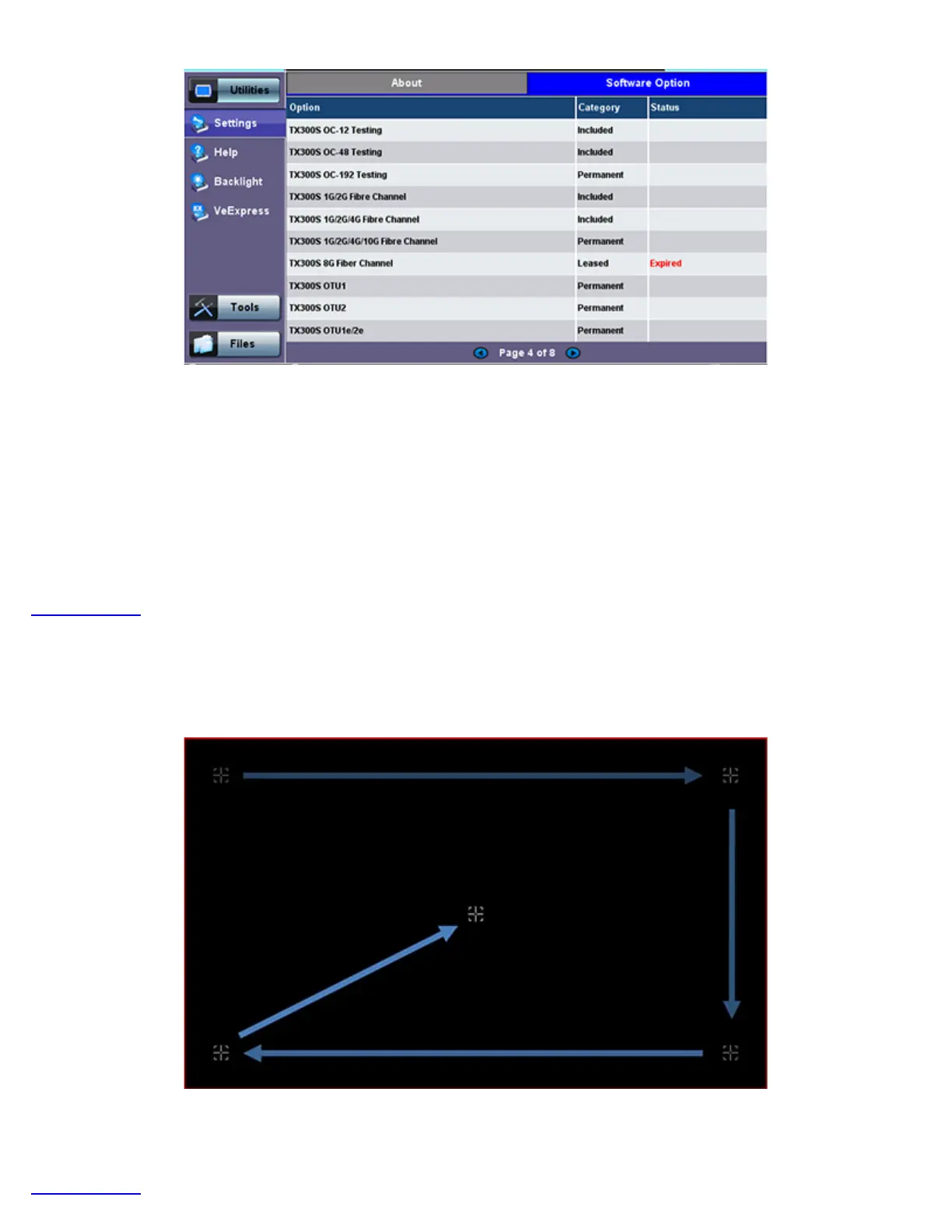
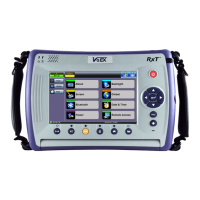
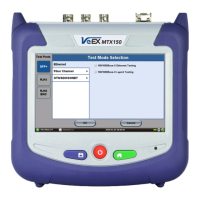
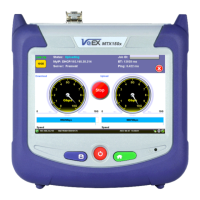
Utility Settings - About - Software Option
Activating New Licenses: Features and options marked as ‘Expired’ (not currently loaded into the test set) can be purchased at
any time and activated via VeExpress using an internet connection. Upon confirmation, connect the test set to the internet via LAN
or Wi-Fi, go to >Utilities >VeExpress and press the Check button. The test set will download all newly added features and options
from VeExpress servers and install them automatically.
If company policy doesn’t allow access to the public internet or the test sets are used within a secured network, users can request
License Keys for manual activation. License keys must be requested at the time new options are purchased. To activate new
features, tap on the expired item and enter the Activation Code that you received from VeEX, VeEX partner or your manager. Press
Activate to complete the licensing process. Each activation code is specific to a test set and a feature. If multiple features are
ordered you would receive individual activation codes for each of them. Manually activated features are specific to a test set and
can’t be shared with other test sets.
Go back to TOC
5.1.2 Screen Calibration
Go to this section to calibrate the touch screen.
Utility Settings - Screen Calibration
Follow the instructions and tap on the center of the five targets displayed at all four corners. A message displays when calibration is
complete. If the touch screen is miscalibrated by mistake, please use the cursor and enter keys to start the calibration feature and
repeat the procedure.
Go back to TOC
TX300s_Platform_Manual_RevB00


 To Next Page