Clear All: Deletes all the image files in the Captured Files list.
Delete: Deletes any selected files from the Captured Files list. Use the check-boxes to select.
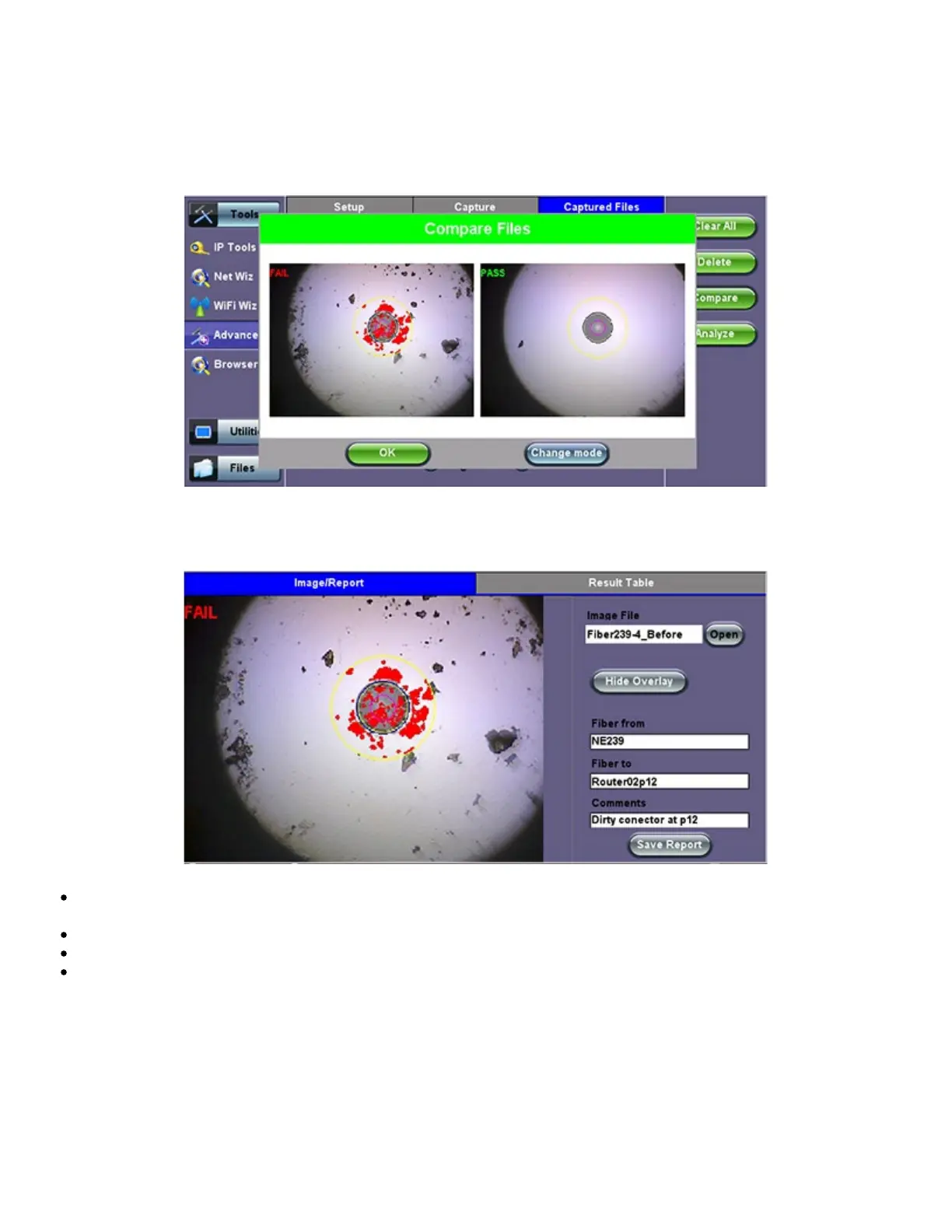
Compare: Compares two images, for example, ones taken before and after cleaning. Use the check-boxes to select any two image
files and then tap on the Compare soft button. Use the Change Mode button on the comparison window to enable and disable the
analysis overlay.
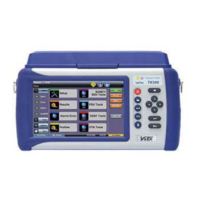
Analyze: This soft button opens a more detailed analysis and report generation. Use the check boxes to select the images to be
analyzed.
Image File: shows the name of the picture currently being displayed. Use the Open button to navigate, select and load any
other file.
Show/Hide Overlay: Enables or disables the mask, anomalies identification and analysis.
Finer From/To: User customizable labels to identify the fiber under test.
Save Report: Generates a full report including a table with measurements and images. Use the >Utilities >Files function to
View the report, export to PDF format and copy to USB.
TX300s_Platform_Manual_RevB00


 To Next Page