Settings 25
Wi-Fi Band Select
Wi-Fi uses unlicensed wireless spectrum that can be subject to
interference and degraded performance as the 2.4 GHz band
becomes saturated with Wi-Fi networks, Bluetooth, cordless
phones, microwaves and other wireless devices use those
frequencies. If your Wi-Fi client device(s) can take advantage of
5 GHz Wi-Fi networks, you may want to consider configuring the
Jetpack device to broadcast Wi-Fi on 5 GHz instead of at 2.4 GHz.
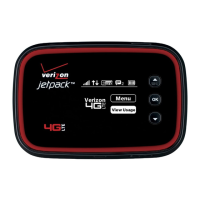
1. From the Home screen, select Menu and press .
2. Select Wi-Fi Settings > Wi-Fi Band Select and press .
3. You can change Wi-Fi band by selecting 2.4GHz or 5.0GHz
and pressing .
Note
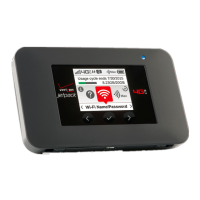
You can use only one Wi-Fi band at a time on the MHS291L.
Wi-Fi Network Mode
Some older Wi-Fi devices may experience connectivity issues with
Wi-Fi networks that broadcast multiple modes. If your Wi-Fi devices
are unable to connect to the Jetpack device’s Wi-Fi network, you
may want to change the Wi-Fi network technology used by your
Jetpack device to one that is supported by your Wi-Fi client device.
1. From the Home screen, select Menu and press .
2. Select Wi-Fi Settings > Wi-Fi Network Mode and press .
3. You can change Wi-Fi network mode by selecting
802.11b+802.11g+802.11n, 802.11b+802.11g, 802.11b
only, or 802.11g only, and pressing .


 To Next Page
 Loading...