EXS
User Manual 10H52260UM60 - Rev. 1 - 10/2017 41
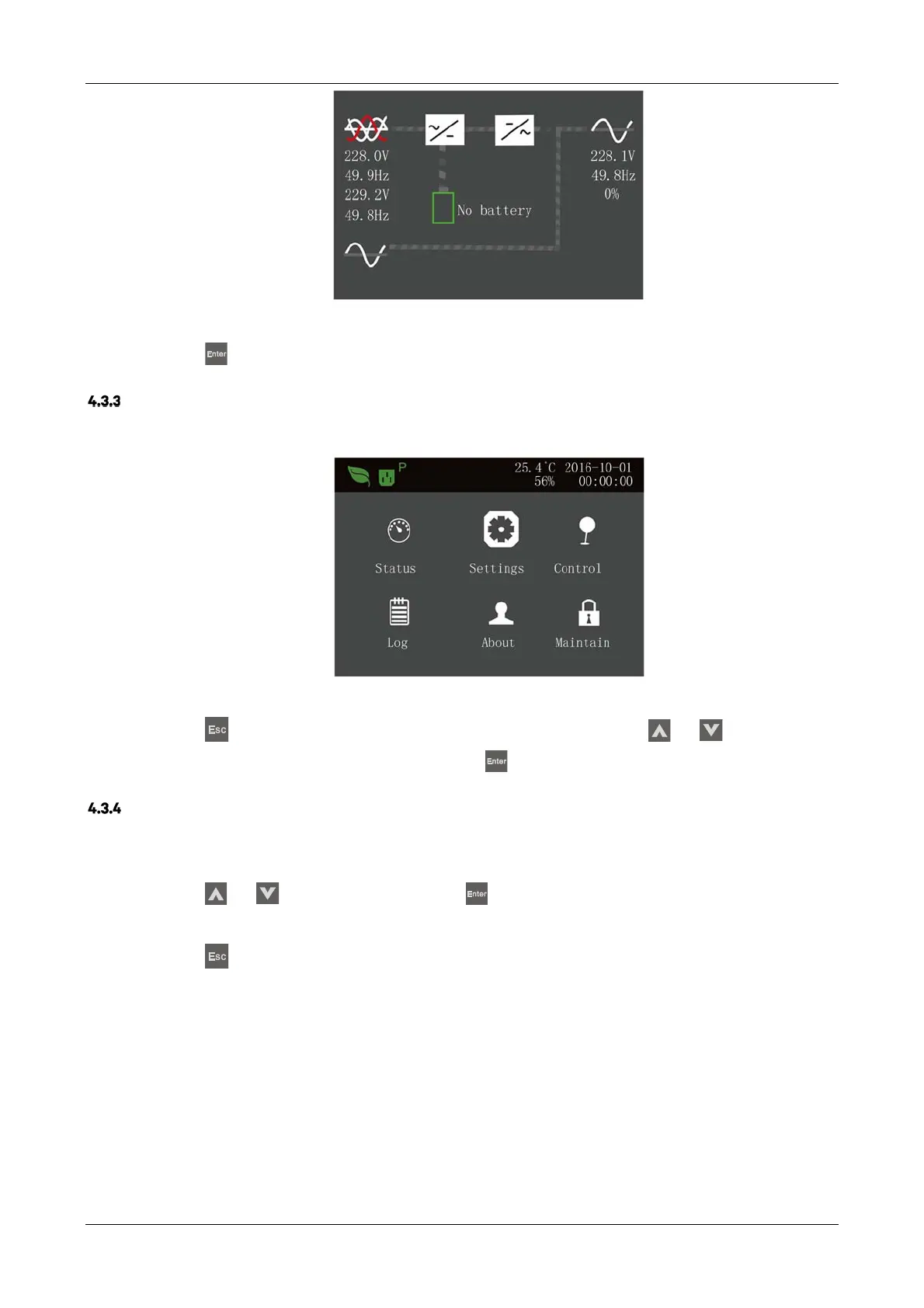
Figure 4-12 Flow screen
Press the
key on the flow page to access the primary screen.
Main Menu Screen
The main menu screen consists of six icons: Status, Settings, Control, Log, About, Maintain. As shown in Figure 4-13.
Figure 4-13 Main menu screen
Press the key on the main menu screen to return to the flow screen. Press the or key to move the
cursor and select the required sub-menu, then press the key to confirm it.
Sub-menu Screen
The sub-menu screen contains the UPS parameters and item settings.
After accessing the sub-menu screen, if there is a tab control, just move the cursor to the tab. At this point, you can
press the or key
to switch the tab. Press the
key to move the cursor to a specific item.
After accessing the sub-menu screen, if there is no tab control, the cursor will stop on a certain Item.
Press the
key to return to the previous screen.
For more details about the sub-menu screen, see following pages.
Status page
The Status page contains information about the Input, Bypass, Battery, Output and Load.
See below:



 To Next Page