4.4.1 Changing the password
The default password is 111111 (six ones). You must use the current password to change the password.
1. At the main menu, select the Settings icon, and press Enter.
2. At the password prompt, use the up arrow to select the first digit, press the down arrow to move to the next digit,
repeat for each digit, then press Enter to access the settings.
3. Use the arrow buttons to select the Monitor tab, then press Enter.
4. Use the down arrow to highlight Change Settings Password, press Enter, and re-enter the current password. The
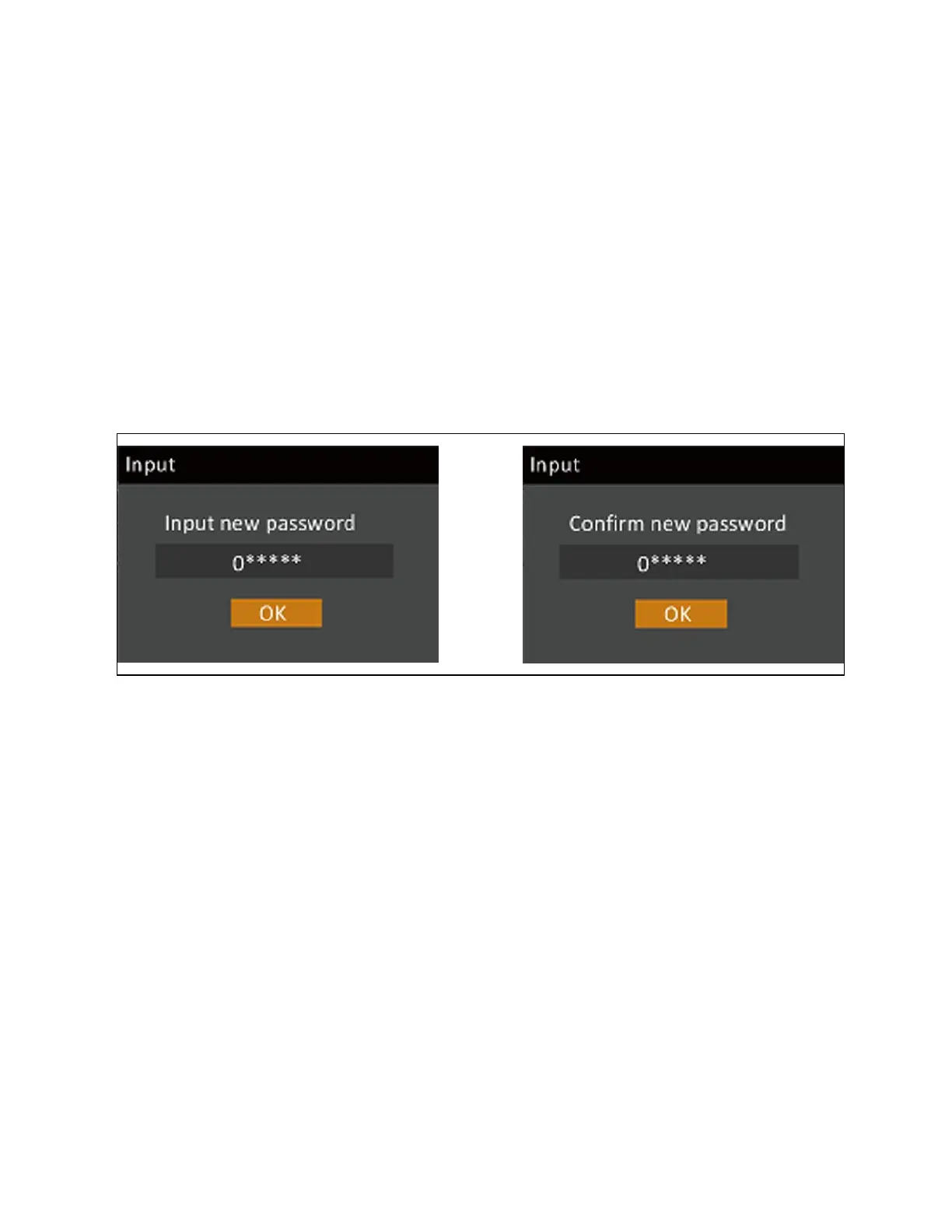
Input new password dialog opens, see Figure 4.12 below.
5. Enter the new password, then confirm the new password.
A confirmation dialog opens to indicate a successful password change.
6. Press ESC to return to the settings or main menu.
Figure 4.12 New and Confirm Password Dialogs
4.4.2 Selecting the display language
The LCD is multilingual. The available languages are English, French, Portuguese, Spanish, Chinese, Czech, Dutch, German,
Italian, Polish, Russian, Swedish, and Turkish.
To change the language:
1. At the main menu, select the settings icon, and press Enter.
2. At the password prompt, use the up arrow to select the first digit, press the down arrow to move to the next digit,
repeat for each digit, then press Enter to access the settings.
3. Use the arrow buttons to select the Monitor tab, then press Enter.
4. Use the down arrow to highlight Language, then press Enter.
5. Use the up/down arrows to select the language, then press Enter.
All the LCD elements display in the selected language.
4 Operation and Display Panel Proprietary and Confidential ©2023 Vertiv Group Corp. 39
Vertiv™ Liebert® EXS Installer/User Guide



 To Next Page