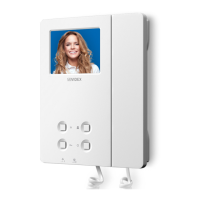
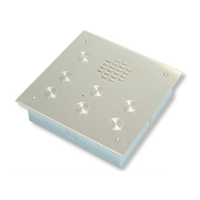
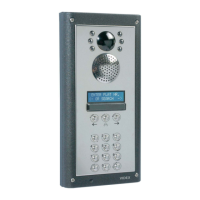
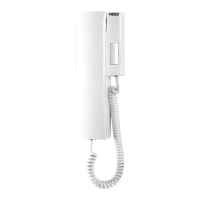
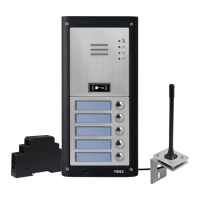
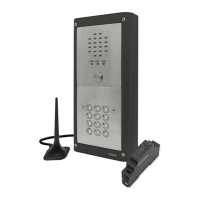
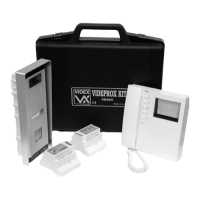
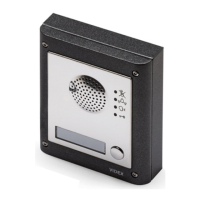
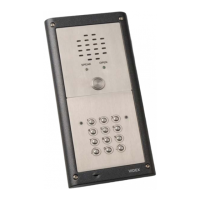
25H/SP/DDA/2W (1 way “2 wire” DDA audio intercom kit)
After a brief period the main programmer screen will appear.
If a device has been detected this will be shown at the bottom of the main programmer screen with a green
square (see below). On this screen several programming options can be selected.
The main programmer screen shows several menu options at the top (although several menu options are
shown at the top not all options will be applicable when using the UIM-138 display module) and two selectable
windows on the main screen; ‘settings’ and ‘apartments’. The default tab selected is the ‘settings’ tab and the
main display logo eld will already have ‘ENTER FLAT’ inserted into the eld and the speech playback eld
will already have ‘combined’ selected from the drop down menu (seen at the top of the settings window).
Under the ‘settings’ tab the following elds can be edited:
• Main Display Logo - the main logo text can be entered into each eld line. (The information entered into
these elds will be the main logo shown on the UIM-138 display).
• Switch Display Logo - the switch logo text can be entered into each eld line. (The information entered
into these elds will alternate between the main display logo, approximately every 5 seconds).
• Aux. 1, Aux. 2, Aux. 3, Aux. 4 and Aux 5 display text - additional text can be entered into each auxiliary
eld line. (The information entered into these elds will be shown on the UIM-138 display after the respective
auxiliary input I1, I2, I3, I4 or I5 has been triggered).
• Aux. Out Time - the auxiliary output time can be set (in seconds, from 1 to 99 seconds) in this eld.
Each heading on the left of the ‘settings’ window consists of two
editable eld lines with up to 16 characters each. To the right of each
eld line there is a ‘centre alignment’ button (as shown on the right)
which allows the text entered into the eld line to be centred when
shown on the UIM-138 display.
Settings
THE MAIN PROGRAMMER SCREEN


 To Next Page