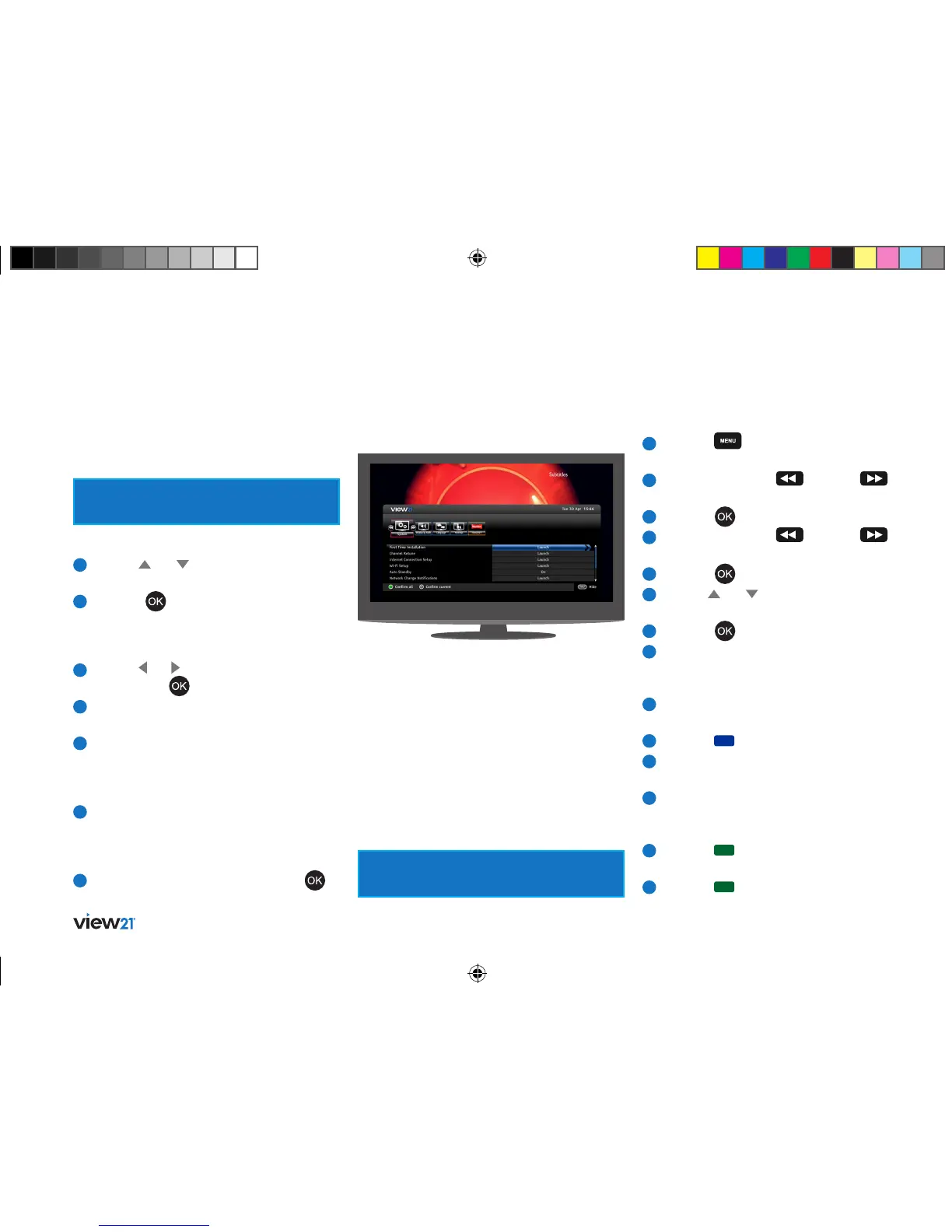
38 Settings menu
First Time Installation
This option allows you to perform a First Time
Installation re-run.
Channel retune
Launch this function when you want to scan for
channels at any time after First Time Installation,
for example if you have moved the View21 box
to another location where the channel frequencies
are different, or to another location in the same
region but with better reception.
System settings
Accepting the new scan will overwrite the
existing channel information.
Carry out a retune as follows.
1
Press the button to display the
Main Menu.
2
Repeatedly press the
button or
button to select ‘Settings’ in the bar.
3
Press the button.
4
Repeatedly press the
button or
button to select ‘System’ in the Settings bar.
5
Press the button.
6
Use the and buttons to select
‘Channel Retune’.
7
Press the button.
8
Enter your parental control PIN (if set) in the
‘Parental Control’ window that opens using
the numerical keys on the remote control.
9
The channel scanning window opens
displaying TV and Radio channel counters.
10
Press the (Start Scan) button to begin.
11
Scanning will start and the channel counter will
increase incrementally for each channel found.
12
The progress bar grows as the scanning proceeds
until finished (100%) and the total number of
TV and Radio channels is then displayed.
13
Press the button (View Channels) to see
the lists of channels found.
14
Press the button again to hide the lists.
Format hard disk drive
This lets you format the hard drive in the View21
box, deleting all data and recordings.
Formatting is permanent and cannot
be undone.
To format the drive:
1
Use the and buttons to select ‘Format
Hard Disk Drive’.
2
Press the button. The Format Hard Disk
Drive’ message box will be displayed informing
you that formatting the hard disk drive will
delete all recordings from the hard drive.
3
Use the and button to select No or Yes
and press the button.
4
If your reply at step 3 is No, the function
will be exited.
5
If your reply at step 3 is Yes, and the function in
the ‘Format Hard Drive’ option in the ‘Parental’
menu has been set to Yes then formatting
will begin.
6
If the ‘Format Hard Drive’ option in the
‘Parental’ menu has been set to ‘No’, then
the ‘Parental control’ message box now
will ask for the Parental PIN to be entered.
7
To proceed, enter the PIN and press the
button. Formatting will begin.
View21_VV107ZRH_HD Digital TV Recorder_UG_V3.indd 38 11/07/2013 15:40:16



 To Next Page