VIMTAG IP VT 361 SECURITY CAMERA
Page
15
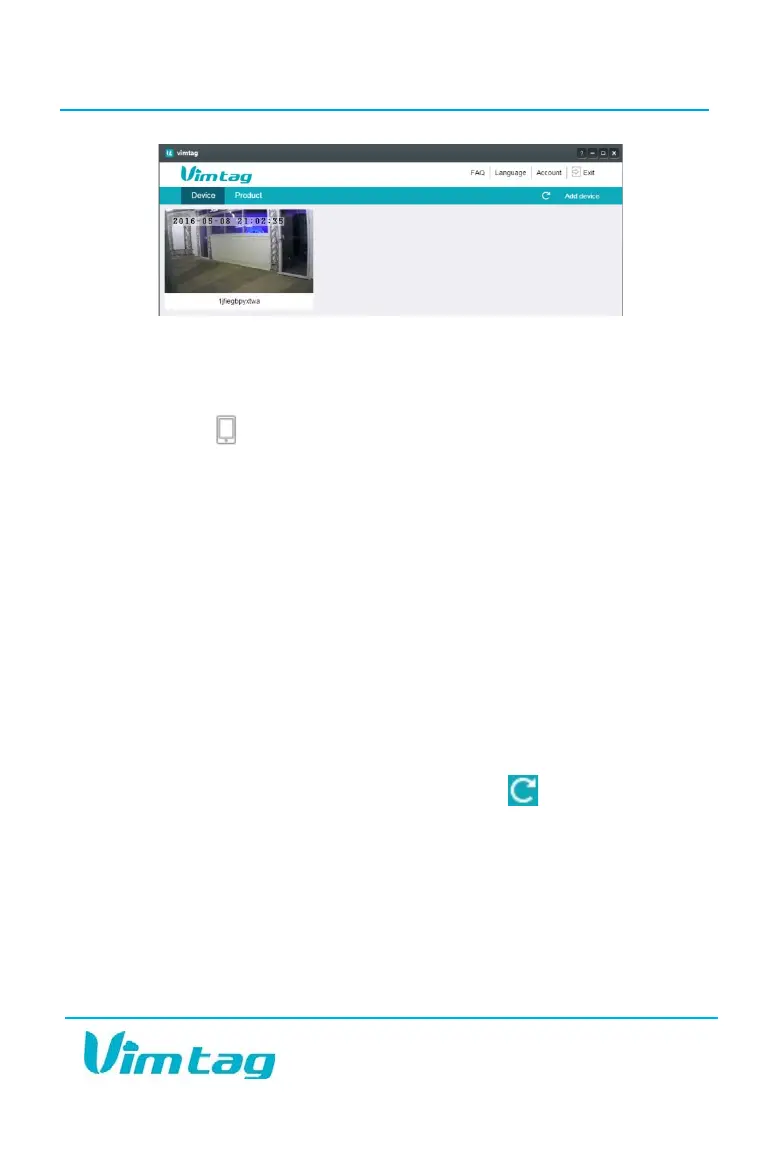
3. From the interface, you can use the APP Download option to open a
QR mobile barcode with a link to the appropriate mobile app. To
download the mobile app to your Android or iOS device:
a. Click APP Download to open the QR mobile barcode.
b. With your mobile device barcode scanner, scan the QR code to
initiate the Vimtag mobile app download.
c. Tap the copied link on your mobile device and complete the
download and installation as you normally do for trusted sources.
4. To get answers to Frequently Asked Questions and specific help, click
the FAQ tab. Frequently Asked Questions are organized into the
following categories:
• Connection
• Display
• Camera
• Password
• SD card
• Other
5. To refresh the device list, in the toolbar, click .
6. To change the language, in the top toolbar, click Language and select
a language from the drop-down list. The list of languages is not
repeated here as Vimtag continues to add supported languages.
7. To change your account settings and password, in the toolbar, click
Account.
8. In the new window, click Settings to open a page with the following
options:
• Software version


 To Next Page