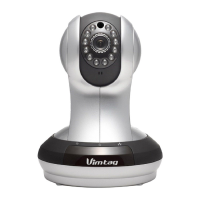
VIMTAG IP VT 361 SECURITY CAMERA
Page
17
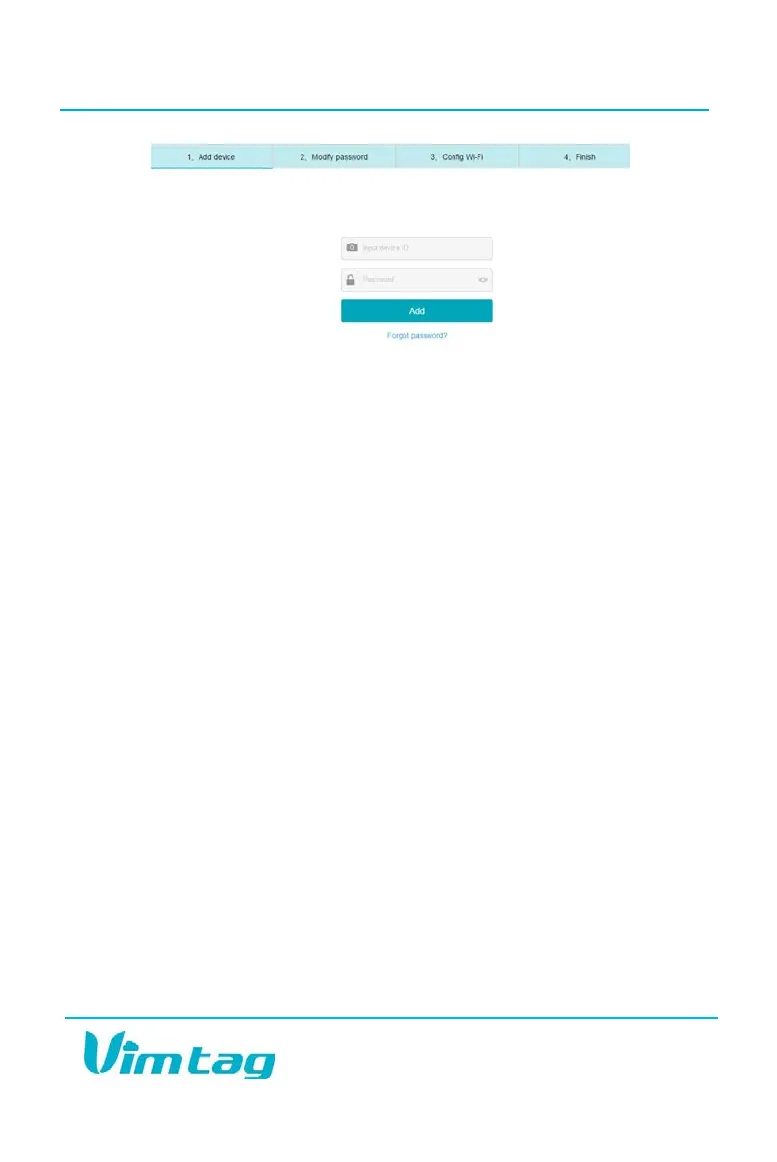
3. Enter the ID of the input device and a password for the device. For a
new device, the password is typically set to Admin initially.
4. Click Add.
5. To modify the password, click the Modify password tab. This will
enable you to change the password from its current default value to
one that you choose.
6. Click the Config Wi-Fi tab. The Config Wi-Fi window opens.
7. Complete the Wi-Fi settings.
8. Click Save.
9. Click the Finish tab.
The device should now be associated with your account. Each time you log
in to the application on a mobile device or a standard PC, you will be
prompted to enter your password.
Operating the Camera from the Web Application
The Web applications provide several icons that enable you to control the
camera and initiate actions such as recording a video, creating a snapshot,
etc. remotely.
To operate the camera:
1. Select the device you want to view from the dashboard by clicking the
image related to that device. The camera picture opens to almost the
full screen and the right panel shows the device list.
2. Use the following controls to operate the camera:


 To Next Page