VIMTAG IP VT 361 SECURITY CAMERA
Page
7
because the video will have a green dot located on the left side of the
image. If it is red, it means the camera is offline. Refer to the previous
chapter to learn how to troubleshoot an offline camera.
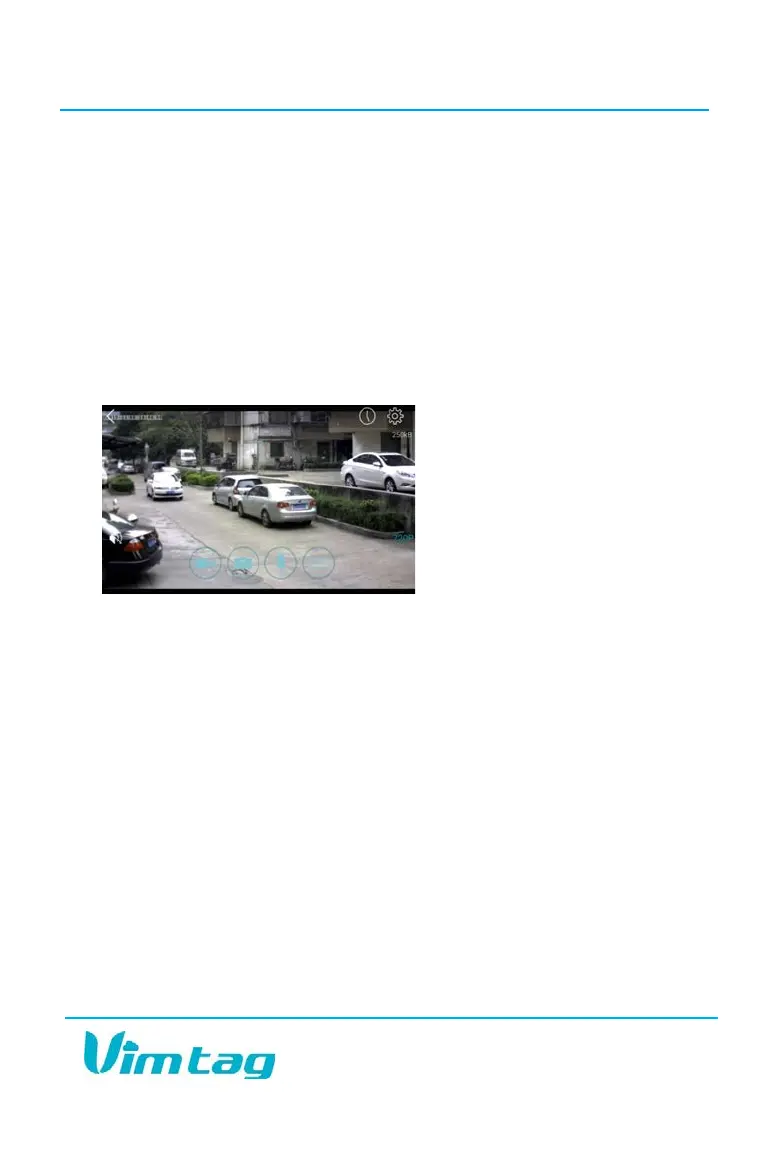
If you want to view the full screen, you can simply tap the camera. Once
you have the live view of the camera up, you can move the camera by
swiping right, left, up, and down with your finger. To zoom in, use two
fingers and spread them apart. To zoom out, do the opposite by pinching
your fingers together on the screen.
Working with the Mobile App
The controls are very similar from one device to the next. Like the iOS
device, the following icons are located at the top of the video image on the
screen:
• Sound/Speaker
• Call/Microphone
• Snapshot
• Record
• Gears (access to the Settings page)
When not in operation, the Sound icon, a speaker will have a line through
it. When you tap the icon, the line will disappear. Now, you can hear what
is happening in the camera’s room. If you want to speak through your
device and have your voice come out of the camera, tap the Microphone
icon. Start speaking when the line disappears.


 To Next Page