VIMTAG IP VT 361 SECURITY CAMERA
Page
22
The Playback Page
If you do not have an SD card in your camera, the
Playback page will be a blank screen. If you do have
an SD card in your camera and you capture videos,
you will see a list of videos on the right side of this
screen. Every video will have a timestamp indicating
when it was captured.
To watch a video, click the video image in the list and
then click the play button. To view the length of a
video, click the icon next to the video name.
If you are recording a video at the time you go to the
Playback page, it will be the first video on the playback
page. You will not be able to watch this video, as it is
still in the process of recording. Wait until it is finished
recording, and then you will be able to play the
recording. The videos are recorded in 30-minute
segments, so you will never have a video longer than
30 minutes.
On an iOS device, a list of all videos will appear. To
start a video, click it.
The Records Page
On the Records page, you will find all of your snapshot
images, as well as records of your videos. However, even though you may
see a still image from the video on the Records page, you will need to go
to the Playback page to watch the video.
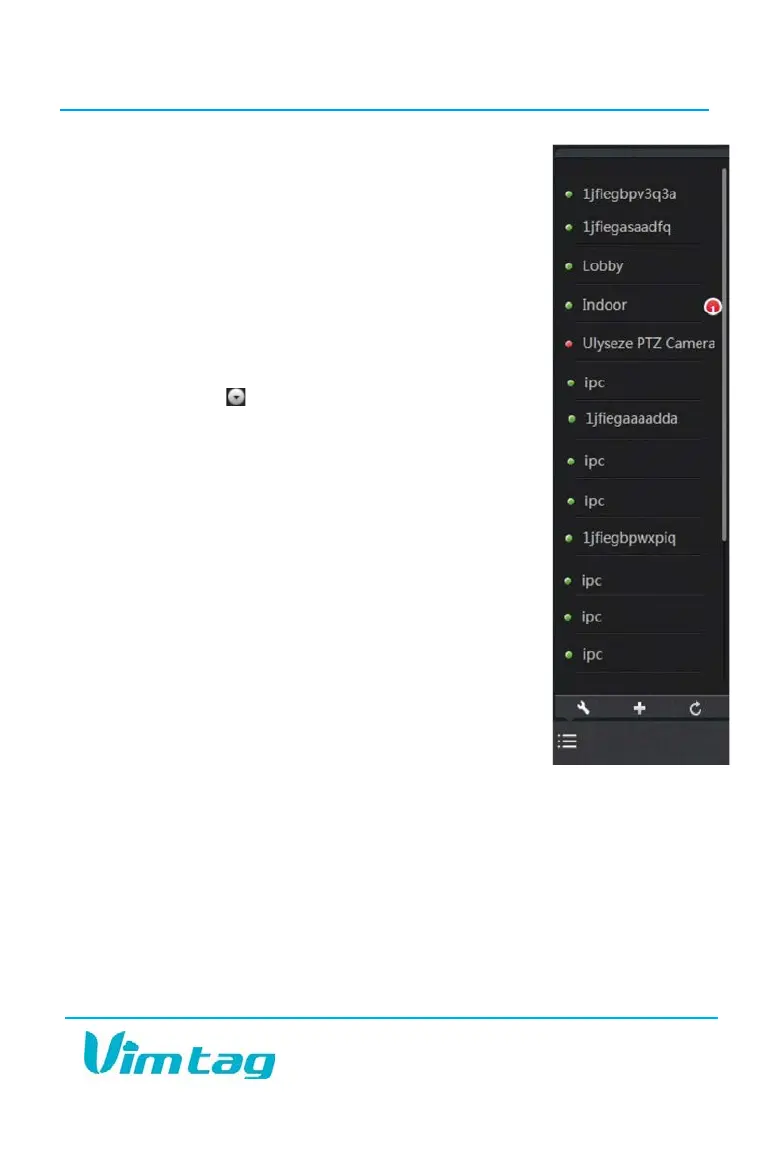
If you have multiple cameras set up on your account, you can switch
between them on the left side of the screen with a click. Doing so will bring
up photos that you have taken with that camera.


 To Next Page