53
ВАРШ.201219.009РЭ
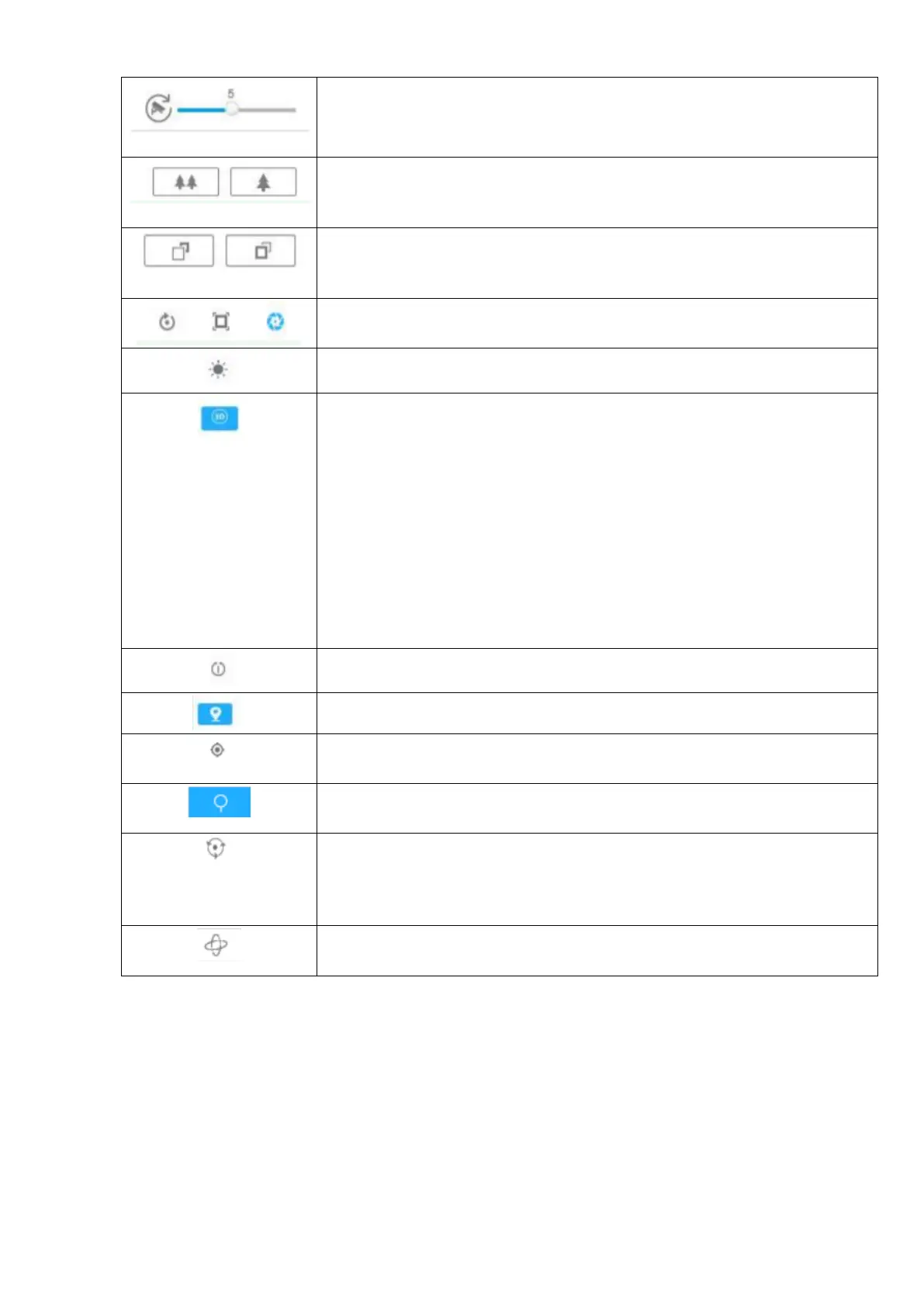
To select camera rotation speed from 1 to 10
Auxiliary Focus and Lens Initialization, automatic iris control
Turn on / off the flashlight
3D positioning function:
Left-click on the image, the corresponding position will be moved to the
center of the image.
Hold down the left mouse button and drag the mouse to the lower right
or upper right corner of the image, you can see a blue rectangle. The cor-
responding position will be moved to the center of the image and en-
larged.
Hold down the left mouse button and drag the mouse to the lower left or
upper left corner, you can see a blue rectangle. The corresponding posi-
tion will be moved to the center of the image and enlarged.
The larger the rectangle, the smaller the increase / decrease
Turn on the tracking. The auto return point will be the currently displayed
image.
Preset. This is the predefined position of the image. You can press the call
button from the preset list to quickly jump to the desired image position.
Patrol. It is a memorable series of preset functions. It can be configured
and recalled in the patrol settings list. You can configure up to 8 patrols,
and each patrol can be configured with 48 presets. Before configuring a
patrol, make sure to set the presets you want to add to the patrol.
Pattern. It is a memorized series of pan, tilt, zoom and preset functions. It
can be called in the template settings interface.
B.2.2 Playback
The Playback tab contains buttons for moving to the choice of stream, transmission protocol
and video quality.



 To Next Page