Introduction 11
111.5U6.N31.23
Browsing lists and selecting items
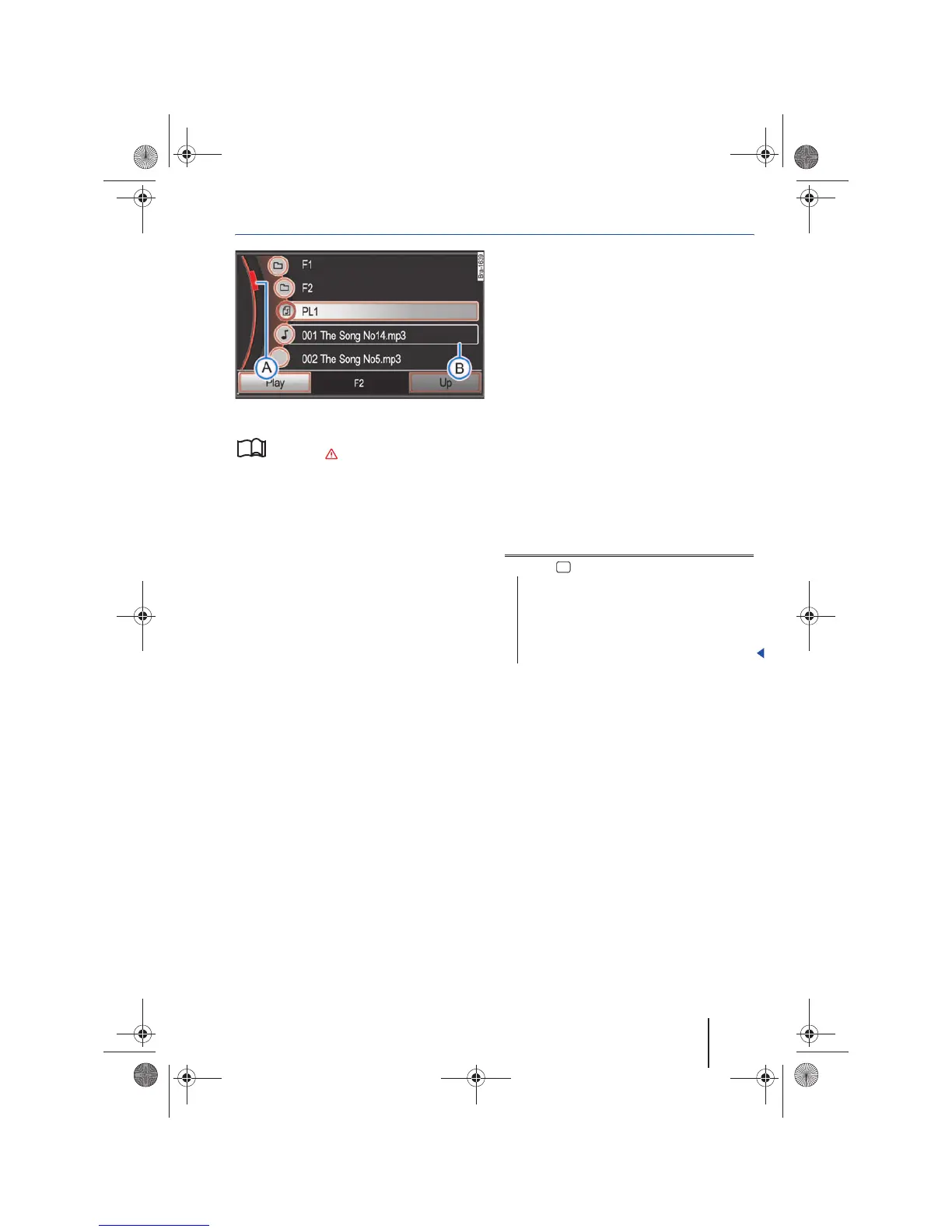
Fig. 3 Track list of an MP3 CD.
Please first read and observe the safety in-
structions on page 3 and the introduc-
tory information on page 8.
Available stations and selectable tracks are dis-
played as items in lists. The current station or track
is highlighted ⇒ fig. 3.
List items are accessed by pressing, the same way
as function buttons.
Tagging and accessing list items (tuning knob)
• Select list items: Move the selecting frame using
the tuning knob ⇒ page 6, fig. 1 .
When the selection frame is moved to the end of
the displayed list segments, the next items will be
displayed.
• Launch marked list items: Press the tuning
knob.
Rapid list browsing (scroll marker)
If more items are selectable than can be displayed,
a “scroll bar” is shown on the left side of the screen.
The colored semi-circle indicates the scope of the
complete list and the “scroll marker” ⇒ fig. 3
indicates the position of the displayed list seg-
ments. The size of the scroll marker corresponds to
the size of the displayed list segment proportional
to the complete list. The smaller the scroll marker,
the longer the list.
• Browse long lists page-by-page: Press the screen
briefly above or below the scroll marker.
• Browse long lists quickly: Manually move the
scroll marker. To do this, place a finger on the scroll
marker and move downward over the screen
without removing it. When the desired position is
reached, lift the finger from the screen.
Closing lists and sub-menus


 To Next Page