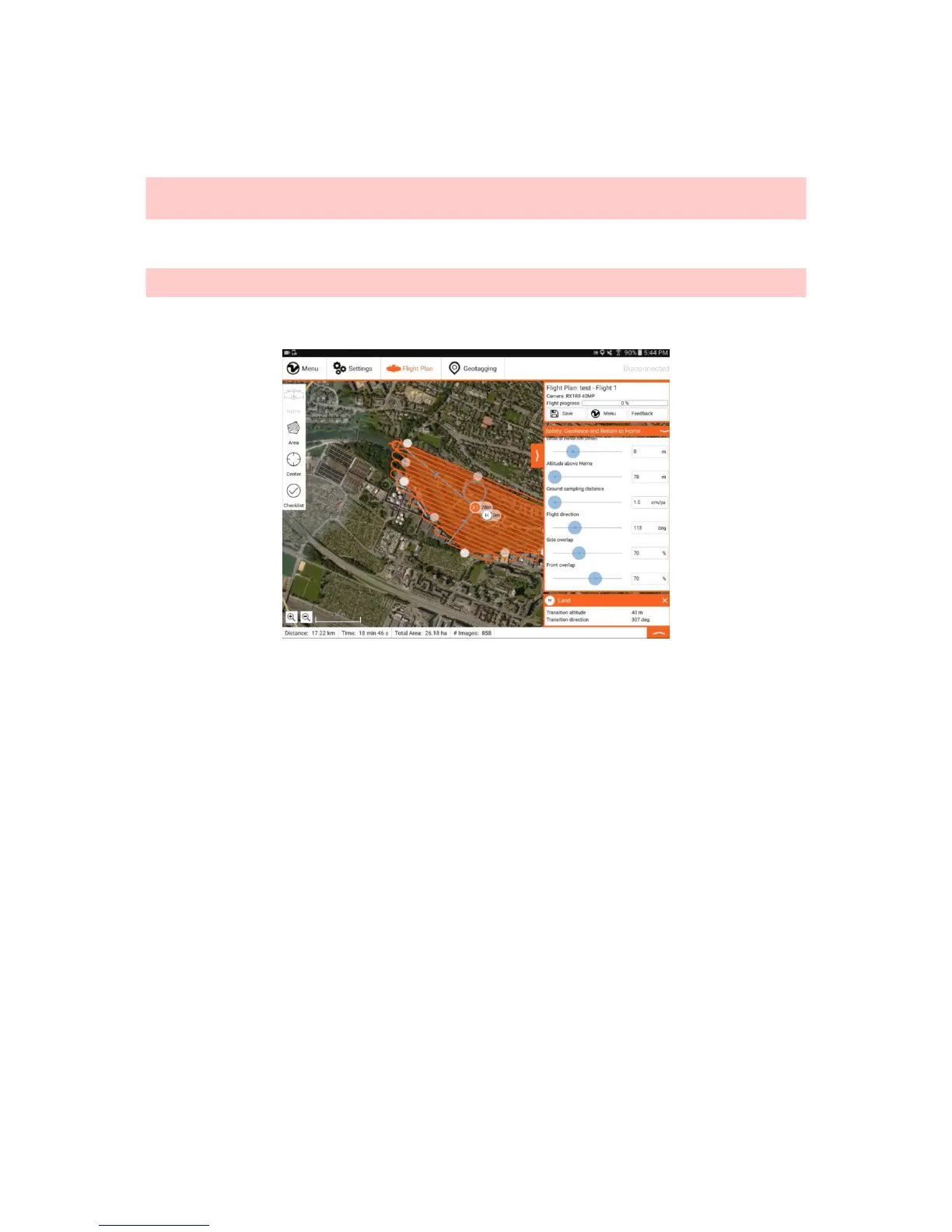
Step 3: (Optional) Adjust Geofence and Minimum RTH Altitude
You can adjust the geofence, which is the maximum allowed distance from Home, by clicking on the respective menu on the right side (B). Click on the triangle to unfold
the menu. By default, horizontal geofence is set to 1200m and vertical geofence is set to 400m. This maximum allowable distance can be increased to satisfy the needs
for special mission planning purpose.
Caution: Increasing the geofence size allows to operate the WingtraOne beyond visual line of sight (BVLOS). Make sure before changing the geofence limits that
WingtraOne is operated within the local legal boundaries for drone operation. If the flight exceeds 3km horizontal or 800m vertical distance from Home, successful RTH on
low battery can not be guaranteed and requires expert planning.
You can also adjust the minimum RTH altitude to another value than 60m. In case RTH is engaged in cruise and WingtraOne flies below the specified altitude, it will first
climb to this altitude before flying back to the loiter circle and performing the planned landing. In case WingtraOne is higher than the value set here, it will return to loiter
circle on current altitude before performing the planned landing.
Caution: The safety settings are not saved with the Flight Plan. If WingtraPilot is restarted, they will be reset to the default value. Make sure to check the safety
parameters again before uploading the Flight Plan to WingtraOne.
Example Flight Planning
Flight Planning on the Field
As flight planning with WingtraPilot is very easy, we recommend planning easy flights directly on the field. If planning is performed on the field, it is recommended to set up
equipment (power on WingtraOne → connect telemetry → start WingtraPilot) before planning the flight. Make sure you have internet access on the field or download
offline maps before going to the field.
Change WingtraPilot Settings
The flight planning interface can be adapted to your usage by changing several parameters in the General Settings tab. The desired base map can be changed by
choosing the provider (Google, Bing) and the map type (Street, Satellite, Terrain). Furthermore, you can select the units (metric, imperial) and the language (English,
Chinese). At the moment, only a Chinese translation of the welcome menu and the preflight checklist is available.



 To Next Page